
Advertising on the Smarty platform currently consists of pre-roll interactive content and banner ads.
Prerolls
Advertising entities
Commercial — a video file that will be played as a preroll in the operator service.
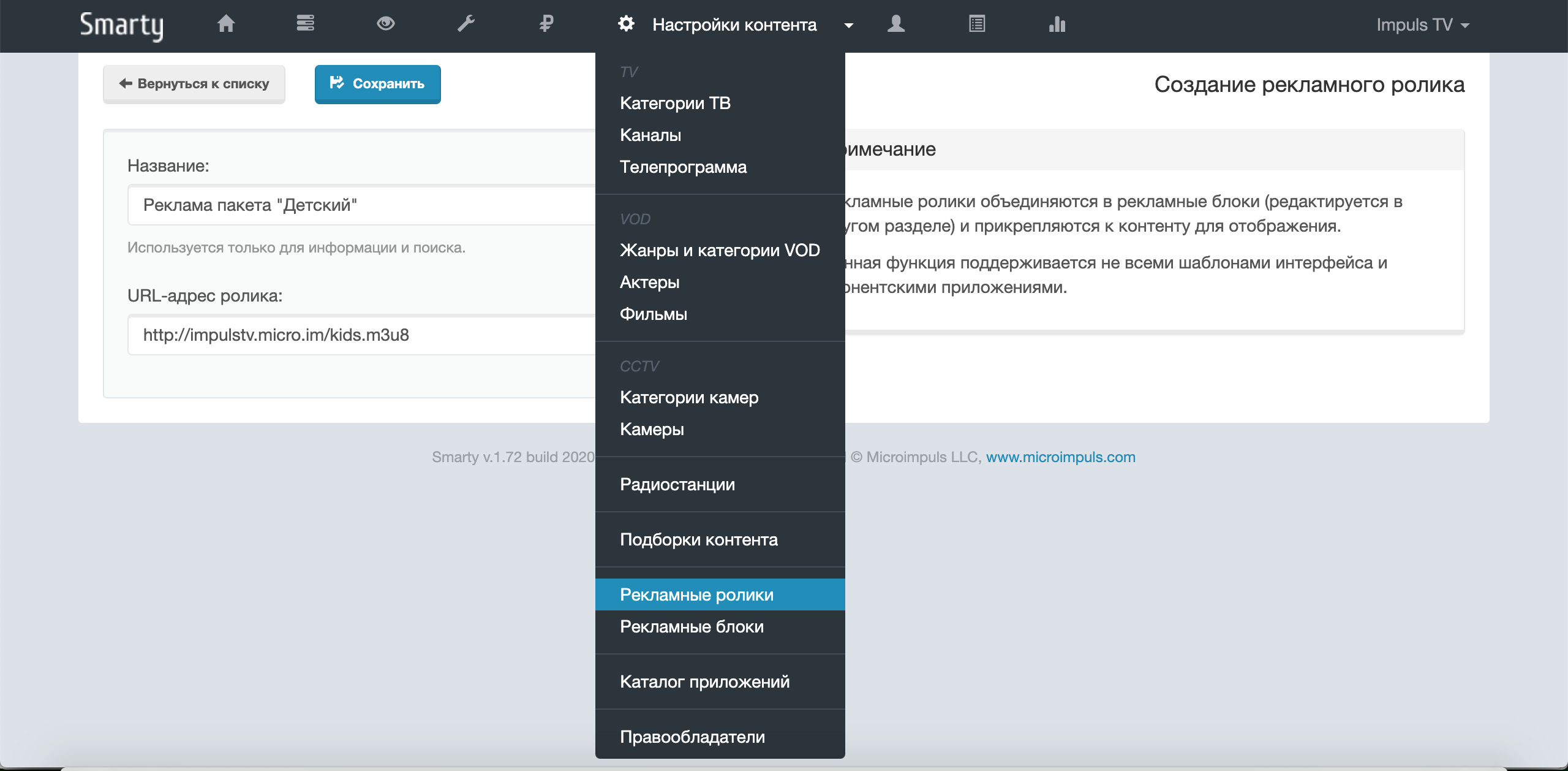
Advertising block — a set of configuration parameters for the display of commercials.
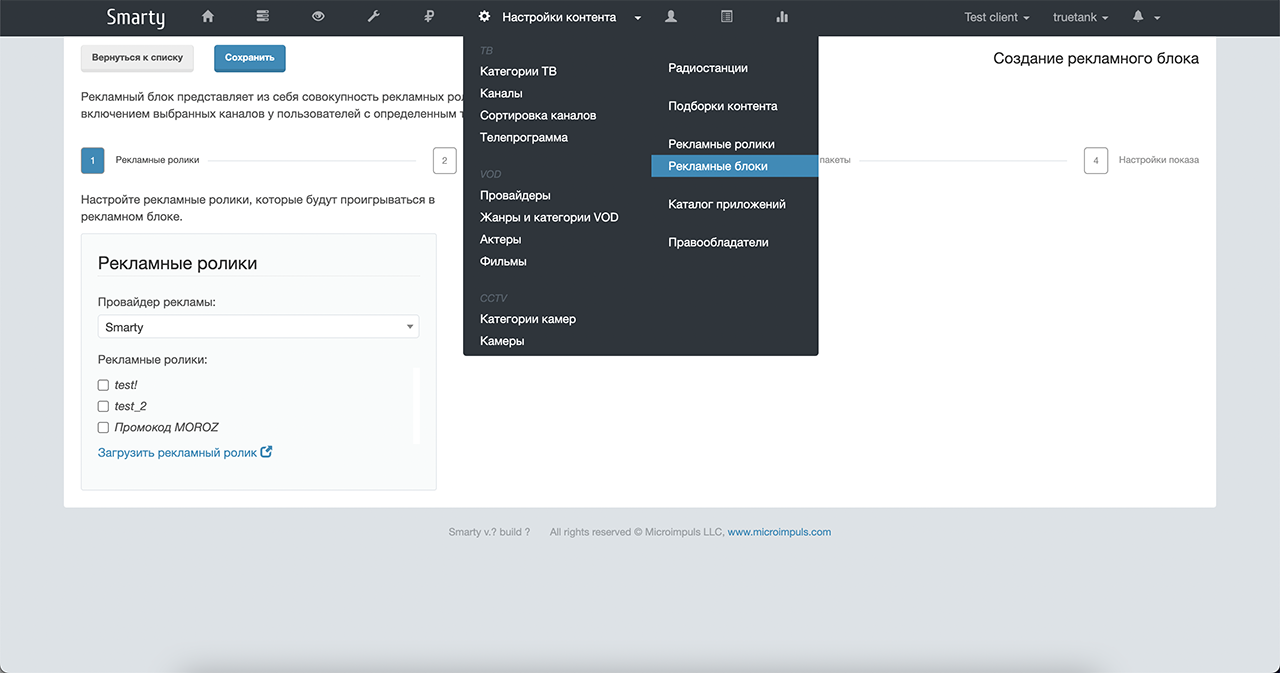
Advertising provider &# 8212; an external system for providing commercials, independently determining the queue and frequency of commercials for certain channels.
How to set up advertising
Advertising can be enabled using the option: TVMIDDLEWARE_ADS_ENABLED. You can also additionally configure the time interval of the frequency of the display of the advertising block with the option ADS_BLOCK_FREQUENCY_INTERVAL (Tab «Show settings», field «Maximum block display frequency for one account»). The value is specified in seconds and by default has a value 3600 (1 hour).
The maximum number of returned advertising blocks depends on the value of the option ADS_BLOCK_MAX_AMOUNT by default 5). When using a restriction, you need to take into account the priority of advertising blocks, since at the beginning of the list there will always be blocks with the highest priority for display.
Options are connected in the Smarty configuration file (default path) /etc/microimpuls/smarty/smarty.py, more about the options in the section «Configuration and maintenance Smarty» — «System settings». After that, you need to restart the Smarty team service uwsgi restart.
Warehouse of the history of watching commercials
Starting with the version Smarty 1.94 the number of views of ad units is stored in a redis cache (previously this information was stored in MongoDB). In connection with this change, it became possible to clear the history of viewing advertising videos with the help of a service team:
smarty_manage clean_old_adsyou can also use a team
smarty_manage flushallBut in this case, in order to avoid inadvertent cleaning of this information, it is recommended to add the configuration of the protected cache & # 8212; if there is no array in the configuration file CACHESthis item can be skipped, otherwise it is worth checking whether it contains configuration parameters for the parameter "protected.". Configured by analogy with "default" (the address must be different), for example:
CACHES = {
"default":
"Backend": "core.cache.backends.RedisCache,"
“LOCATION”: “redis:// 127.0.0.1:6379/1),
"OPTIONS":
'Pickle_VERSION': 2
}
}
"protected":
"Backend": "core.cache.backends.RedisCache,"
“LOCATION”: “redis:// 127.0.0.1:6379/2),
"OPTIONS":
'Pickle_VERSION': 2
}
}
}
The browsing records will be stored primarily in the protected part of the cache, in order to avoid accidental removal.
Internal advertising
1. Create commercials that need to be shown to subscribers.
2. Create an advertising block by setting the following parameters for it:
- the days of the week and the time of day in which you need to show the videos;
- the number of impressions of the advertising block per day per subscriber;
- note the channels for which prerolls are to be launched;
- note the tariff packages that must be connected to the subscriber in order to display the rollers;
- tariff packages, the presence of which the subscriber excludes the display of advertising for him.
- choose the type of advertising provider «Smarty» and mark the commercials included in this ad unit.
Advertising from an external AdStream provider
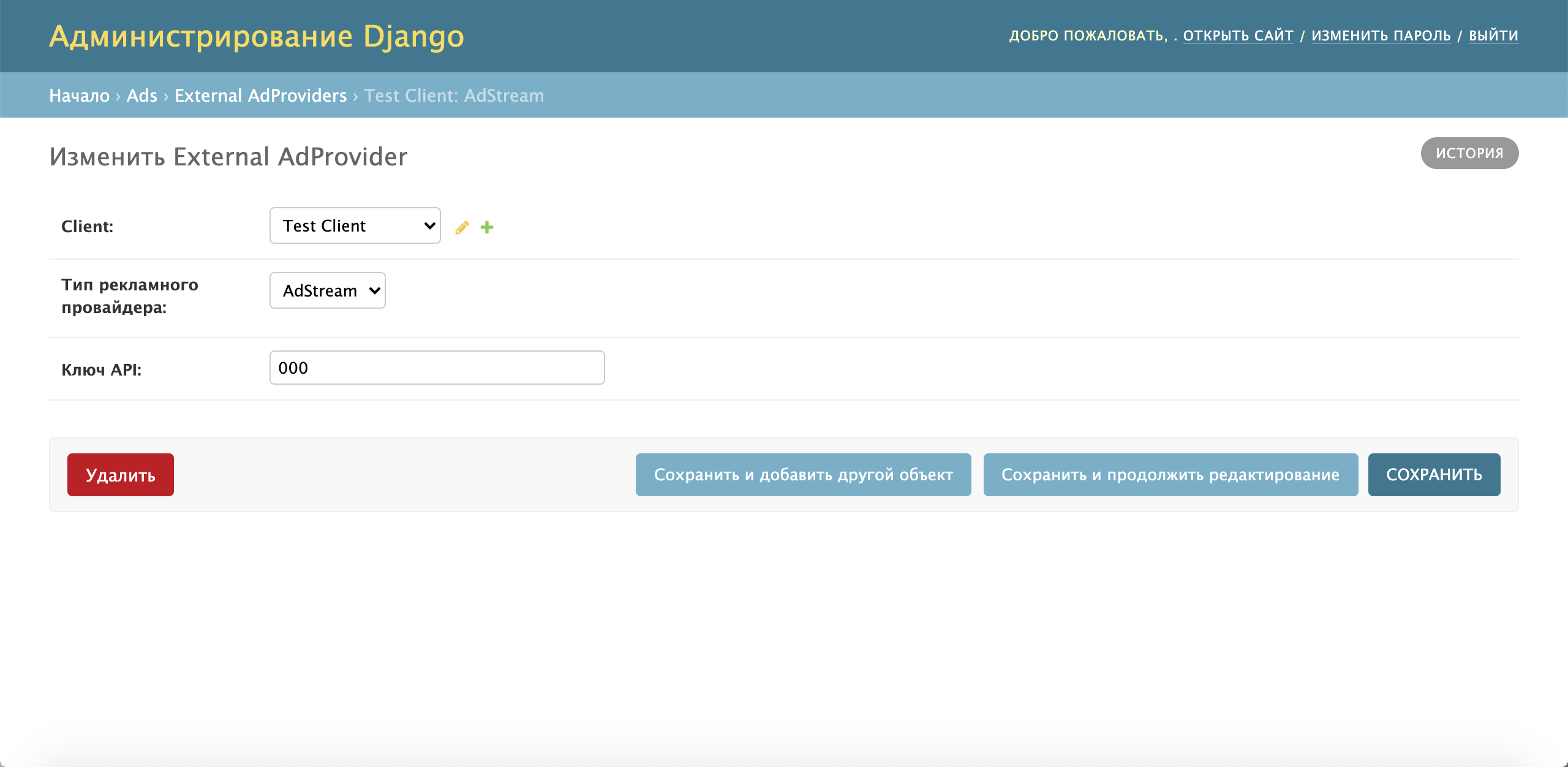
1. Create an advertising provider object using the External Ad Provider object in the administration service panel (key is requested from an external provider):
2. Create an ad unit on the same principle as for internal advertising, but choosing the created advertising provider.
3. Prescribe a host for caching commercials using the option ADS_ADSTREAM_HOST_REPLACE.
Advertising from external provider Qvol
1. Create an advertising provider object using the External Ad Provider object in the administration service panel (the API domain is requested from the advertising provider or manager from Microimpuls).
2. Create an ad unit on the same principle as for internal advertising, but choosing the created advertising provider.
3. Set up the option ADS_EPG_USE_CATEGORIES_AS_GENRES to indicate what to send to the provider about the current transfer: genre or category.
4. Prescribe a host for caching commercials using the option ADS_QVOL_HOST_REPLACE (if necessary, the videos can also be broadcast directly from the provider).
Banner advertisements
Conceptually advertising banners — this is a mechanism for displaying advertising images with text and a transition to action button that can be targeted to a particular audience within the subscriber base.
Adjustment in Admin panel
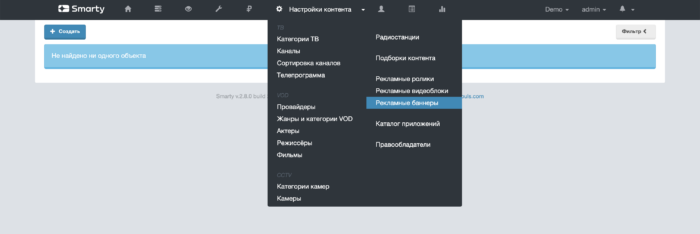
Advertising banners are configured in the administration panel in the section «Content settings» -> «Advertising banners».
Banner
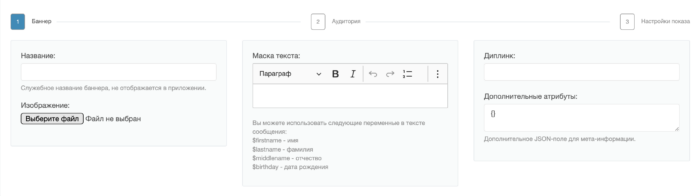
- Name (mandatory) — service field, not shown to the subscriber.
- Image — image file for banner advertising.
- Text mask — a message that will be shown along with the banner ad (location depending on the interface). The message can be targeted by variables.
- Diplinck — action for the button located on the advertising banner (the availability of such depends on the interface).
- Additional attributes — optional option to set additional fields to banner ads (depending on the interface).
Audience
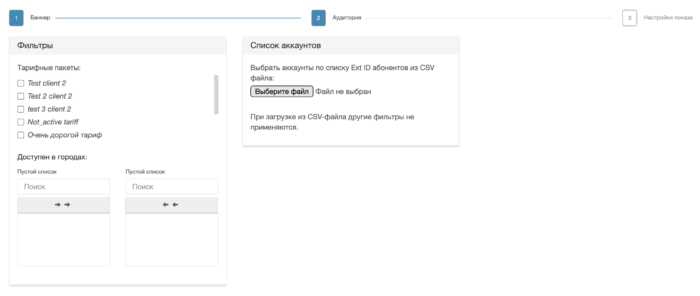
Filters:
- Tariff packages — if you note the tariffs, the banner will be shown only to those subscribers who have at least one of the marked tariffs connected. If no tariff is marked, the tariff filter will be ignored.
- Available in cities — filter by geolocation subscriber. If no city is listed, the city filter will be ignored.
List of accounts (priority than filters):
In the subsection « List of accounts » you can download a CSV file with the Ext ID of subscribers, who will be shown an advertising banner. File format:
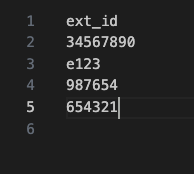
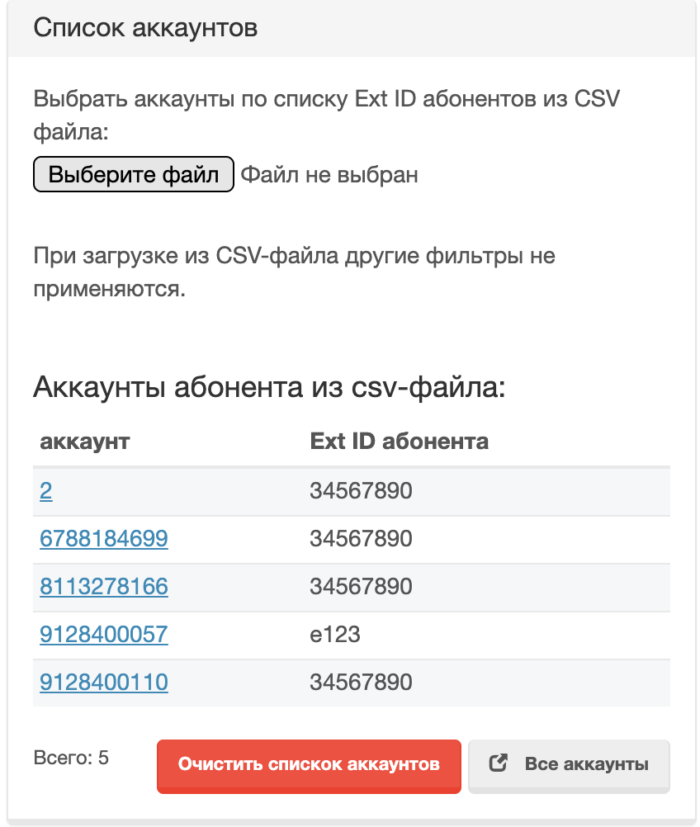
If the subscriber has several accounts, the banner will be shown to all subscriber accounts. Non-existent Ext ID subscribers will be ignored. After downloading the CSV file and saving the advertising banner, a table with a list of accounts will be displayed in the block:
Display settings
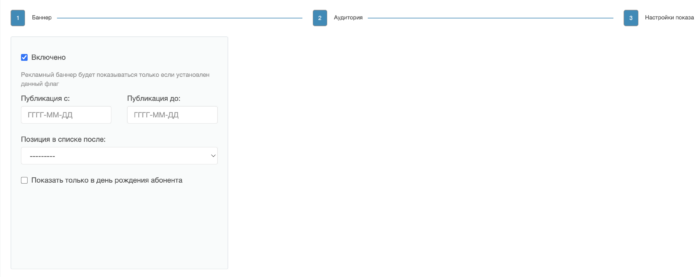
- Included — the banner will only be displayed if the flag is installed.
- Publication c/do (mandatory) — the period in which the advertising banner will be displayed. The period includes those dates.
- The position in the list after — determines the order (priority) of the advertising banner.
- Show only on the birthday of the subscriber — if specified, the banner advertising will be shown to the subscriber on his birthday (subject to the option)
ADS_TARGET_BANNER_BIRTHDAY_OFFSETand fields «Publishing from/to»
Configuration options
ADS_TARGET_BANNER_BIRTHDAY_OFFSET=[2,2] #list with the number of days before and after your birthday when your birthday banners will be available. Format: [ days_before, days_after]. For example:[2,2] means that the banner will be displayed within 2 days before the birthday of the subscriber and 2 days after.

ADS_TARGET_BANNER_MAX_HEIGHT = 720 # maximum banner height.
ADS_TARGET_BANNER_MAX_WIDTH = 1280 # maximum banner width. If the image exceeds the specified parameters, the image will be reduced to the maximum parameters.

TVMW_TARGET_BANNER_BIRTHDAY_FORMAT = '%d %m%Y' # date of birth format in the response of the TVMW API of the AccountTargetBannerList method in the message field.
Implementation in interfaces
At the moment, banner support is implemented only in the template Sibseti — the banner is displayed as the background of the main screen when the option is displayed show_target_banner.
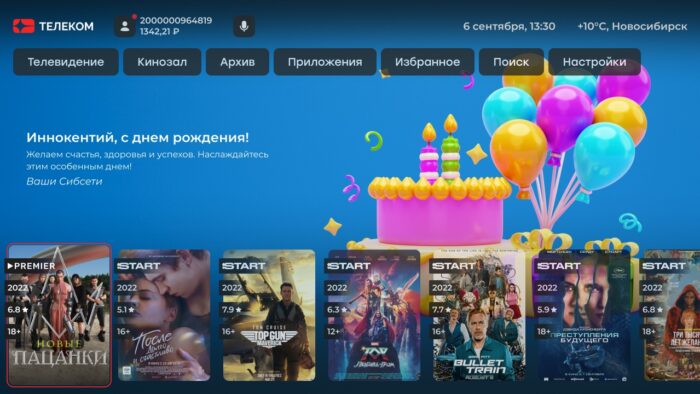
Updating the banner is performed every 12 hours.If the banner for some reason is not available, then a standard mechanism is used to determine the background of the main screen with a banner of a movie or image from the option main_screen_banner.
