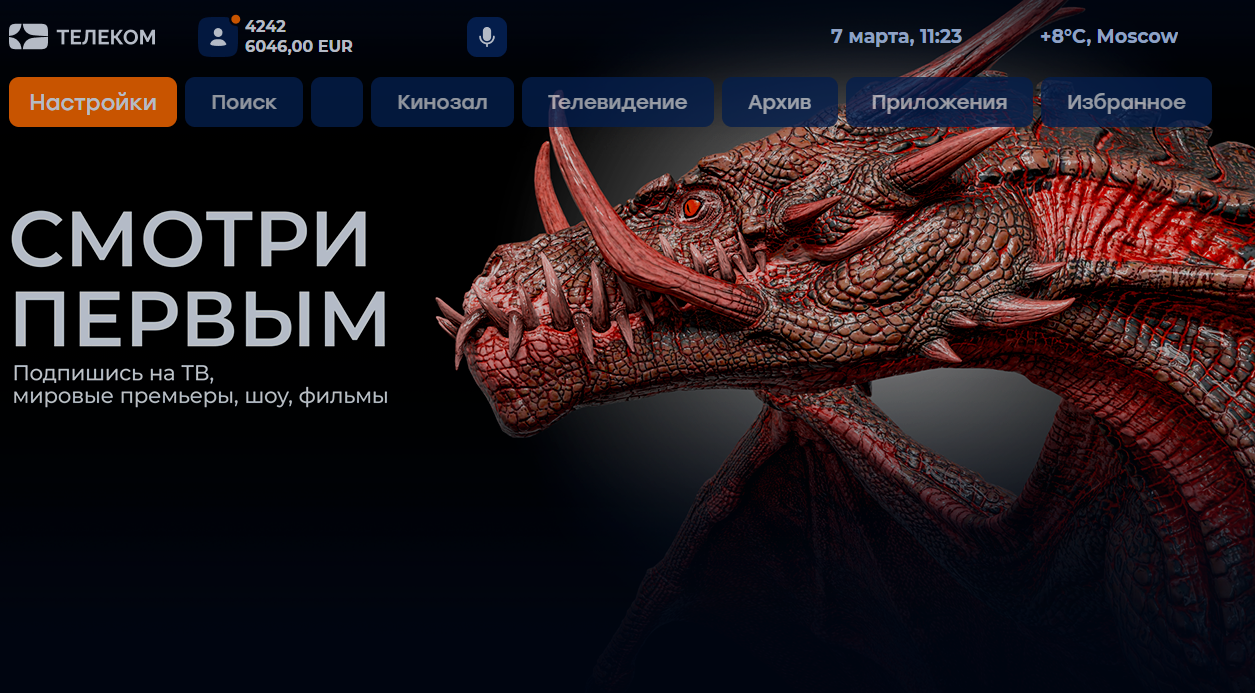
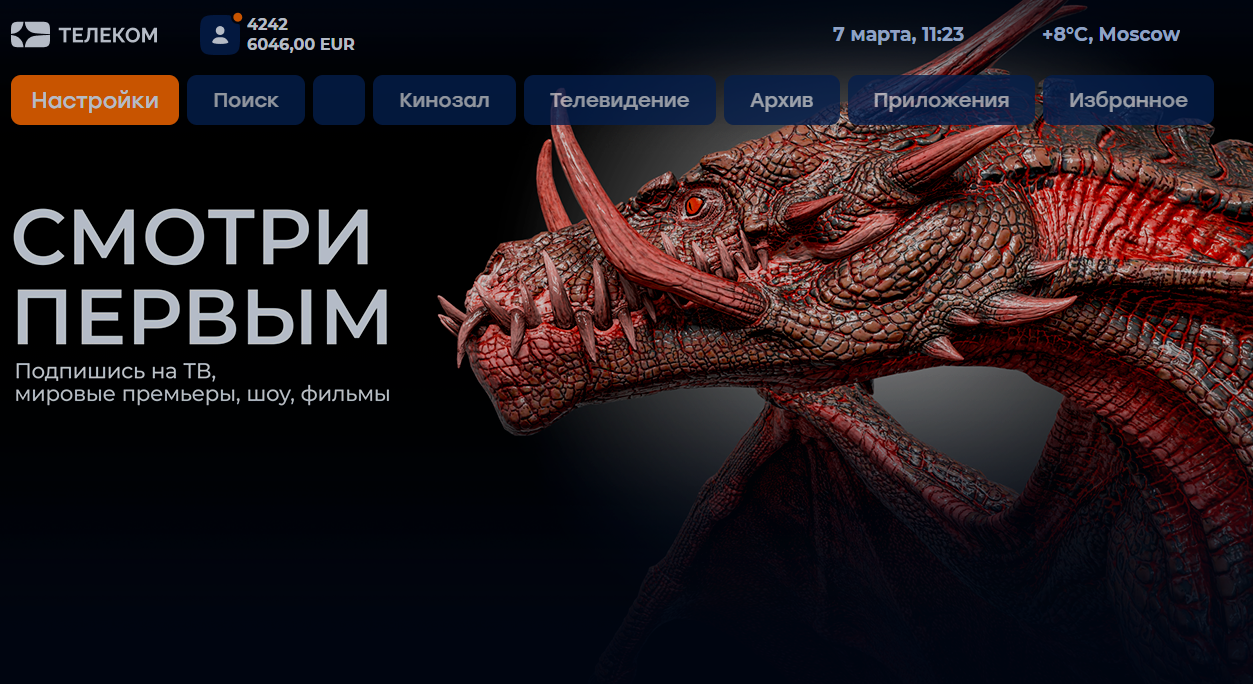
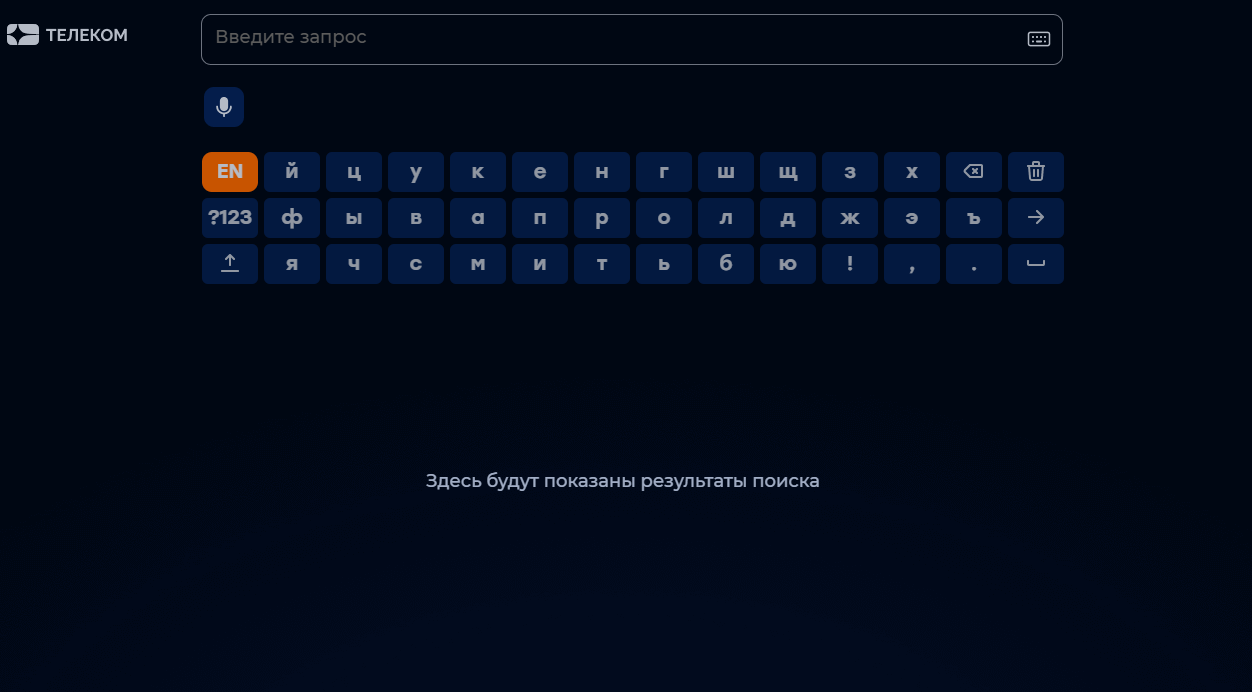
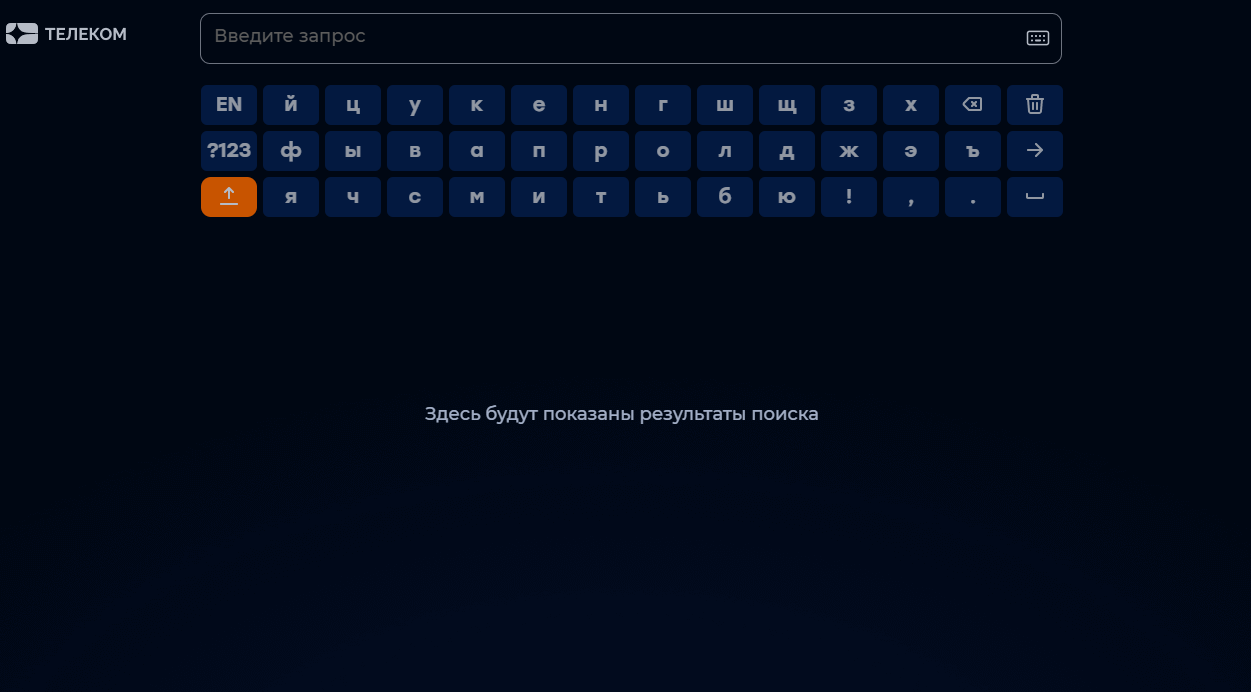
Additional options allow you to change the appearance and behavior of the application, and are specified in the configuration file /etc/microimpuls/portal/client.js.
The following options are available for the sibseti interface.
- Logic of work
- Authorization regime
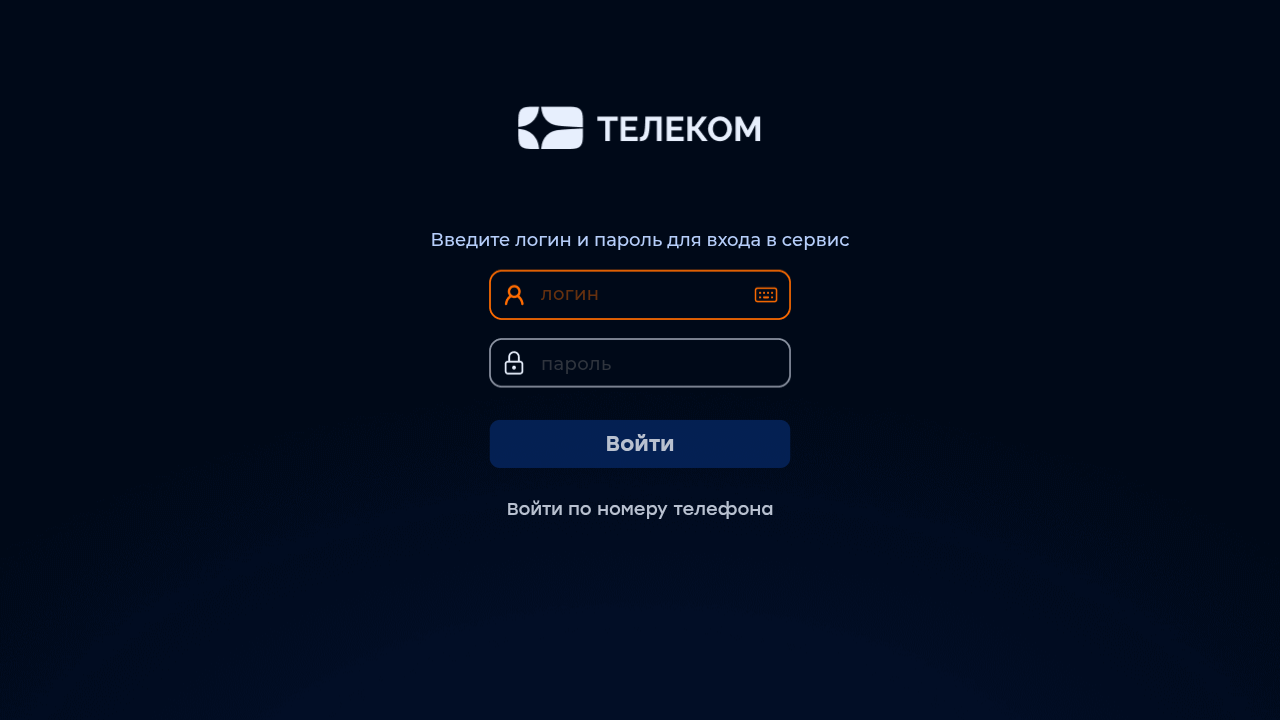
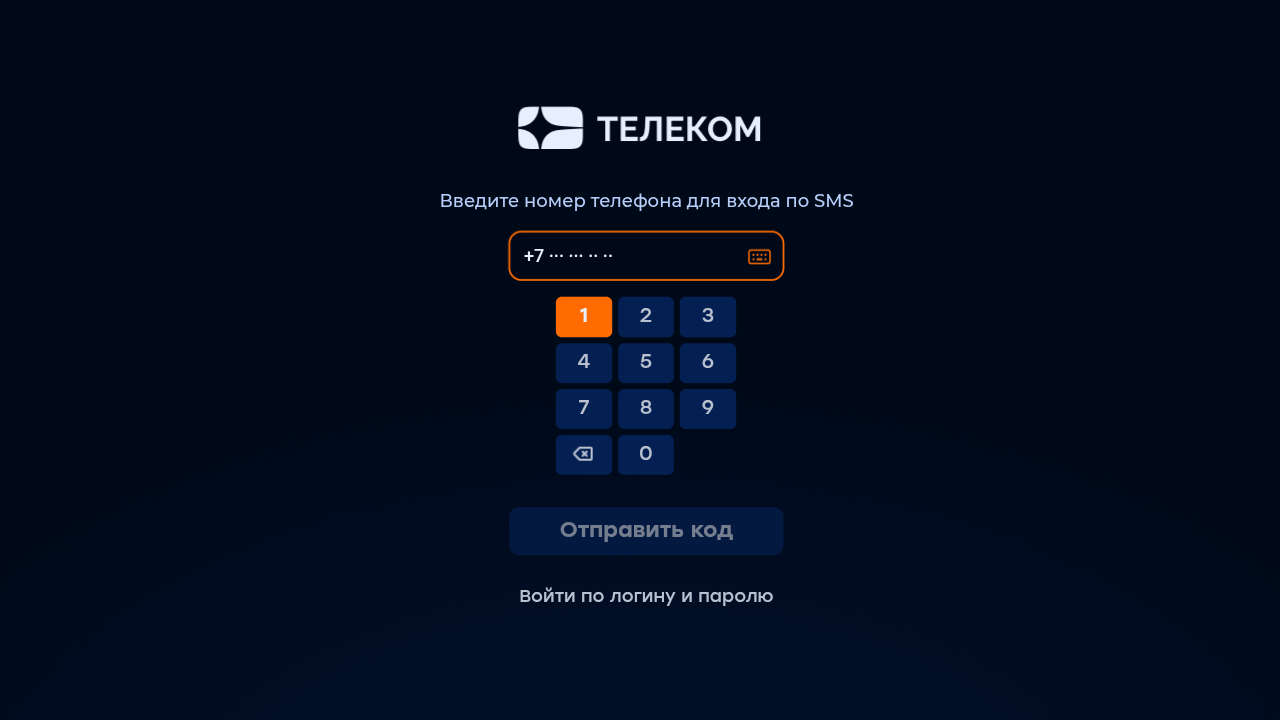
- Display of the button for selecting the authorization method (by login and password or phone number)
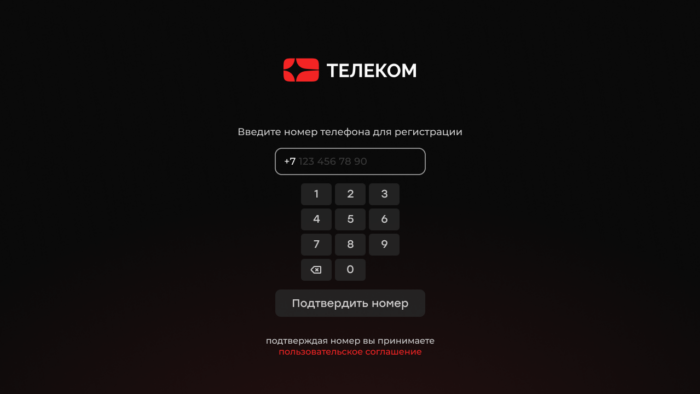
- Display of the legal document on the authorization screen
- Missing service errors of authorization
- Verification of additional account status
- Registration by phone number with confirmation by SMS
- Length of confirmation code from SMS message
- Length of confirmation code by phone number
- Displaying virtual tariffs
- Mobile phone number mask in the authorization screen
- Saving the login and password in the input fields on the authorization screen when restarting the application
- The ability to enter symbols in the login
- The ability to enter characters in the password
- Reboot the device after the first activation
- Setting up the display of welcome messages
- Delayed application loading at start
- Delay in search
- Disabling the SET button on MAG consoles
- Selection of the application interface used through account settings in Smarty
- Suspension of server requests in Stand-By mode
- Update to build the application on Android STB/TV
- Update build launcher on Android STB/TV
- Enabling the system debugging console on a device with a specific User-Agent
- Disabling HealthCheck request submission
- Adding Market Name to Device Type
- Management logic
- Reproduction of content
- Rewinding the archive by re-querying the position
- Player rewind step
- Automatic playback of the last channel viewed at launch
- The ability to select a data center in the settings menu
- Sound control mode on Samsung Smart TV Orsay
- Volume up/down step
- Stopping content playback when leaving full-screen viewing
- Keeping the selected aspect ratio for each channel separately
- Ignoring the aspect ratio value coming from Smarty
- Save the selected audio track language for each channel separately
- Automatically Hiding Menus When Playing Content
- Reproduction of streams-stubs for channels with locks
- Popap display with a choice of tariff when starting a channel with a lock
- Setting a special ratio of screen sides when playing movies
- Display time of the beginning and end of the transfer in the infobar
- Disabling channel autostart in the preview window when navigating the list
- Display timeline of the program inside the screen «Telechannels» in grid mode
- Buying content
- Appearance — General
- Additional CSS class for body interface
- Types of films for the main screen
- Selection identifier for the main screen
- Main menu items
- Background image for the main screen
- Change the background image in the child profile
- Showing advertising banners on the main screen
- Showing the weather on the main screen
- Subscriber information
- Displaying subscriber balance on the main screen
- Display of the entered password on the authorization screen
- Appearance — TV
- Appearance — video library
- Screen «Filtration» in video library
- Filter by video source
- Grouping of films by category or genre
- Display category «Premieres» in video library
- Display in the video library of films, the source of which is archival records
- How to sort movies by default
- Disabling the display of empty genres
- Hiding sections with cinemas
- Sorting the list of actors on the film page
- Sorting the list of films on the actor's description screen
- Limiting the number of actors on the film page
- Limiting the number of downloadable tapes on the screen of an external cinema
- Limiting the maximum number of tapes on the screen of an external cinema
- Mechanics of film generation « Similar films »
- Using methods without authorization in the sections of external video providers in the cinema
- Display Disclaimer about the dangers of drugs
- Appearance - archive
- Appearance - settings
- Selection of the interface used on the Settings page
- Ability to change the interface language
- Managing the display item "Player Selection" in the "Settings" screen
- Managing the display of the item “Player Options” in the screen “Settings”
- Managing the display of the item "Tape of the main screen" on the page "Settings"
- Managing the display of the “Start screen” item on the “Settings” page
- The ability to choose a genre for «Tapes of the main screen»
- Appearance is my profile
- Display of the "Personal Cabinet" section in the personal account
- Possibility of replenishing the balance in the personal account
- Displaying payment detailing
- Display of the "Messages" menu item
- Display the menu item "My devices"
- Display of the menu item "Fare Management"
- Display of the menu item "Legal documents"
- Display point and the possibility of changing the account
- Appearance - search
Logic of work
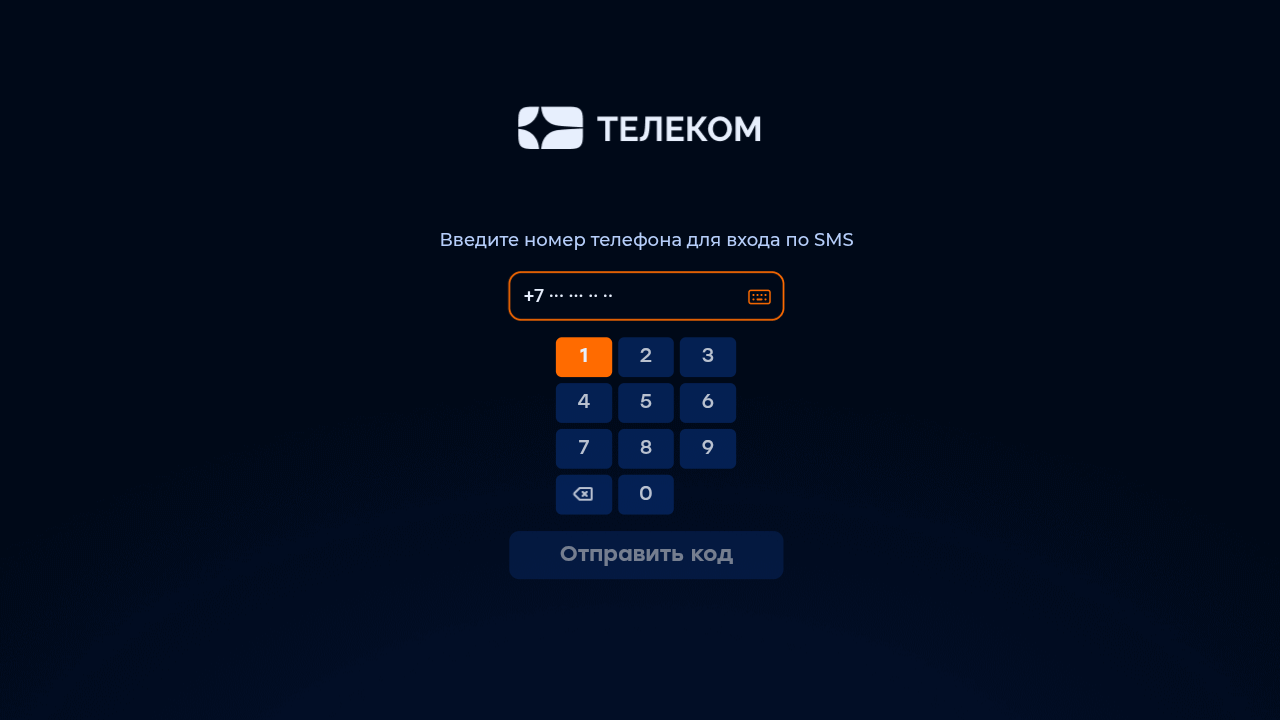
Authorization regime
Option name: auth_mode, data type: string.
Possible values:
- password — by login and password (by default).
- phone number — by phone number. Confirmation is carried out by means of SMS.
- device_uid — by unique device identifier (usually MAC address) or IP address. In case of unsuccessful authorization, the subscriber will be offered authorization by login and password.
- device_uid_wo_fallback — the same as device_uid, but without processing some situations of unsuccessful authorization and transition to login and password authorization.

Example:
var CLIENT_SETTINGS = {
///...
'auth_mode': 'password'
};Option name: show_alter_auth_button, data type: bool.
Possible values:
- true — the login method selection button will be displayed on the authorization screen.
- falsely — the login method selection button will not be displayed (by default).
Example:
var CLIENT_SETTINGS = {
  // ..
  'show_alter_auth_button': true
};
Option name: show_auth_legal_documents, data type: bool.
Possible values:
- true — at the bottom of the authorization screen will display a legal document to which you can shift focus and then open.
- falsely — the legal document will not be displayed (by default).
Example:
var CLIENT_SETTINGS = {
  // ..
  'show_auth_legal_documents': false
};
Option name: omit_unsuccessful_login, data type: bool.
Possible values:
- true — in case of errors with codes 3, 4, 10, 11, 12 (codes error method TVMW API Login) the screen with the error information will be skipped and the login and password input form will be immediately opened (except for the mode)
auth_mode*wo_fallback). - falsely — if any errors occur, the error information screen will be shown (by default).
Example:
var CLIENT_SETTINGS = {
///...
-omit_unsuccessful_loginfalse:
};
Verification of additional account status
Option name: check_account_status_reason, data type: bool.
Possible values:
- true — additional account status will be checked even in case of successful authorization (by default). For example, if the account is active, but the additional status is set «Blocked for debt» then the corresponding authorization error will be issued in the portal.
- falsely — no additional status will be verified.
Example:
var CLIENT_SETTINGS = {
///...
-check_account_status_reason': true
};
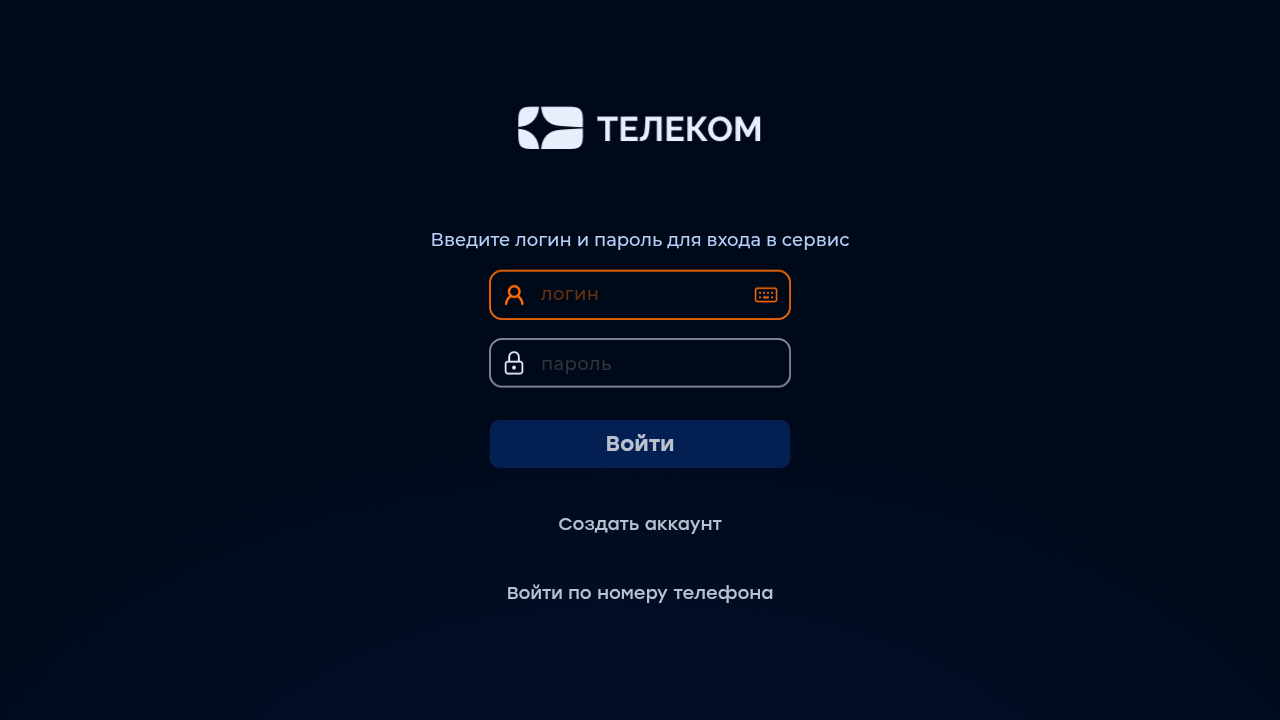
Registration by phone number with confirmation by SMS
Option name: registration_available, data type: bool.
Possible values:
- true The registration button is displayed via SMS.
- falsely it is not displayed (by default).
To be able to register via SMS, you need to properly configure integration with the SMS gateway on the Smarty server side.
Example:
var CLIENT_SETTINGS = {
///...
'registration_available': false
};
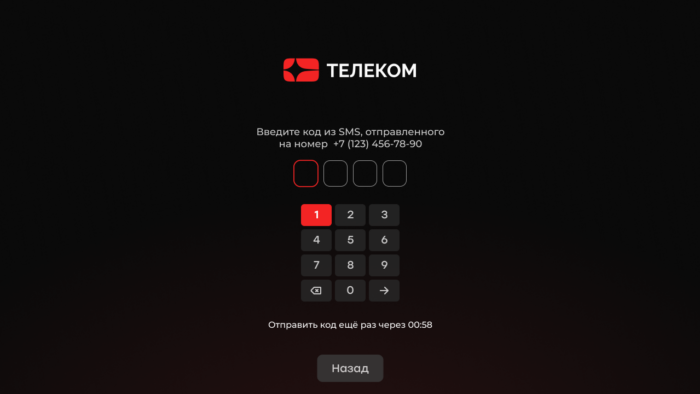
Length of confirmation code from SMS message
Option name: sms_code_length, data type: string.
Determines the number of windows when entering the confirmation code from SMS. By default 6.
Example:
var CLIENT_SETTINGS = {
  // ..
  'sms_code_length': "4"
};
Length of confirmation code by phone number
Option name: phone_code_length, data type: string.
Determines the number of windows when entering the confirmation code from the phone number. By default 4.
Example:
var CLIENT_SETTINGS = {
  // ..
  'phone_code_length': "4"
};
Displaying virtual tariffs
Option name: use_virtual_packages, data type: bool.
Responsible for removing virtual tariffs in the list.
Possible values:
- true — only virtual rates (except hidden, disabled and inaccessible) are displayed.
- falsely — displays all tariffs: normal and virtual (except hidden, disabled and inaccessible) (by default).
Example:
var CLIENT_SETTINGS = {
///...
'use_virtual_packages': true
};Option name: registration_phone_mask, data type: string.
By default +7 ??? ??? ?? ??.
The mask uses a special symbol ?, instead of which the input value will be substituted, the remaining characters will be displayed as is.
Example:
var CLIENT_SETTINGS = {
///...
'registration_phone_mask': '+7??????????
};
Option name: restore_login_form_input_from_settings, data type: bool.
Possible values:
- true — when restarting the application and in the case of a logout in the input fields, the login and password from the previous session will be filled in on the authorization screen.
- falsely — the data will not be filled in (by default).
It is recommended to use this option in the authorization method password to avoid loss of password by subscribers after logout.
Example:
var CLIENT_SETTINGS = {
///...
'restore_login_form_input_from_settings': false
};
The ability to enter symbols in the login
Option name: is_letter_in_login, data type: bool.
Possible values:
- true in the login you can enter numbers and letters.
- falsely only numbers can be entered in the login (by default).
Example:
var CLIENT_SETTINGS = {
///...
'is_letter_in_loginfalse:
};

The ability to enter characters in the password
Option name: is_letter_in_password, data type: bool.
Possible values:
- true numbers and letters can be entered in the password.
- falsely only numbers can be entered in the password (by default).
Example:
var CLIENT_SETTINGS = {
///...
'is_letters_in_password': false
};

Reboot the device after the first activation
Option name: reboot_device_after_login_with_password, data type: bool.
Possible values:
- true — after login and password authorization through the authorization form, the device will be rebooted.
- falsely — no reboot will be made, the application will be downloaded as usual (by default).
Can be used to perform system billing operations at primary « activation » prefixes by the subscriber.
Example:
var CLIENT_SETTINGS = {
///...
'reboot_device_after_login_with_password': false
};
Setting up the display of welcome messages
Option name: greetings_masks, data type: array.
When specifying the option, the loader at the start of the portal is replaced by a greeting with the specified text and image. At the first start of the application, an impersonal text is shown, and after the first successful authorization, the user name is remembered and substituted in the text of the greeting. It is defined as an array of objects. No default.
Description of fields inside the array:
time — the length of time a picture will be displayed image_url, data type: string.mask — welcome text where $firstname will be replaced by a username derived from Smarty. In the absence of a name, the message will be displayed without it by removing the name mask from the line, data type: string.image_url — reference to the welcome image for the background; if the image is not specified, then the default image sewn in the portal, data type: string will be used.
Example:
var CLIENT_SETTINGS = {
  // ..
  'greetings_masks':
        {
            'time': "00:00,",
            'mask': "$firstname, good night!",
            'image_url': 'http://your-website.com/example-bg.png'
        },
        {'time': "06:00," "mask": "$firstname, beautiful morning!"},
        {'time': "12:00," "mask": "$firstname, good day!"},
        {'time': "18:00," "mask": "$firstname, good evening!"},
    ]
};


Delayed application loading at start
Option name: loading_timeout, data type: int. Set in milliseconds, the default value is: 1000.
The option allows you to set the number of milliseconds by which the initial download of the portal will be delayed. It can be used, for example, to customize the portal to display a welcome picture before launching.
By default 1000, which corresponds to one second. If you specify a zero or too small value, then some application functions on some devices may be disrupted due to asynchronous implementation of the API of some devices. For example, a small delay is necessary to be able to determine the device not only by type, but also by model (if Smarty configures the appropriate types of devices with a model) for Android consoles.
Example:
var CLIENT_SETTINGS = {
///...
'loading_timeout': 1000
};
Delay in search
Option name: search_request_delay, data type: int. Set in milliseconds, the default value is: 3000.
Allows you to set the delay time before starting search queries (after entering 3 characters in the on-screen keyboard). It is designed to reduce the number of search queries to Smarty.
Example:
var CLIENT_SETTINGS = {
///...
'search_request_delay': 3000
};Option name: disable_set_button_on_mag, data type: bool.
Possible values:
- true — the SET (Setup) button on the MAG console will be locked.
- falsely — the button will work according to the settings in the firmware (by default).
Example:
var CLIENT_SETTINGS = {
///...
'disable_set_button_on_mag': false
};
Selection of the application interface used through account settings in Smarty
Option name: check_account_template, data type: bool.
Possible values:
- true — once the account is authorized, the template installed in the Smarty account settings will be checked, and if it differs from the one used, the application will be restarted in the desired template (by default).
- falsely — the set template in Smarty account settings will be ignored.
Example:
var CLIENT_SETTINGS = {
///...
'check_account_template': true
};
Suspension of server requests in Stand-By mode
Option name: block_request_in_standby, data type: bool.
Possible values:
- true — includes blocking server requests if the device is in Stand-By mode. After leaving Stand-By, sending requests to the server is restored, however, the data in the interface may be outdated for some time.
- falsely — requests do not stop even in Stand-By, the data displayed in the interface does not become outdated (by default).
The option allows you to save server resources in moments of downtime of user devices.
Example:
var CLIENT_SETTINGS = {
///...
'block_requests_in_standby': false
};
Update to build the application on Android STB/TV
Option name: app_package_updating_url, data type: string.
When specifying the URL to download apk in this option, the application will attempt to download it and self-update it. When updating, the current version of the app — is checked; the download and install mechanism only starts if the version specified in the url is larger than the current version installed by apk (in the example below version — this is a substring) 1.0.0).
The application self-update function is enabled separately when apk is assembled at the operator’s request. For assemblies published in markets, this function is turned off by default. The option is only available for Android STB/TV builds over 2.3.
Example:
var CLIENT_SETTINGS = {
  // …
  'app_package_updating_url': "http://your-website.com/example-app-1.0.0_100100.apk"
};
Update build launcher on Android STB/TV
Option name: launcher_package_updating_url, data type: string.
When specifying the URL to download apk in this option, the application will attempt to download it and self-update it. When updating, the current version of the launcher application — is checked; the download and installation mechanism is started only if the version specified in the url is larger than the current version of the installed launcher (in the example below version — this is a substring) 1.0.0).
The application self-update function is enabled separately when apk is assembled at the operator’s request. For assemblies published in markets, this function is turned off by default. The option is only available for Android STB/TV builds over 2.3.
Example:
var CLIENT_SETTINGS = {
  // …
  'launcher_package_updating_url: "http://your-website.com/example-launcher-1.0.0_100100.apk"
};
Enabling the system debugging console on a device with a specific User-Agent
Option name: enable_system_debug_for_user_agent, data type: string.
Example:
var CLIENT_SETTINGS = {
///...
"enable_system_debug_for_user_agent": "Mozilla/5.0 (Web0S; Linux/SmartTV) AppleWebKit/537.36"
};
Disabling HealthCheck request submission
Option name: enable_health_check, data type: bool.
Possible values:
- true — HealthCheck request is disabled.
- falsely — sending HealthCheck is not disabled (by default).
Example:
var CLIENT_SETTINGS = {
///...
'enable_health_check': true
};
Adding Market Name to Device Type
Option name: use_store_flag_from_device_meta, data type: bool.
The name of the market is added to the type of device through the lower underline (for example, android_stb_googleplay). The name of the market is taken from the assembly, that is, it must be sewn into it. This option is only available for Android stores and will require a separate build for each of them. List of available markets: «googleplay», «sberbox», «yandextv», «rustore».
Possible values:
- true — the market specified in the device metadata will be transmitted.
- falsely — will be transmitted by default (by default).
Example:
var CLIENT_SETTINGS = {
  // ..
  'use_store_flag_from_device_meta': true
};
Management logic
Switching channels within the selected category
Option name: switching_channels_inside_category, data type: bool.
Possible values:
- true — channel switching with Ch+/- buttons will occur within the selected channel category.
- falsely — switching will occur within the category «All» even if another category is selected (by default).
Example:
var CLIENT_SETTINGS = {
///...
'switching_channels_inside_category': false
};
Ability to exit the application
Option name: samsung_guidelines_compatibility_mode, data type: bool.
Possible values:
- true — pressing «Back» Popap appears on the Main Screen and Authorization screen, offering to close the application.
- falsely — pop-up with an exit from the application does not appear (by default).
Example:
var CLIENT_SETTINGS = {
///...
'samsung_guidelines_compatibility_mode': false
};
Reproduction of content
Rewinding the archive by re-querying the position
Option name: server_rewind_mode, data type: bool.
Possible values:
- true — to rewind will be used positioning by specifying the time stamp. The URL to the thread will be re-requested from the server at each rewind (by default).
- falsely — stream rewinding by the seek method by means of the player (does not always work correctly due to different implementations on players, but faster).
Example:
var CLIENT_SETTINGS = {
///...
'server_rewind_mode': true
};
Player rewind step
Option name: player_wind_step, data type: int.
Allows you to set the step of rewinding the player in the archive and video library mode in one click of the rewind button. Step is given in seconds, by default 30.
Example:
var CLIENT_SETTINGS = {
///...
'player_rewind_step': 30
};
Automatic playback of the last channel viewed at launch
Option name: auto_launch_last_view_channel, data type: bool.
Possible values:
- true play the last channel automatically when the application starts.
- falsely display the main screen (by default).
Example:
var CLIENT_SETTINGS = {
///...
'auto_launch_last_viewed_channel': false
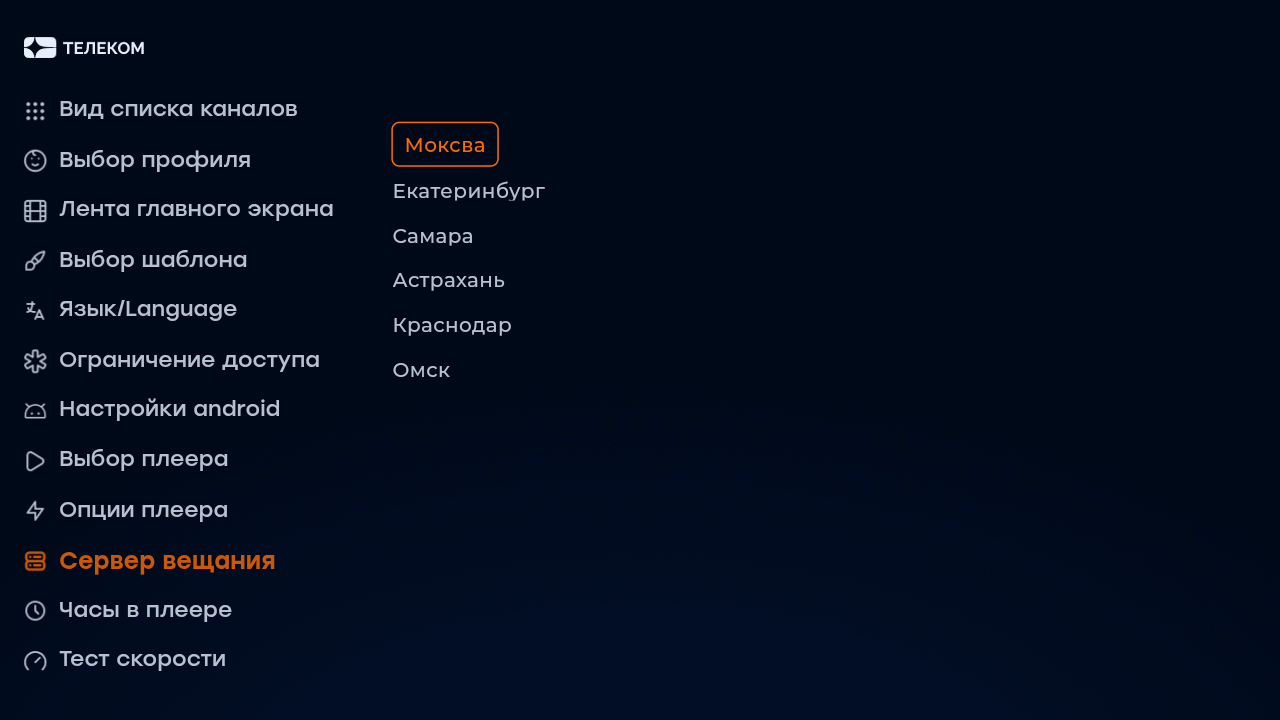
};Option name: allow_to_change_data_center, data type: bool.
Possible values:
- true In the settings menu, the user can independently choose the broadcast server (corresponds to the configured data centers in Smarty).
- falsely the user will not be able to select the broadcast server (by default).
Example:
var CLIENT_SETTINGS = {
///...
'allow_to_change_data_center': false
};
Sound control mode on Samsung Smart TV Orsay
Option name: samsung_smart_tv_volume_control_off, data type: bool.
Possible values:
- true — sound control is carried out at the device operating system level (standard control inside the tv).
- falsely — sound management is at the application level (by default).
Example:
var CLIENT_SETTINGS = {
///...
'samsung_smart_tv_volume_control_off': false
};
Volume up/down step
Option name: volume_control_step, data type: int.
By default 5 (percentage points out of 100, where 100 — maximum volume, 0 — minimum).
Example:
var CLIENT_SETTINGS = {
///...
'volume_control_step': 5
};
Stopping content playback when leaving full-screen viewing
Option name: stop_player_on_screen_showing, data type: bool.
Possible values:
- true — when switching to other screens, the player will stop.
- falsely — the player will work in the background, the interface will be displayed with the effect of semitransparency (default).
Example:
var CLIENT_SETTINGS = {
///...
'top_player_on_screen_showing': false
};
Keeping the selected aspect ratio for each channel separately
Option name: save_aspect_ratio_per_channel, data type: bool.
Possible values:
- true — in the application settings on the device, the user selected aspect ratio will be stored separately for each channel.
- falsely — the last selected aspect ratio common to all channels will be retained (by default).
Example:
var CLIENT_SETTINGS = {
///...
'save_aspect_ratio_per_channel': false
};
Ignoring the aspect ratio value coming from Smarty
Option name: ignore_server_aspect, data type: bool.
Possible values:
- true — setting the value « aspect ratio» on the channel editing page in Smarty will not affect the channel aspect ratio (by default).
- falsely — value « aspect ratio» on the channel editing page in Smarty will be taken by default for channels.
Example:
var CLIENT_SETTINGS = {
///...
'ignore_server_aspect': false
};
Save the selected audio track language for each channel separately
Option name: save_audio_track_lang_per_channel, data type: bool.
Possible values:
- true — in the application settings on the device, the user-selected audio track language will be stored separately for each channel.
- falsely — the last selected language common to all channels will be saved (by default).
Example:
var CLIENT_SETTINGS = {
///...
'save_audio_track_lang_per_channel': false
};
Automatically Hiding Menus When Playing Content
Option name: autohide_timer, data type: int.
Allows you to set a timeout (in minutes), after which the current screen will be hidden and open full-screen player, if at the moment there is a playback of some content.
By default 0 (hidden off).
Example:
var CLIENT_SETTINGS = {
///...
'autohide_timer': 2
};
Reproduction of streams-stubs for channels with locks
Option name: request_url_for_locked_channels, data type: bool.
Possible values:
- true - when starting the channel with a lock, an attempt is made to start a stream-stub and display a banner-stub, if the stream-stub for the channel is not set, an information pop-up is shown.
- falsely when you start the channel with locks, an information pop-up with a list of tariffs for connecting is shown (by default).
Example:
var CLIENT_SETTINGS = {
///...
'request_url_for_locked_channels': false
};
Popap display with a choice of tariff when starting a channel with a lock
Option name: show_locked_tariff_popup, data type: bool.
Possible values:
- true - when you start the channel with a lock, the pop-up of the tariff choice is displayed.
- falsely when you start the channel with a lock, an information pop-up is shown that the content is not available within the subscription (by default).
Example:
var CLIENT_SETTINGS = {
  // ..
  'show_locked_tariff_popup': false
};
Setting a special ratio of screen sides when playing movies
Option name: set_default_aspect_ratio_for_vod, data type: bool.
Possible values:
- true after the inclusion of the playback of the film from the video library, the aspect ratio of 16×9 will be forcibly established.
- falsely - the aspect ratio selected earlier by the subscriber will be retained (by default).
Example:
var CLIENT_SETTINGS = {
///...
'set_default_aspect_ratio_for_vod': false
};
Display time of the beginning and end of the transfer in the infobar
Option name: infobar_time_display_mode, data type: string.
Allows you to change the option of displaying the time of the beginning and end of the transfer in the infobar in the archive mode or paused Live TV.
Possible values:
- by_epg time in the infobar is displayed according to the transmission program (by default).
- by_duration the start time of the transmission is set at 00:00, and the end time is set equal to the duration of the transmission.
Example:
var CLIENT_SETTINGS = {
///...
'infobar_time_display_mode': "by_epg"
};Option name: autoplay_tv_preview_channels, data type: bool.
Possible values:
- true when navigating in the list of channels (list mode only), the player in the preview window automatically begins to play after a small timeout (by default).
- falsely When navigating in the list of channels, the preview player does not start, instead, a preview of the current channel transfer is displayed in its place. This option value is recommended for low-performance devices for which the flow start operation in the preview window is too heavy to cause it so often.
Example:
var CLIENT_SETTINGS = {
  // ..
  'autoplay_tv_preview_channels': true
};
Display timeline of the program inside the screen «Telechannels» in grid mode
Option name: show_timeline_in_tv_grid_mode, data type: bool.
Possible values:
- true - on the screen «Telechannels» in grid mode, the program timeline is displayed.
- falsely - on the screen «Telechannels» in grid mode, the program timeline is not displayed (by default).
Example:
var CLIENT_SETTINGS = {
  // ..
  'show_timeline_in_tv_grid_mode': true
};
Buying content
Restricting access to content purchases by default
Option name: default_purchase_content_access_mode, data type: string.
Possible values:
- pin — the default mode will be «Pay content with a pin code ».
- allow — the default mode will be «Pay content without pin code» (by default).
Example:
var CLIENT_SETTINGS = {
///...
'default_purchase_content_access_mode': "allow"
};Option name: allow_to_change_access_restriction_for_purchase_content, data type: bool.
Possible values:
- true — the settings menu will display «Access to purchase» and the user will be able to change these restrictions (by default).
- falsely — the ability to change the restriction of access to content purchases is prohibited.
Example:
var CLIENT_SETTINGS = {
///...
'allow_to_change_access_restriction_for_purchase_content': true
};
Showing a QR code with a support number when buying a movie
Option name: use_video_purchase_via_sale_qr, bool data type.
Possible values:
- true When you press the button «Buy» the film page will show a pop window with a QR code, in which the phone number of the technical support / sales department will be sewn. The option is relevant if there is no integration with external billing for the purchase of films — in this case, the specialist includes access to the film manually by call.
- falsely The purchase of the film works on the internal mechanism of Smarty (by default).

Example:
var CLIENT_SETTINGS = {
  // ..
  'use_video_purchase_via_sale_qr': false
};
Appearance — General
Additional CSS class for body interface
Option name: custom, data type: string.
Allows you to connect an additional class to the body portal tag. It can be used to customize the interface through an additional CSS file.
No default.
Example:
var CLIENT_SETTINGS = {
///...
'custom_body_class': 'custom'
};
Types of films for the main screen
Option name: main_screen_tape_genres, data type: array.
In the option, you can prescribe genre identifiers, which can subsequently be selected by the user for display on the home screen (maximum number of specified identifiers — 5). At the same time, the Favorites, Recent and Novelties tapes are available for selection in the settings, regardless of this option.
No default.

Example:
var CLIENT_SETTINGS = {
///...
'main_screen_tape_genres': [34, 36, 41]
};
Selection identifier for the main screen
Option name: main video tape election id, data type: int.
Selection ID. If it is set, the last item in “Settings” → “Home screen tape” appears “Special selection”.
Example:
var CLIENT SETTINGS = {
///...
'main video tape selection id': 12345
};Option name: custom_main_menu_items, data type: array.
The option sets the main menu items that you want to display, possible items:
- tv & #8212; Television channels
- vod — Cinema
- apps — Applications (quick button to enter the list of applications on Android devices)
- favorites — Selected (selected films are shown)
- search — Search
- settings — Settings
- archive — Archive
- radio — Radio
No default.

Example:
var CLIENT_SETTINGS = {
  // ..
  'custom_main_menu_items': ['tv', 'vod', 'archive', 'search', 'settings', 'apps', 'favorites'],
};
Background image for the main screen
Option name: main_screen_banner, data type: string.
Allows you to change the background image of the main menu, an absolute reference to the desired background image should be transferred to the parameter (the aspect ratio 16x9, png).


Example:
var CLIENT_SETTINGS = {
  // …
  "main_screen_banner": "http://example.com/background.png"
};
Change the background image in the child profile
Option name: main_screen_banner_children_mode, data type: string.
Allows you to change the background image of the main menu with an active Child profile, an absolute reference to the desired background image should be transferred to the parameter (the aspect ratio 16x9, png).
Example:
var CLIENT_SETTINGS = {
  // ..
  "main_screen_banner_children_mode": "http://example.com/children-profile-background.png"
};
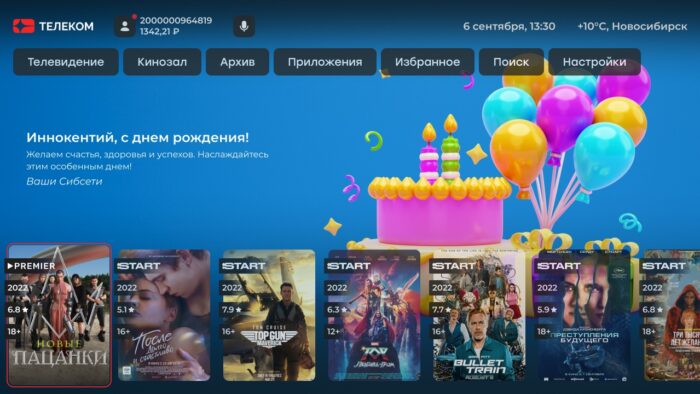
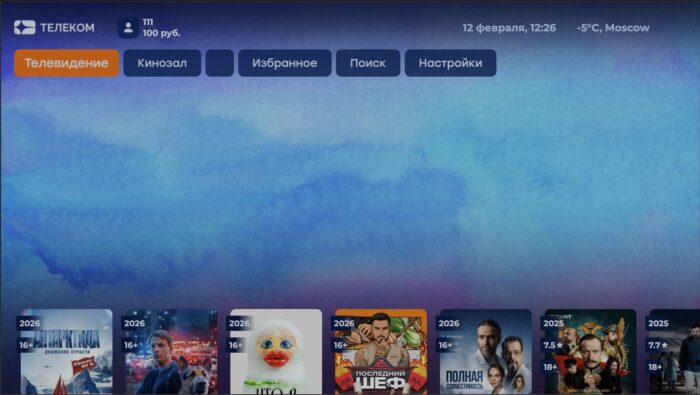
Option name: show_target_banner, data type: bool.
When you turn on the option as the background picture of the main screen begins to be requested banner (A banner with the highest priority text is displayed). Updating the banner is performed every 12 hours.If the banner for some reason is not available, then a standard mechanism is used to determine the background of the main screen with a banner of a movie or image from the option main_screen_banner.
Example:
var CLIENT_SETTINGS = {
  // ..
  "show_target_banner": true
};
Showing the weather on the main screen
Option name: show_weather_data, data type: bool.
Possible values:
- true the main screen displays the weather (by default).
- falsely the weather will not be displayed on the main screen.
Example:
var CLIENT_SETTINGS = {
  // ..
  "showweather_data: true weather_data
};
Subscriber information
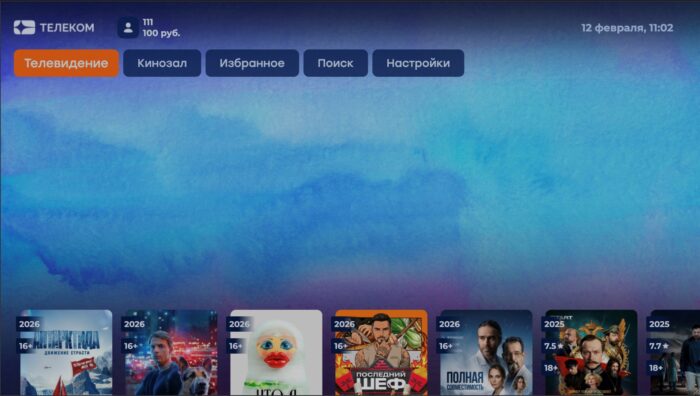
Option name: abonement_info_in_header, data type: string.
Possible values:
ext_id— the subscriber id is displayed in the external billing (by default).firstname_lastname— Subscriber name and surname is displayed (if the values are empty, then the account is displayed).contract— the subscriber’s contract number is displayed (if the values are empty, the account is displayed).abonement— the account is displayed.

var CLIENT_SETTINGS = {
///...
"abonement_info_in_header": "abonement"
};
Displaying subscriber balance on the main screen
Option name: show_customer_balance, data type: bool.
Possible values:
- true the main screen displays the current balance of the subscriber (by default).
- falsely the current subscriber balance will not be displayed on the main screen.
Example:
var CLIENT_SETTINGS = {
///...
'show_customer_balance': true
};
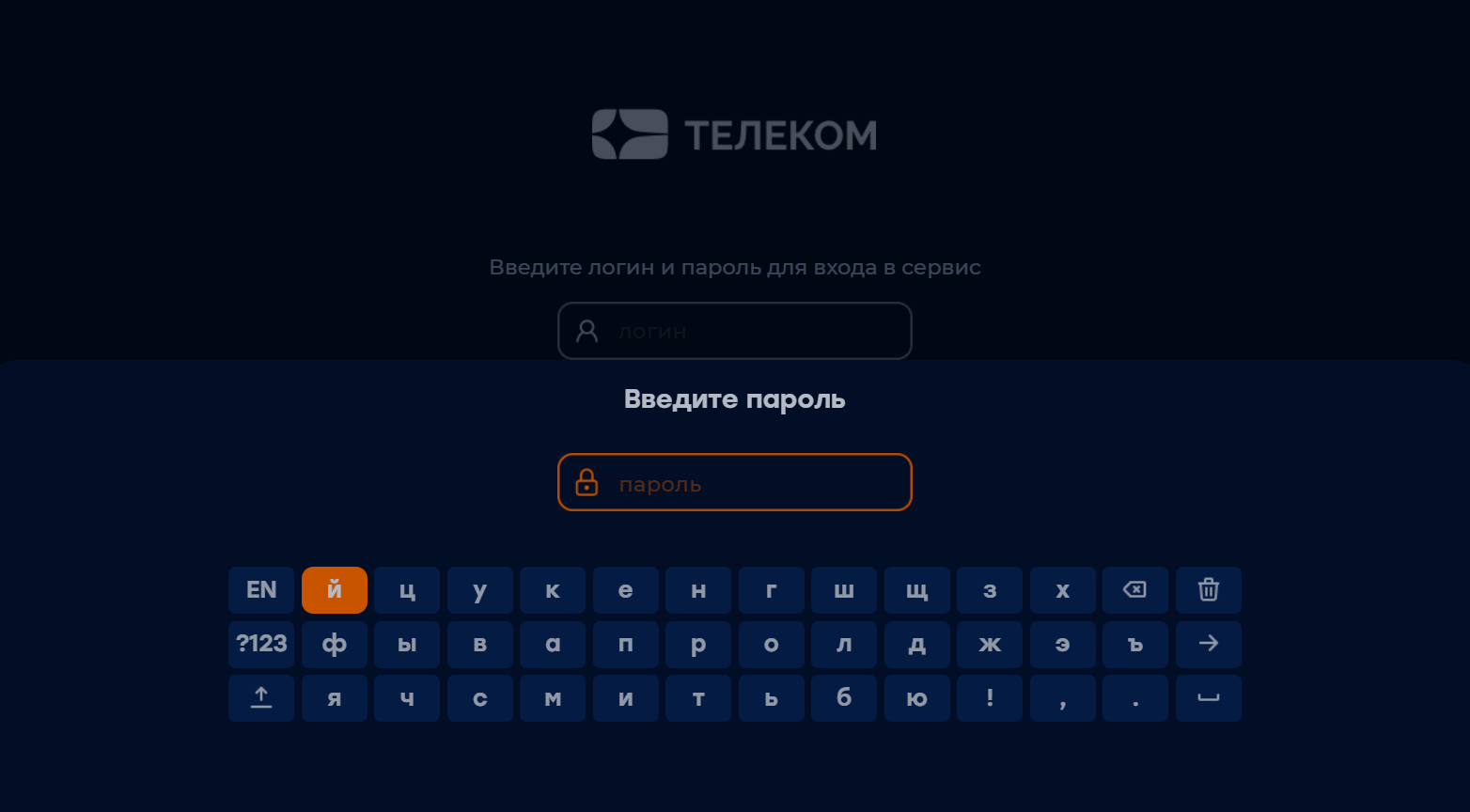
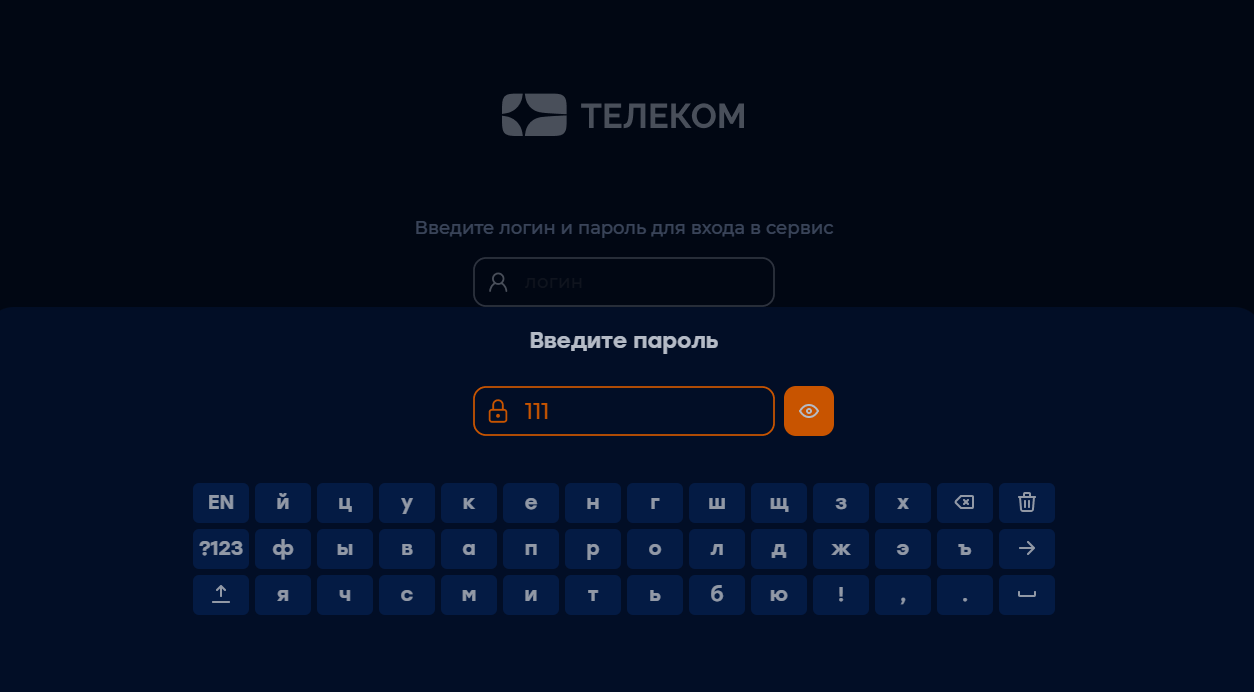
Option name: show_see_password_button, data type: bool.
Possible values:
- true on the authorization screen will display the password button.
- falsely the password button will be hidden (by default).
Example:
var CLIENT_SETTINGS = {
  // ..
  'show_see_password_button': false
};
Appearance — TV
Mode of displaying the list of TV channels
Possible values:
- list - the usual list (by default).
- grid - tile.
This option sets default screen mode «Telechannels» but the user can change it for himself in the screen «Settings».


Example:
var CLIENT_SETTINGS = {
///...
'tv_channels_list_mode': "list"
};
Limit the maximum length of the channel number
Option name: channel_number_max_length, data type: int. By default 3.
Set the maximum length of the channel number on the TV screen, as well as the maximum number of digits entered when calling the channel using the remote buttons.
Example:
var CLIENT_SETTINGS = {
///...
'channel_number_max_length': 3
};
Depth of TV program display
Option name: max_epg_depth, data type: int.
Determines the depth of EPG in days for the screen «TV program ». If the value of the option is greater than 0, the depth will be equal to this value. If the option is not specified (or equal to 0), then the archive depth will be used for the channel with the archive max_archive_duration if the channel does not have an archive —, the program will be displayed only for the current day. By default 0.
Example:
var CLIENT_SETTINGS = {
///...
'max_epg_depth': 0
};
Optimizing the loading of the channel list
Option name: channel_info_request_depth, data type: int.
Determines the portion size of channels for which you need to get more detailed information, by default 24. The loading volume is calculated by the formula: channel_info_request_depth * 2 + 1, i.e. downloaded information about the channel on which the focus and channel_info_request_depth the channels that exist before and after it. Warning: for the correct operation of the option, the Smarty version is not lower than 2.4.
Example:
var CLIENT_SETTINGS = {
  // ..
  'channel_info_request_depth': 24
};
Hiding the Zero Rating of TV Programs
Option name: epg_hide_zero_plus_rating, data type: bool.
Possible values:
- true — the 0+ rating will be hidden (only for the visual display of the ranking itself, not the content). Removes this rating for sidebar player and TV category.
- falsely — the 0+ rating will be displayed (by default).
Example:
var CLIENT_SETTINGS = {
///...
'epg_hide_zero_plus_rating': false
};
Appearance — video library
Screen «Filtration» in video library
Option name show_filtering, data type: bool.
Possible values:
- falsely — the filter screen in the video library is not available (by default).
- true — movie filtering screen becomes available in the video library.

Example:
var CLIENT_SETTINGS = {
///...
'show_filtering': true
};
Filter by video source
Option name: show filtering by provider, data type: bool.
Shows the filter by the source of the video in the video library and in the archive.
Possible values:
- true filter is shown by source.
- false - the filter is hidden (by default).
Example:
var CLIENT SETTINGS = {
///...
'show filtering by provider': true
};
Grouping of films by category or genre
Option name: filter_videos_by_genres, data type: bool.
Possible values:
- true movies will be grouped by genre (by default).
- falsely Films will be grouped into categories (genres in Smarty with the option « enabled; is a category »).
Example:
var CLIENT_SETTINGS = {
///...
'filter_videos_by_genres': true
};
Display category «Premieres» in video library
Option name: show_vod_premieres, data type: bool.
Possible values:
- true — the list of video library categories will display the category «Premieres».
- falsely — category « Premieres» will be hidden (by default).
Example:
var CLIENT_SETTINGS = {
///...
'show_vod_premieres': false
};
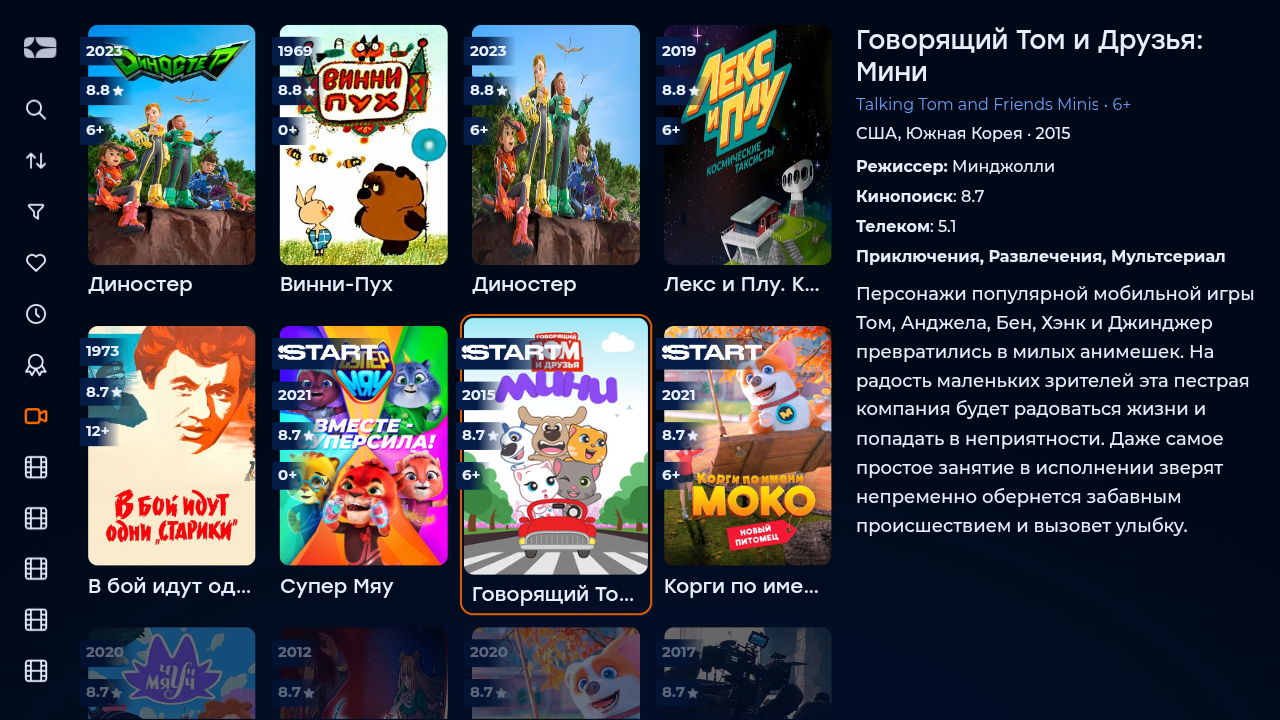
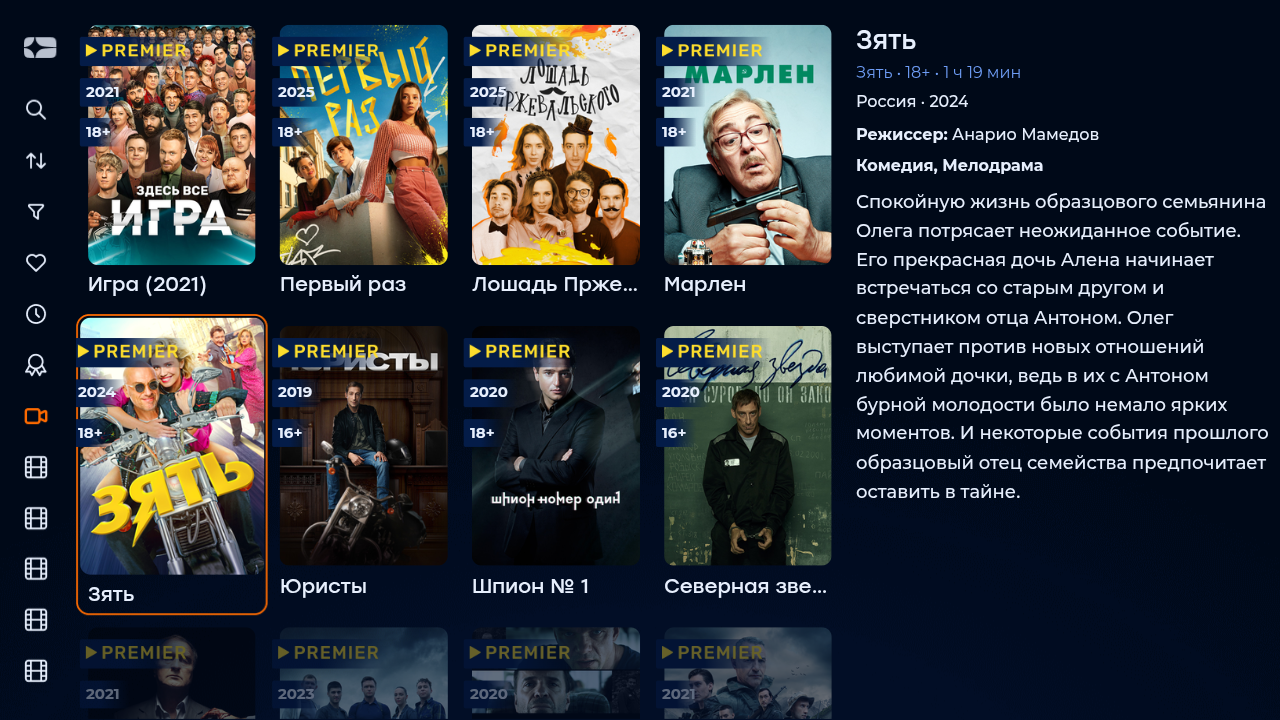
Display in the video library of films, the source of which is archival records
Option name: show_archive_in_vod_screen, data type: bool. To fill the video library with archival records, you need to use instruction. To work correctly, you will need posters 2:3 for archival films.
Possible values:
- true when a video list is requested, films from archival records will be transmitted.
- falsely when you request a video list, you will not transfer movies from archive records (by default).
Example:
var CLIENT_SETTINGS = {
  // ..
  'show_archive_in_vod_screen': false
};
How to sort movies by default
Option name: default_vod_sort_order, data type: string.
Possible values:
- - created_at - by the date of addition (first the newest) (by default).
- -kinopoisk_rating - according to the rating of Kinopoisk (first the most popular).
- -imdb_rating According to IMDB rating (first most popular).
- -year the year the film was released (the newest first).
- -premiere_date the release date of the film (the newest first).
- name — by name (in alphabetical order).
- -updated_at — on the date of change of the film, first the newest (sort is updated after resetting the cache).
Example:
var CLIENT_SETTINGS = {
///...
'default_vod_sort_order': "-created_at"
};
Disabling the display of empty genres
Option name: vod_without_empty_genres, data type: bool.
Possible values:
- true - in screens «Video library» and «Archive» (in mode) archive_screen_mode: ‘vod_pvr’) will not display genres that no film corresponds to. Exceptions are the categories «Favorites», «News» and «Vised» — these will be displayed if the relevant options are enabled and even if they are empty.
- falsely - in screens «Video library» and «Archive» (in mode) archive_screen_mode: ‘vod_pvr’All genres created in the Smarty administrative panel (by default) will be displayed.
Example:
var CLIENT_SETTINGS = {
///...
-vod_without_empty_genres': true
};
Hiding sections with cinemas
Option name: show_video_providers_dashboard, data type: bool.
Possible values:
- true categories will display sections with cinemas (by default).
- falsely - the sections will be hidden.
Example:
var CLIENT_SETTINGS = {
///...
'show_video_providers_dashboard': true
};
Sorting the list of actors on the film page
Option name: actors, string data type.
Possible values:
- birthdate — sorted by date of birth, from older to younger.
- birthdate — sorted by date of birth, from younger to older.
- name — sorted by name, in alphabetical order (default).
- -name — sorted by name, in reverse alphabetical order.
- cyrillic-first — sorted by name, first come actors with cyrillic alphabet.
- film #8212; sorting actors by number of films with their participation, in ascending order (from the actor with the least number of films to the actor with the most films).
- -film_count — sorting actors by the number of films with their participation in descending order.
Example:
var CLIENT_SETTINGS = {
///...
-actors'name'
};
Sorting the list of films on the actor's description screen
Option name: actor_vod_sort_order, data type: string.
Possible values:
- name — by name, in alphabetical order (by default).
- -name — by name, in reverse alphabetical order.
- id — by date of addition to the catalog, first the oldest.
- -id — by date of addition to the catalog, first the newest.
- created — by date of update, first the oldest.
- - created_at — on the date of the update, first the newest.
- premiere_date — at the premiere date, first the oldest.
- -premiere_date — at the premiere date, first the newest.
- year — according to the release date of the film, first the oldest.
- -year — according to the release date of the film, first the newest.
- average_customers_rating — according to the rating of subscribers, at first the most unpopular.
- -average_customers_rating — according to the rating of subscribers, first the most popular.
- kinopoisk_rating — according to the rating of Kinopoisk, at first the most unpopular.
- -kinopoisk_rating — according to the rating of Kinopoisk, first the most popular.
- imdb_rating — according to the IMDB rating, at first the most unpopular.
- -imdb_rating — according to the IMDB rating, first the most popular.
- number_of_ratings — by the number of ratings, at first less evaluated.
- -number_of_ratings — by the number of ratings, first the most evaluated.
Example:
var CLIENT_SETTINGS = {
///...
'actor_vod_sort_order': '-kinopoisk_rating'
};
Limiting the number of actors on the film page
Option name: actors_request_limit, int data type. By default 16.
Example:
var CLIENT_SETTINGS = {
///...
-actors_request_limit': 16
};
Limiting the number of downloadable tapes on the screen of an external cinema
Option name: dashboard_load_portion, int data type.
At the opening of the external cinema, the specified number of tapes will be loaded. By default 4This means that after successfully downloading the first 4 tapes, they will be rendered, and the remaining tapes will continue to load as they navigate on the screen. The minimum value for this option is 2.
Example:
var CLIENT_SETTINGS = {
///...
'dashboard_load_portion': 4
};
Limiting the maximum number of tapes on the screen of an external cinema
Option name: selection_list_limitdata type: int, by default 10.
Example:
var CLIENT_SETTINGS = {
///...
'selection_list_limit': 4
};
Mechanics of film generation « Similar films »
Option name: similar_video_genre_limit, int data type. By default 3.
This option specifies the number of genres to use to search for similar movies — for example, by default, movies are considered similar if they have 3 genres.
Example:
var CLIENT_SETTINGS = {
///...
-similar_video_genre_limit': 3
};Option name: use_noauth_in_video_providers, data type: bool.
Responsible for methods that query the list and details of content selections from external providers.
Possible values:
- true — external cinema categories will request methods that do not require user authorization.
- falsely — standard methods are sent that depend on account authorization (by default).
Example:
var CLIENT_SETTINGS = {
  // ..
  'use_noauth_in_video_providers': true
};
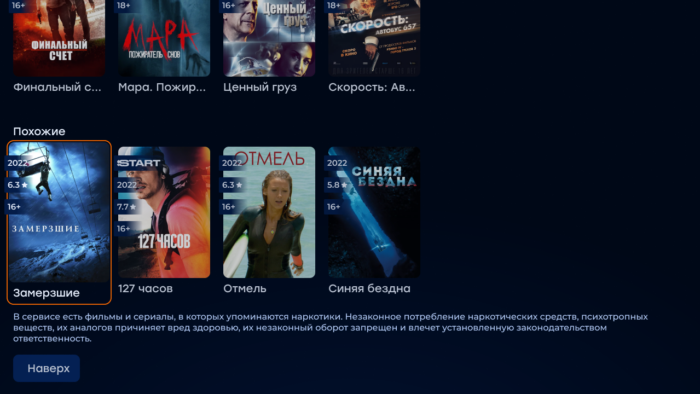
Display Disclaimer about the dangers of drugs
Option name: show drug disclaimer, data type: bool.
Possible values:
- true disclaimer will be displayed in the content card if the age rating of the film is not below the threshold (in the sibseti template, the threshold is set by a constant) 12).
- falsely disclaimer in the content card will not be shown (by default).
Appearance - archive
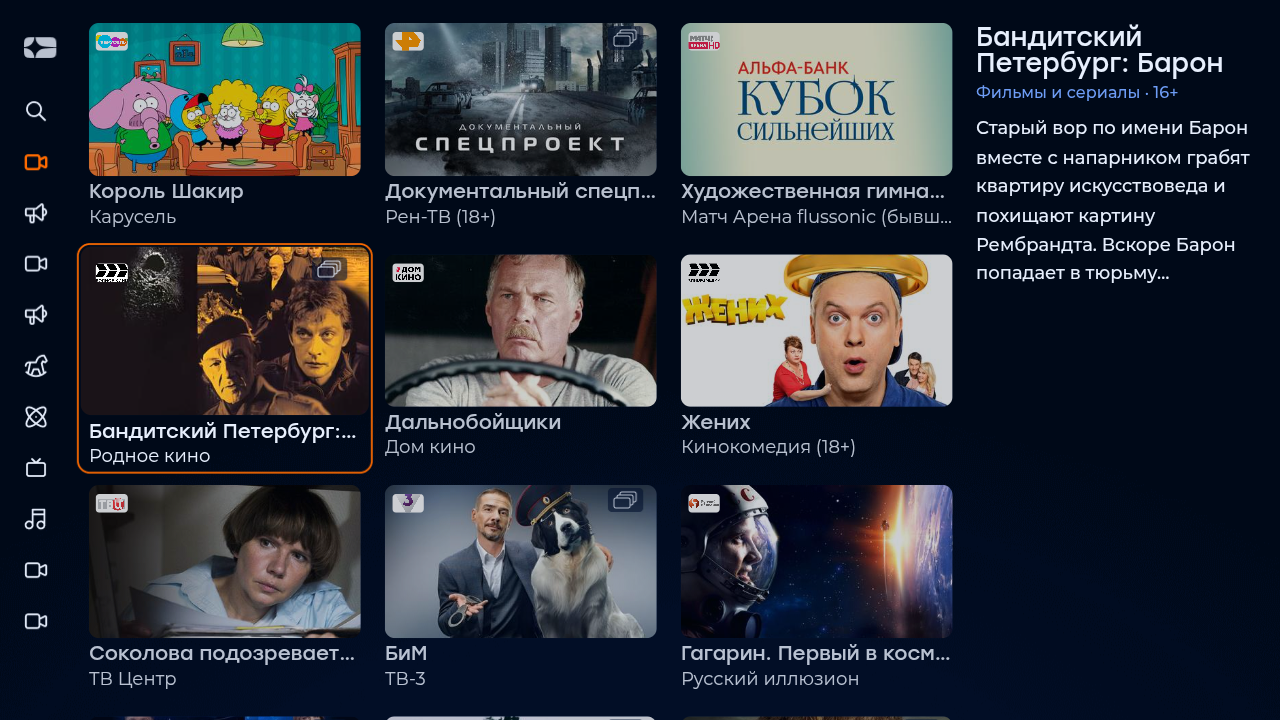
Selecting the mode of display section «Archive»
Option name: archive_screen_mode, data type: string.
Possible values:
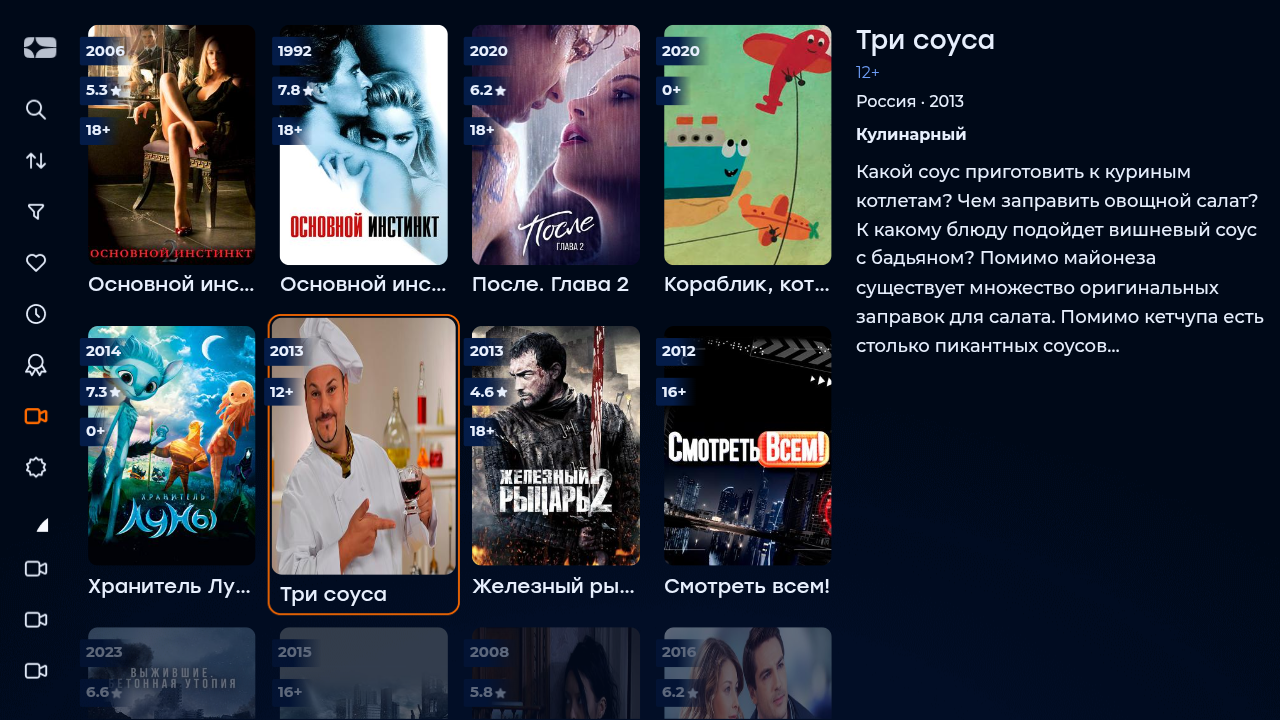
- classic — default value, classic Archive mode with horizontal posters and truncated filtering functionality, selected and other.
- vod_pvr — mode of displaying the Archive as a cinema: with vertical posters and all the functionality of the section «Kinosal».
Example:
var CLIENT_SETTINGS = {
  // ..
  'archive_screen_mode': "vod_pvr"
};
Appearance - settings
Selection of the interface used on the Settings page
Option name: show_change_template_settings, data type: bool.
Possible values:
- true — on the page «Settings» the app will display item «Select template». The list of templates for selection will be formed from the array prescribed in the option
available_templates. - falsely — item «Select template» on the settings page will be hidden (by default).
Example:
var CLIENT_SETTINGS = {
///...
'show_change_template_settings': true
};
Ability to change the interface language
Option name: show_change_lang_settings, data type: bool.
Possible values:
- true — on the page «Settings» the app will display item «Language/Language» (by default).
- falsely — item «Language/Language» the settings screen will be hidden.
Example:
var CLIENT_SETTINGS = {
///...
'show_change_lang_settings': true
};
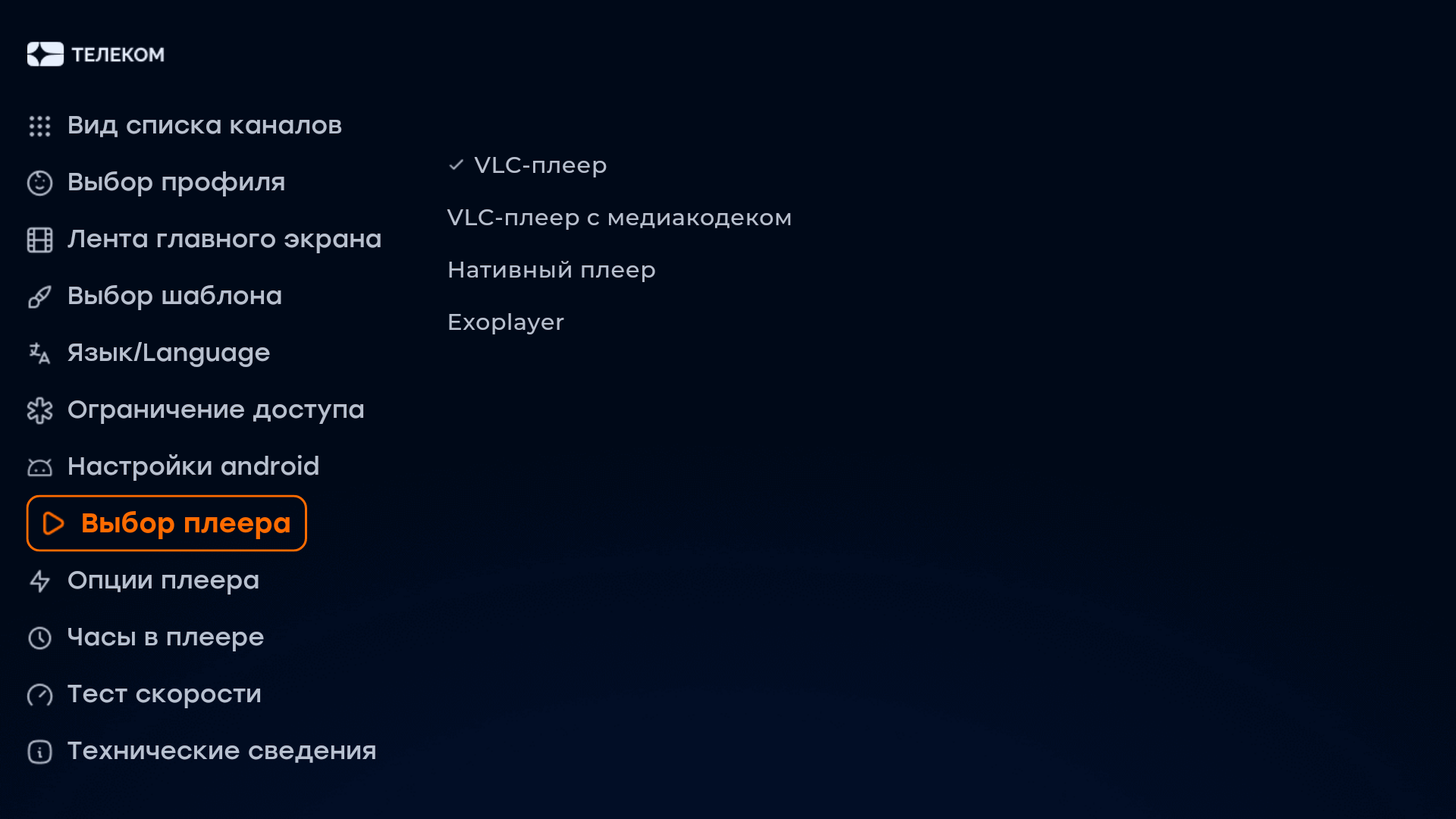
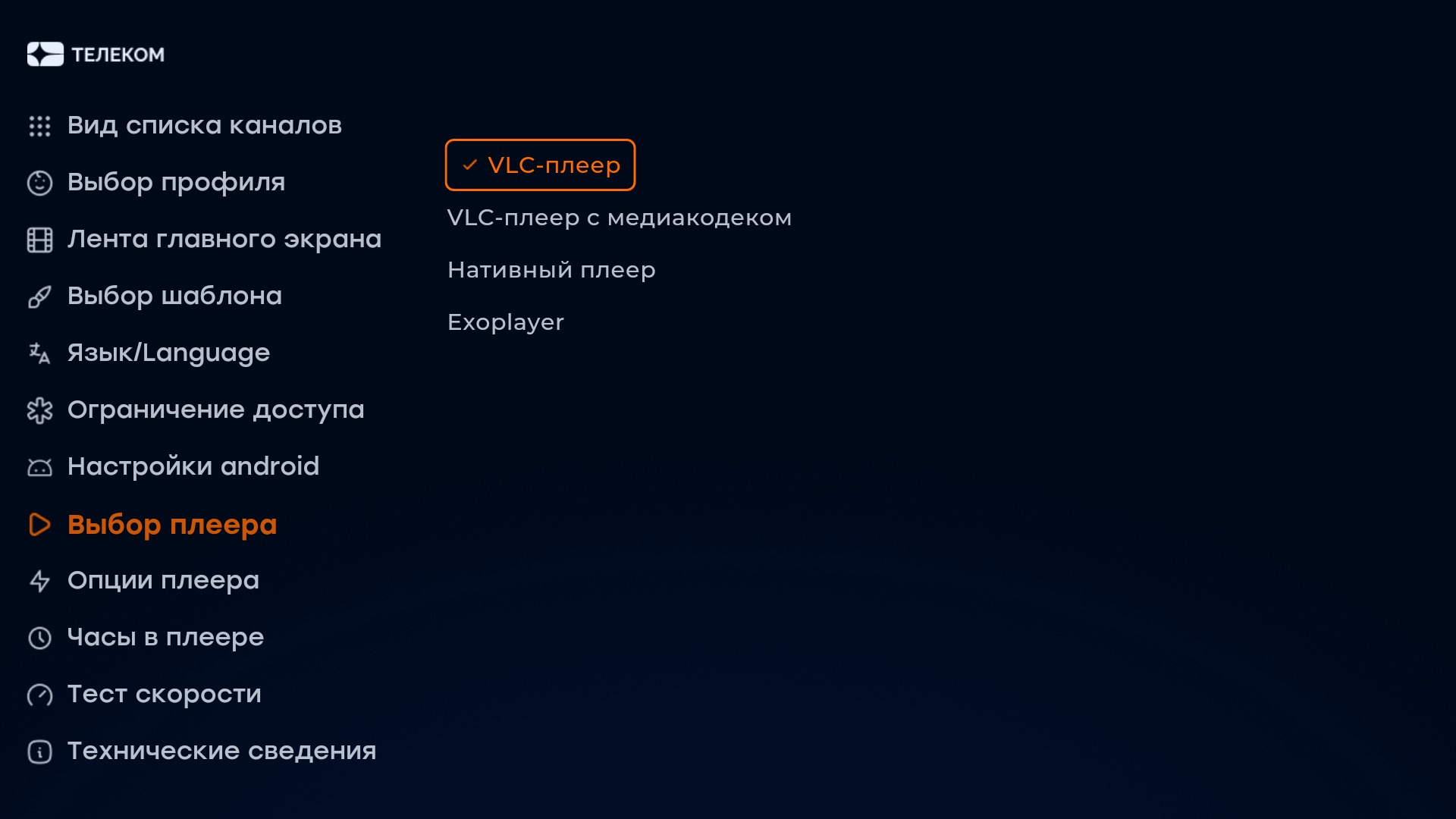
Managing the display item "Player Selection" in the "Settings" screen
Option name: show_change_player_settings, data type: bool. Warning: this option is not compatible with default_player_solution.
Possible values:
- true on the “Settings” page inside the application, the “Select Player” option will be displayed for those devices that support it (currently these are Android devices within the build version above 2.0).
- falsely - the item "Select player" on the settings page will be hidden (by default).
Example:
var CLIENT_SETTINGS = {
///...
'show_change_player_settings': true
};
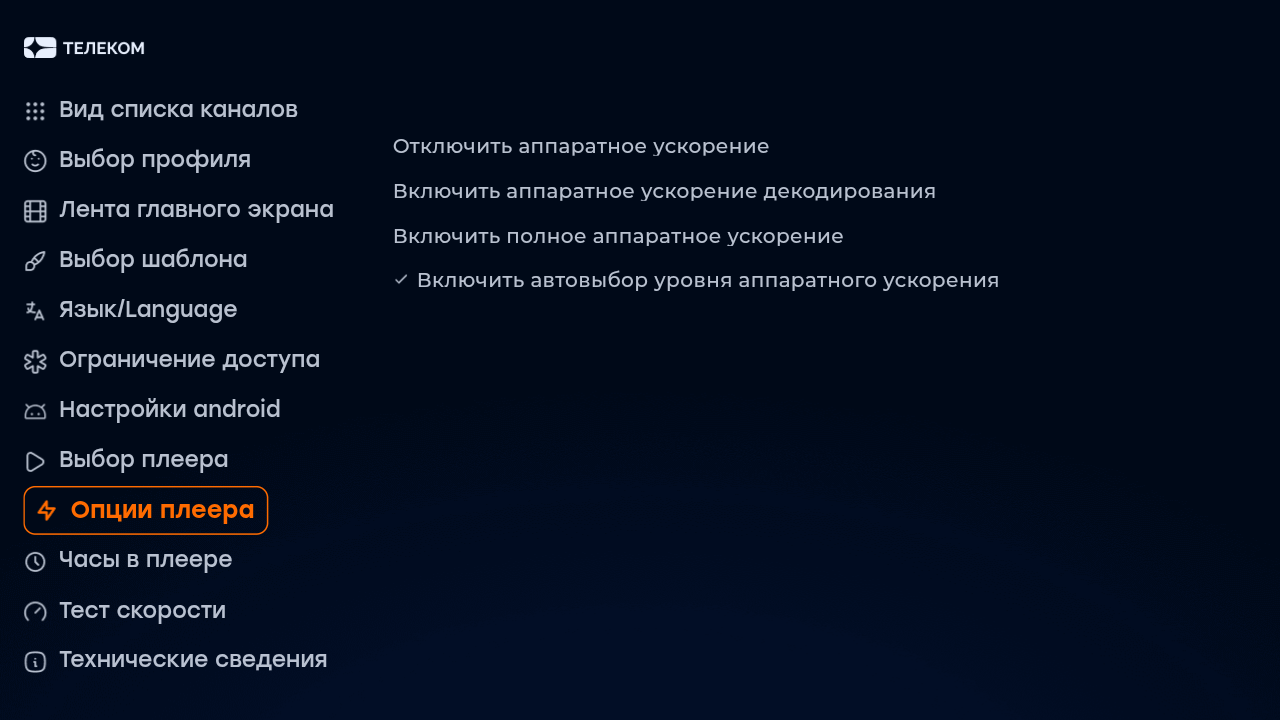
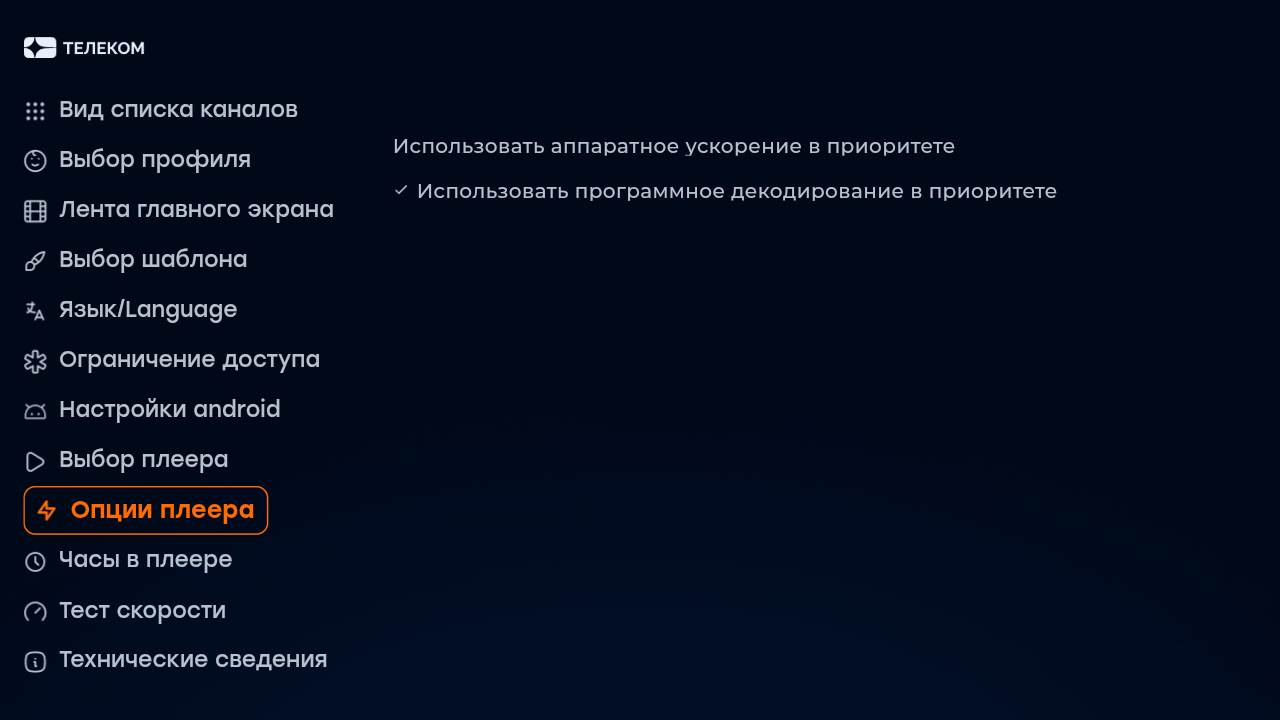
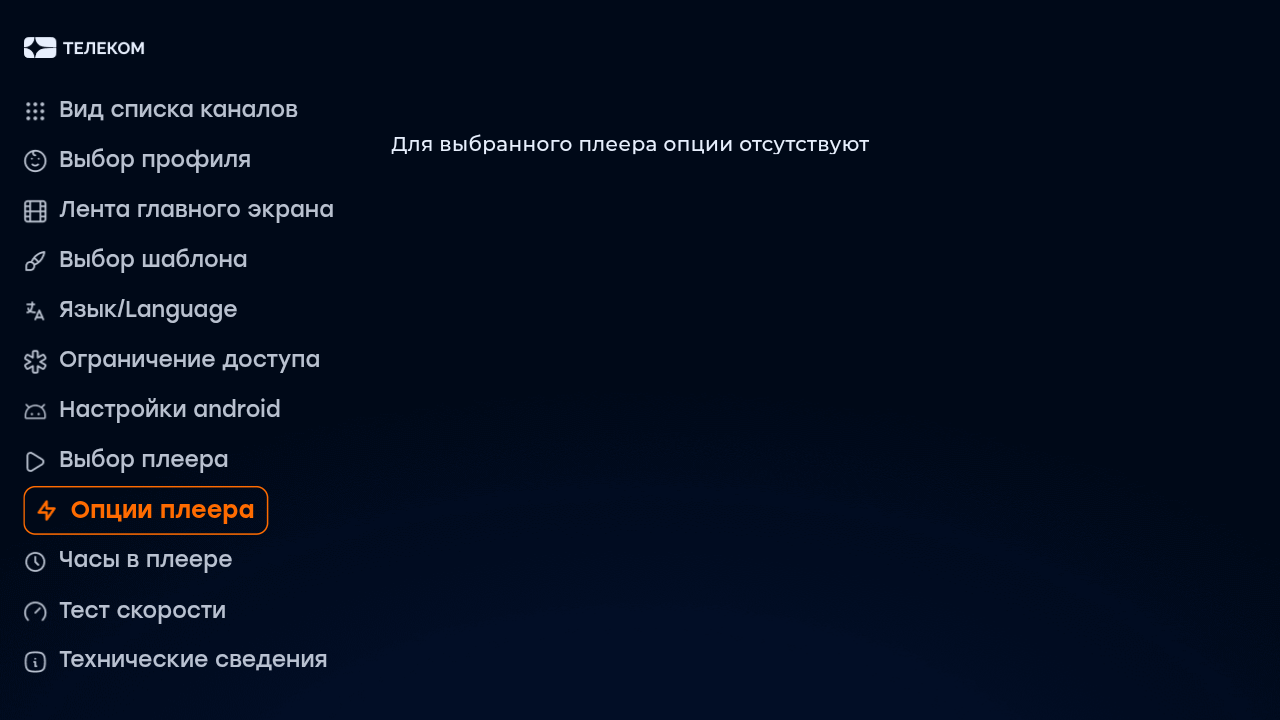
Managing the display of the item “Player Options” in the screen “Settings”
Option name: show_player_options, data type: bool. Note: show_change_player_settings higher priority show_player_options. I mean, if show_change_player_settings meaningfully falselythen show_player_options it is also defined as falsely.
Possible values:
- true on the Settings page inside the application, the option “Player Options” will be displayed for those devices that support it (currently these are Android devices in the build version above 2.0). The list of options depends on the selected player.
- falsely - the item "Player Options" on the settings page will be hidden (by default).
Example:
var CLIENT_SETTINGS = {
  // ..
  'show_player_options': true
};
Managing the display of the item "Tape of the main screen" on the page "Settings"
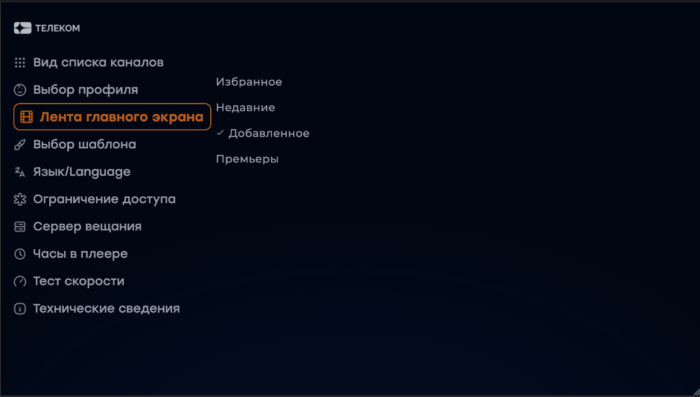
Option name: show_main_video_tape_setting, data type: bool.
Possible values:
- true — on the page «Settings» the app will display item «Tape of the main screen» (by default).
- falsely — item «Tape of the home screen » on the settings page will be hidden.
Example:
var CLIENT_SETTINGS = {
  // ..
  'show_main_video_tape_setting': true
};
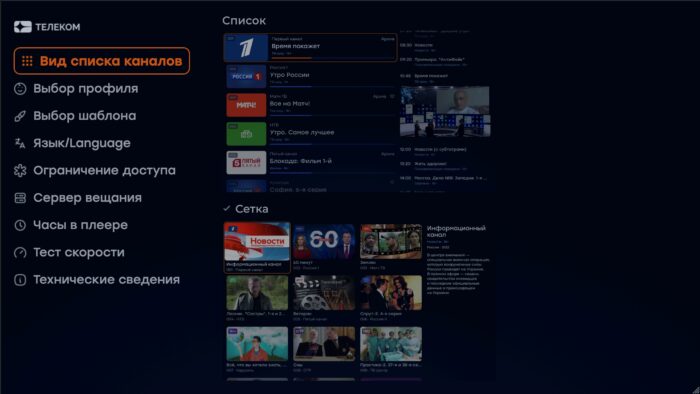
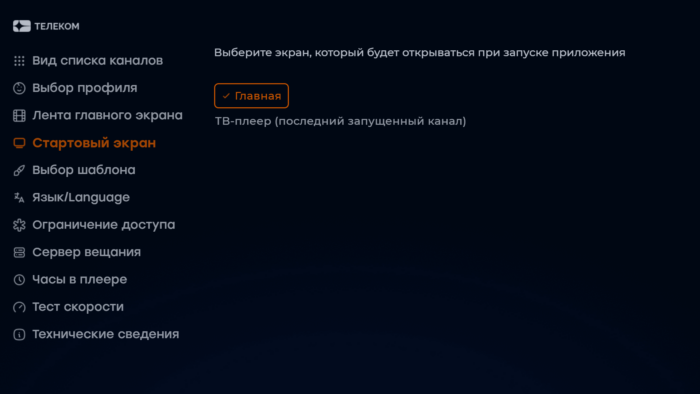
Managing the display of the “Start screen” item on the “Settings” page
Option name: show start screen setting, data type: bool.
Note: show start screen setting higher priority auto_launch_last_view_channel.
Possible values:
- true — on the page «Settings» the app will display item «Start screen». The user gets the opportunity to enable or disable the automatic start of the last viewed channel at the start of the application. If the user has not yet made his choice, then the selected mode within the section «Start screen» corresponds to the value of the option
auto_launch_last_view_channel. - falsely — item «Star screen» on the settings page will be hidden (by default). At this value, the automatic launch of the last viewed channel at the start of the application is regulated only by the option
auto_launch_last_view_channel, even if the user's choice made when the option value is saved in the application settingsshow start screen settingwas true.
Example:
var CLIENT_SETTINGS = {
  // ..
  'show start screen setting': true
};
The ability to choose a genre for «Tapes of the main screen»
Option name: main_video_tape_id_admin, data type: int.
Defines the ID of the video genre for the main screen tape, while it is necessary that the specified ID is present in the array main_screen_tape_genres. When the user first receives the tape with the specified admin_id genre, it will replace the tape previously selected by the user in the settings. Subsequent user changes to the home screen tape settings will not be rewritten from the option main_video_tape_id_admin upon receipt. By default -1 (ID not specified).
Examples of Option Combination show_main_video_tape_setting and main_video_tape_id_admin:
1. Default options values, standard portal behavior: tape setting is enabled, administrator tape is not specified, default tape is displayed «Add» or pre-selected by the user.
var CLIENT_SETTINGS = {
  // ..
  'show_main_video_tape_setting': true
  'main_video_tape_id_admin': -1
};
2. The tape setting is disabled, the administrator tape is not specified, in this case the tape of the main screen will be disabled.
var CLIENT_SETTINGS = {
  // ..
  'show_main_video_tape_setting': false
  'main_video_tape_id_admin': -1
};
3. The tape setting is disabled, the administrator tape is indicated, the tape of the main screen will be shown by the specified admin_id (regardless of the presence in the
main_screen_tape_genres).
var CLIENT_SETTINGS = {
  // ..
  'show_main_video_tape_setting': false
  'main_video_tape_id_admin': 1
};
4. Tape setting is enabled when you first receive the option
main_video_tape_id_adminadministrator tape is displayed (if available)main_screen_tape_genres), then the user can change the tape in the settings, and the next time you download and receive admin_id, it will not apply. If the tapes mentioned in themain_video_tape_id_adminit will not be on the list of genresmain_screen_tape_genres, then the default tape will be selected «Add» and the previous user selection will be overwritten. After that, it will be possible to show the administrator tape to the user again when addingmain_video_tape_id_adminback-to-genremain_screen_tape_genres.
var CLIENT_SETTINGS = {
  // ..
  'show_main_video_tape_setting': true
  'main_video_tape_id_admin': 1
};
Appearance is my profile
Display of the "Personal Cabinet" section in the personal account
Option name: show_personal_info, data type: bool.
Possible values:
- true - in the personal account there is a section "Personal account" with information about the subscriber.
- falsely in the personal account there is no section with information about the subscriber (by default).
Example:
var CLIENT_SETTINGS = {
///...
-show_personal_infofalse:
};

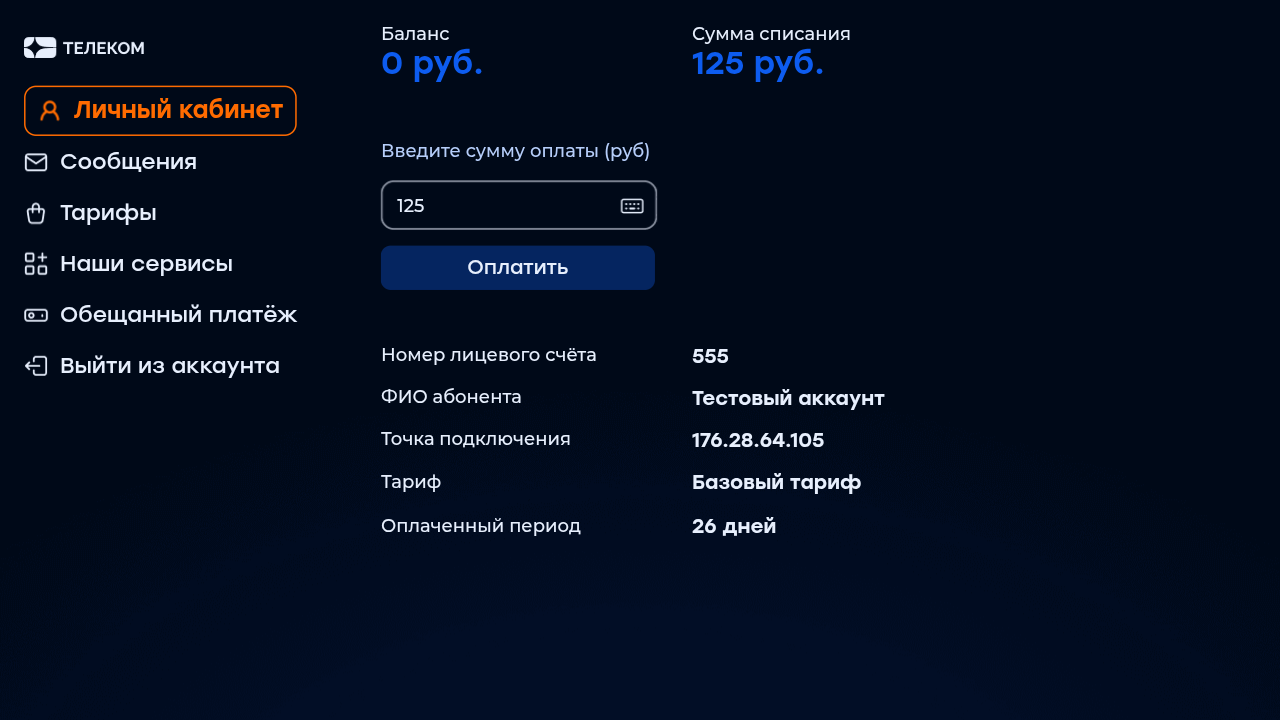
Possibility of replenishing the balance in the personal account
Option name: show_pay_menu, data type: bool.
Possible values:
- true The personal account will display the field for entering the amount and the button «Pay». The button «Pay» in the profile screen will lead to the form of the payment gateway Stripe, if it is supported by the device.
- falsely The field for entering the amount and the button «Pay» are absent (by default).
Example:
var CLIENT_SETTINGS = {
  // ..
  'show_payment_menu': false
};
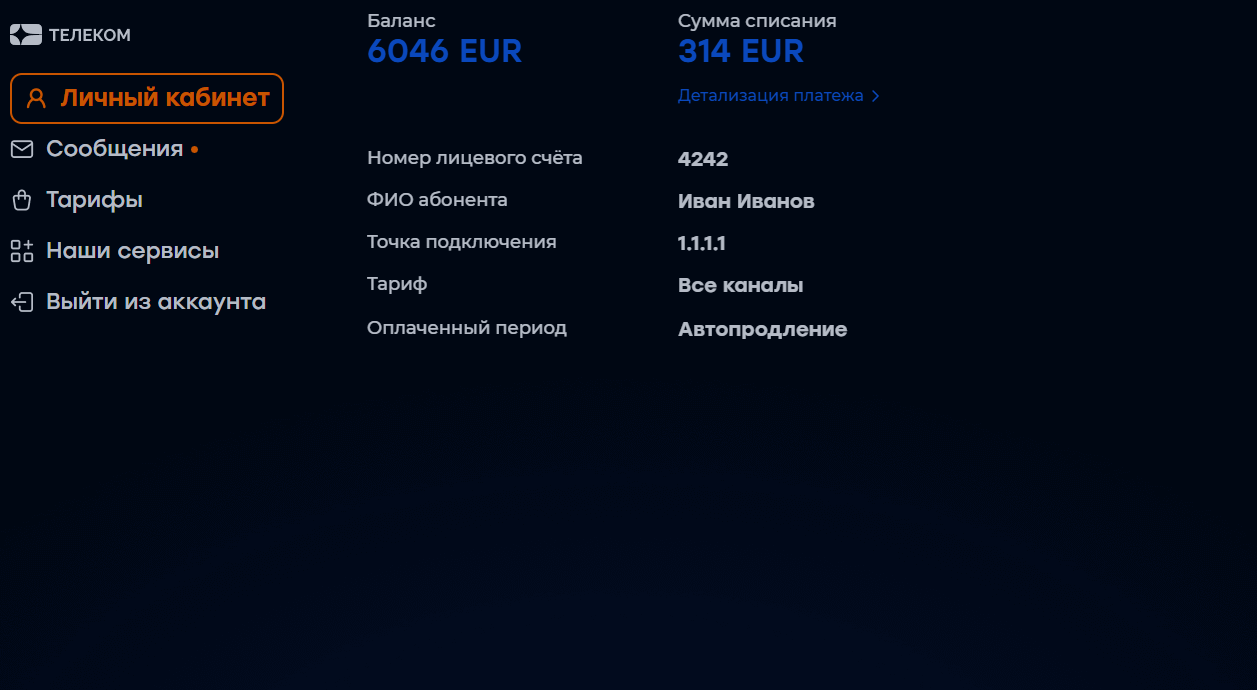
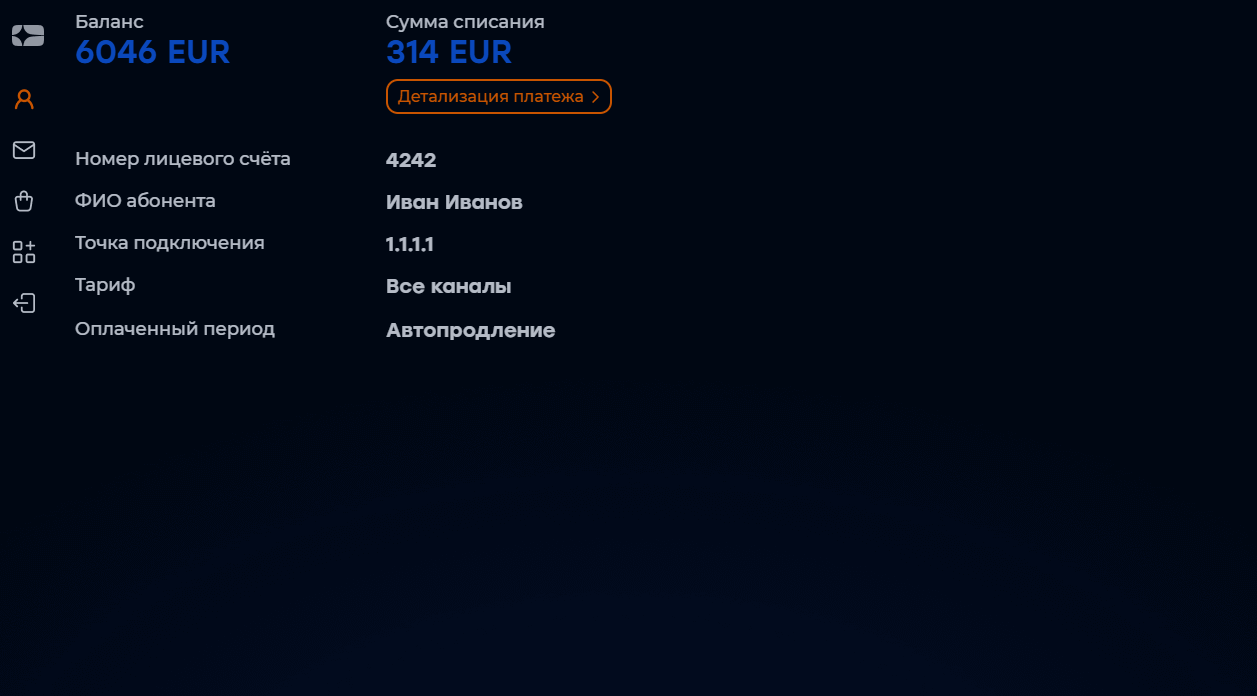
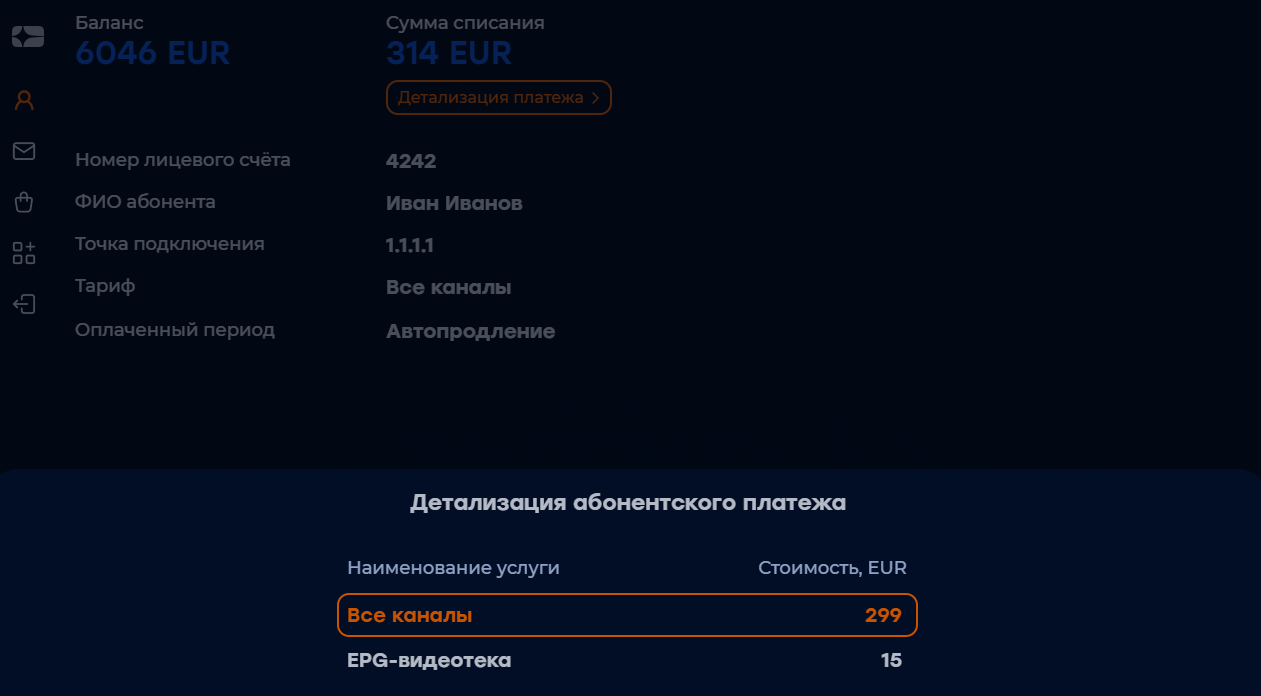
Displaying payment detailing
Option name: show_pay_detail_in_personal_info, data type: bool. Note: to show the details of payments option show_personal_info must be established in the meaning true.
Possible values:
- true in the personal account there is an opportunity to view the details of payments.
- falsely - the item will be hidden (by default).
Example:
var CLIENT_SETTINGS = {
  // ..
  'how_payment_detail_in_personal_info': true
};
Option name: show_messages_menu, data type: bool.
Possible values:
- true In the screen “My profile” will display the item “Messages” (by default).
- falsely - the item "Messages" will be hidden.
Example:
var CLIENT_SETTINGS = {
///...
'show_messages_menu': true
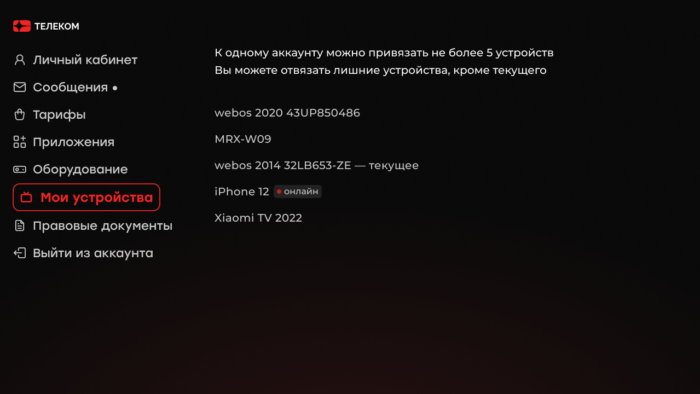
};Option name: show_device_list_management, data type: bool.
Possible values:
- true In the screen “My profile” will display the item “My devices”, where you can see a list of devices associated with the account and delete them.
- falsely “My devices” will be hidden (by default).
Also, the list for managing devices is shown when authorization is unsuccessful due to the excess of the number of attached basic devices.
Example:
var CLIENT_SETTINGS = {
  // ..
  'show_device_list_management': true
};
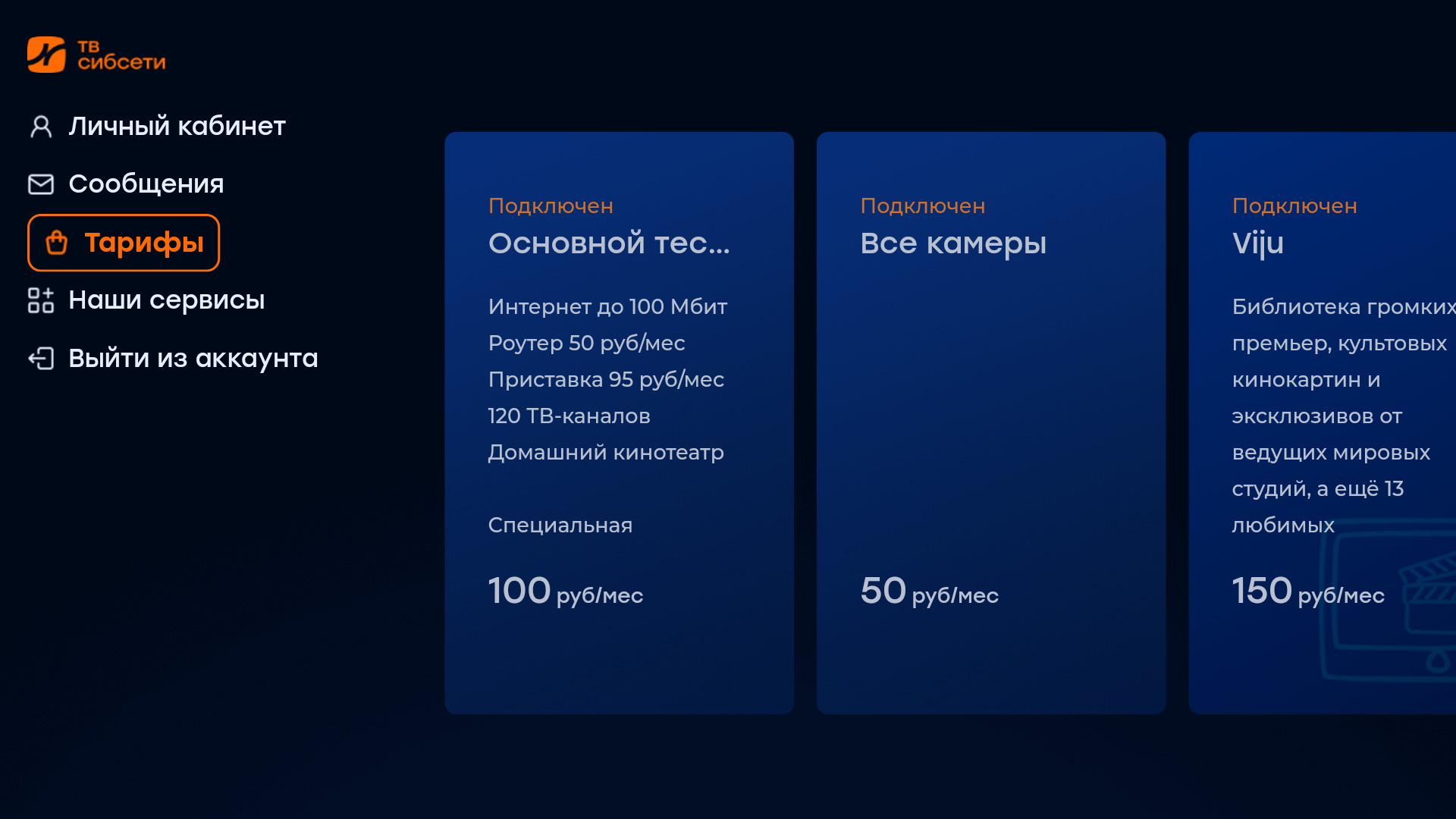
Option name: show_packages, data type: bool.
Possible values:
- true — on the page «Settings» the app will display item «Fare Management» for the ability to connect / disable tariff packages.
- falsely — item «Fare management» the settings screen will be hidden (by default).
Example:
var CLIENT_SETTINGS = {
///...
'show_packages': true
};
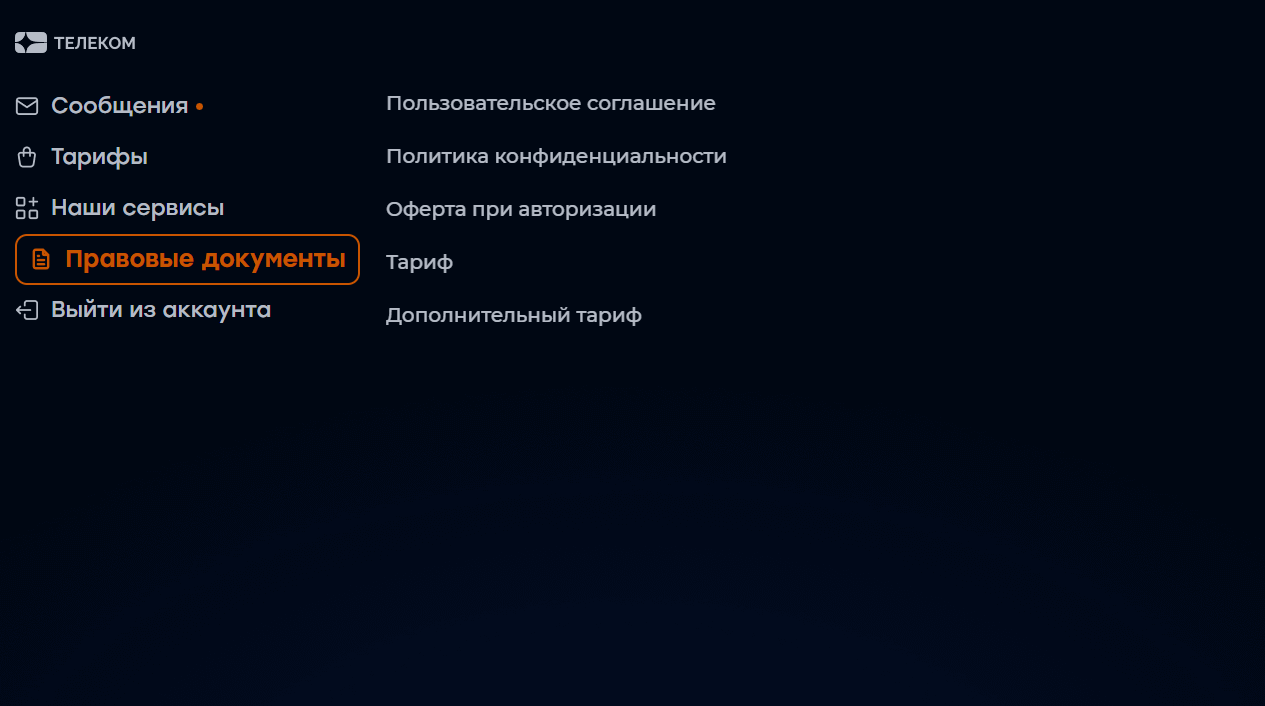
Option name: show_legal_documents, data type: bool.
Possible values:
- true - in the "Personal Account" screen, the "Legal Documents" menu item will be displayed for viewing their contents and acceptance.
- falsely The “Legal Documents” menu will be hidden (by default).
Example:
var CLIENT_SETTINGS = {
///...
'show_legal_documents': false
};
Display point and the possibility of changing the account
Option name: show_logout_option, data type: bool.
Possible values:
- true - in the personal account there is a item "Leave the account", the subscriber will be able to log out of his account and enter under another account.
- falsely the ability to log out will not be available (by default).
Example:
var CLIENT_SETTINGS = {
///...
'show_logout_option': true
};
Appearance - search
Deactivation of the voice recognition function on the device
Option name: disable_voice_control, data type: bool.
Possible values:
- true the voice control button on the device will be hidden.
- falsely the voice control button on the device will be available (by default).
Example:
var CLIENT_SETTINGS = {
  // ..
  'disable_voice_control': true
};