Additional options allow you to change the appearance and behavior of the application, and are specified in the configuration file /etc/microimpuls/portal/client.js.
The following options are available for the titanium interface.
- Authorization
- Authorization by device identifier/IP address
- Display of the button for selecting the authorization method (by login and password or phone number)
- Display of the legal document on the authorization screen
- Display of the entered password on the authorization screen
- Length of confirmation code from SMS message
- Length of confirmation code by phone number
- Mobile phone number mask in the authorization screen
- Saving the login and password in the input fields on the authorization screen when restarting the application
- The ability to enter characters in the password
- Reboot the device after the first activation
- Registration
- Main screen screen
- Main menu
- Television channels and EPG
- Limit the maximum length of the channel number
- Depth of TV program display
- Optimizing the loading of the channel list
- Hiding the Zero Rating of TV Programs
- Switching channels within the selected category
- Automatic playback of the last channel viewed at launch
- Disabling channel autostart in the preview window when navigating the list
- Reproduction of streams-stubs for channels with locks
- Remembering the latest TV category
- Randomization of the EPG update interval for past transmissions
- Popap display with a choice of tariff when starting a channel with a lock
- Display of channel icons
- Player
- Rewinding the archive by re-querying the position
- Player rewind step
- Display time of the beginning and end of the transfer in the infobar
- Automatically Hiding Menus When Playing Content
- Save the selected audio track language for each channel separately
- Save the selected subtitle language for each channel separately
- Keeping the selected aspect ratio for each channel separately
- Ignoring the aspect ratio value coming from Smarty
- Setting a special ratio of screen sides when playing movies
- Sound control mode on Samsung Smart TV Orsay
- Volume up/down step
- Displacement to pause Live TV relative to current time
- Shifting the Live TV pause by default
- Delay in live stream operations on pause
- Sending interval of viewing position
- Sending interval of viewing statistics
- Video library
- Включение раздела «Каталог»
- Grouping of films by category or genre
- Display of the category "Premier" in the video library
- Display in the video library of films, the source of which is archival records
- How to sort movies by default
- Disabling the display of empty genres
- Sorting the list of actors on the film page
- Sorting the list of films on the actor's description screen
- Limiting the number of actors on the film page
- Mechanics of generation of the film "Similar films"
- Display Disclaimer about the dangers of drugs
- Showing a QR code with a support number when buying a movie
- Search
- Personal office
- Settings
- Selection of the interface used on the Settings page
- List of available templates to select
- Ability to change the interface language
- Managing the display item "Player Selection" in the "Settings" screen
- Managing the display of the item “Player Options” in the screen “Settings”
- The ability to select a data center in the settings menu
- Logic of work
- Delayed application loading at start
- Verification of additional account status
- Selection of the application interface used through account settings in Smarty
- Suspension of server requests in Stand-By mode
- Periodic HealthCheck
- HealthCheck Interval
- Update to build the application on Android STB/TV
- Update build launcher on Android STB/TV
- Enabling the system debugging console on a device with a specific User-Agent
- Adding Market Name to Device Type
- Disabling the SET button on MAG consoles
- Additional CSS class for body interface
- PP service address for optimizing graphics and generating QR
- Hotel accommodation
- Instructions for first launch
Authorization
At the first launch of the application, the subscriber is shown by default the authorization screen in the service by login and password. Optionally, you can also authorize in other ways:
- by phone number;
- by device identifier/IP address.
Managing the choice of authorization method occurs in several places, in order of priority:
- file
client.jsoptionalauth_mode; - in the admin on the page «Settings of applications and devices», in the field «Authorization method».
Authorization by device identifier/IP address
Included in option "auth_mode": "device_uid". From the point of view of the user, this authorization occurs in the background when the application is launched:
- first, the desired account is searched by the user’s IP address (based on the field «Subnet» the account);
- if no account is found by IP, an attempt is made to find an account by device identifier (based on the devices associated with the account);
- after a successful search, a check is made for the availability of authorization from the user’s network, for compliance with the limit of associated devices, status and other rules set for the account (see the account page).
Available limits of devices for the account are regulated by connected tariffs, namely properties « Multi-subscription settings» for connected tariffs. For the convenience of calculating available devices and sessions for the account on its page in the block « Information about the account » its limits and the number of current occupied slots are displayed.
Different fields can be used as an identifier for different types of devices: serial numbers, MAC addresses, pseudo-random generated UIDs, etc. Due to the variability of the park android devices, there is an option
android_uid_generation_methodthis allows you to choose which field to use as an identifier.
If the number of attached devices exceeds, the user is shown their list with the ability to untie the unnecessary and try to log in again.
Useful Smarty options for authorization:
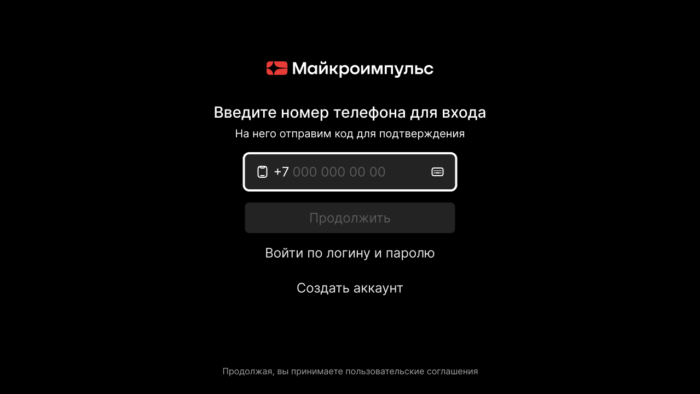
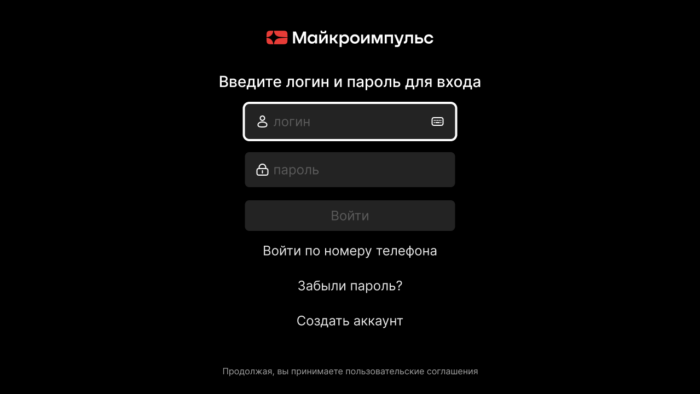
Display of the button for selecting the authorization method (by login and password or phone number)
Option name: show_alter_auth_button, data type: bool.
Possible values:
- true - the authorization screen will display the button for selecting the login method.
- falsely - the button for selecting the login method will not be displayed (by default).
Example:
var CLIENT SETTINGS = {
///...
'show alter auth button': true
};
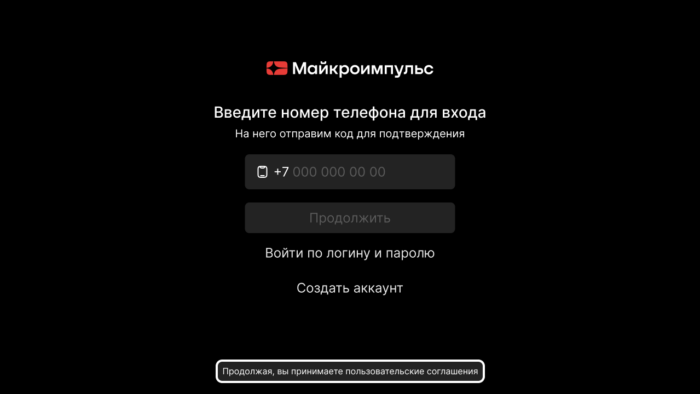
Display of the legal document on the authorization screen
Option name: show_auth_legal_documents, data type: bool.
Possible values:
- true at the bottom of the authorization screen, a legal document will be displayed, to which you can transfer the focus and then open.
- falsely the legal document will not be displayed (by default).
Example:
var CLIENT SETTINGS = {
///...
'show auth legal documents': false
};
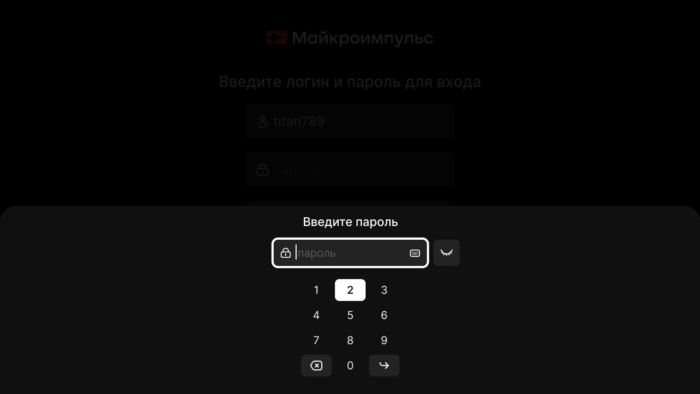
Display of the entered password on the authorization screen
Option name: show_see_password_button, data type: bool.
Possible values:
- true - on the password entry screen, the password display button (eye icon) will be displayed.
- falsely the password button will be hidden (by default).
Example:
var CLIENT SETTINGS = {
///...
'show see password button': false
};
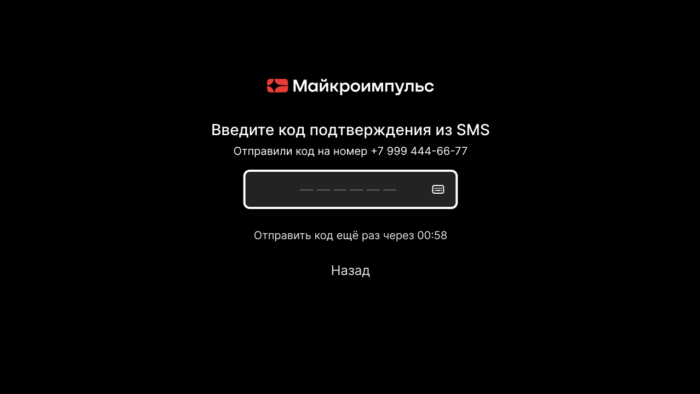
Length of confirmation code from SMS message
Option name: sms_code_length, data type: int.
Determines the number of windows when entering the confirmation code from SMS. By default 6.
Example:
var CLIENT SETTINGS = {
///...
'sms code length': 4
};
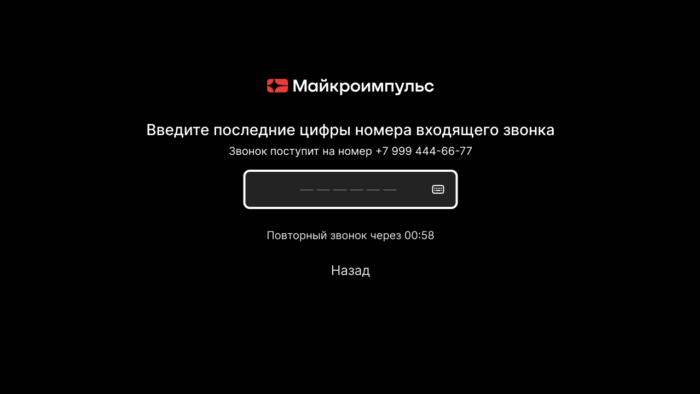
Length of confirmation code by phone number
Option name: phone_code_length, data type: int.
Determines the number of windows when entering the confirmation code from the phone number. By default 4.
Example:
var CLIENT SETTINGS = {
///...
'phone code length': 4
};
Mobile phone number mask in the authorization screen
Option name: registration_phone_mask, data type: string.
By default +7 ??? ??? ?? ??.
The mask uses a special symbol ?, instead of which the input value will be substituted, the remaining characters will be displayed as is.
Example:
var CLIENT_SETTINGS = {
///...
'registration_phone_mask': '+7??????????
};
Saving the login and password in the input fields on the authorization screen when restarting the application
Option name: restore_login_form_input_from_settings, data type: bool.
Possible values:
- true when restarting the application and in the case of a logout in the input fields, the login and password from the previous session will be filled on the authorization screen.
- falsely the data will not be completed (by default).
It is recommended to use this option in the authorization method password to avoid loss of password by subscribers after logout.
Example:
var CLIENT_SETTINGS = {
///...
'restore_login_form_input_from_settings': false
};
The ability to enter characters in the password
Option name: is_letter_in_password, data type: bool.
Possible values:
- true numbers and letters can be entered in the password.
- falsely only numbers can be entered in the password (by default).
Example:
var CLIENT_SETTINGS = {
///...
'is_letters_in_password': false
};
Reboot the device after the first activation
Option name: reboot_device_after_login_with_password, data type: bool.
Possible values:
- true - after the subscriber is authorized with a login and password through the authorization form, the device will be rebooted.
- falsely no reboot will be made, the application will be downloaded as usual (by default).
It can be used to perform system billing operations during the initial “activation” of the prefix by the subscriber.
Example:
var CLIENT_SETTINGS = {
///...
'reboot_device_after_login_with_password': false
};
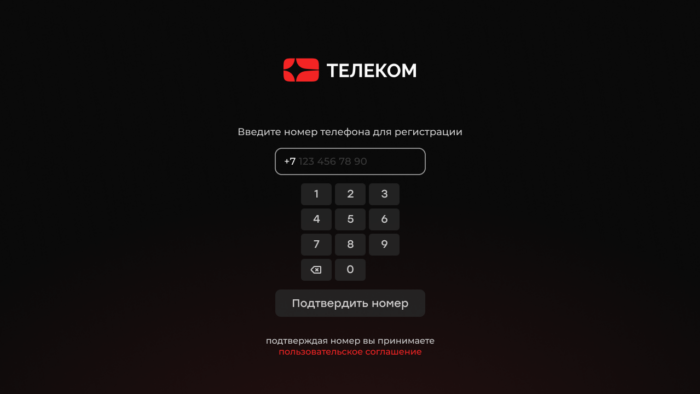
Registration
For the registration scenario by the user's phone number through the application, an option is provided registration_available.
Example:
var CLIENT_SETTINGS = {
  // ..
  'registration_available': true,
};
Main screen screen
The following types of dashboard tapes are available in the interface:
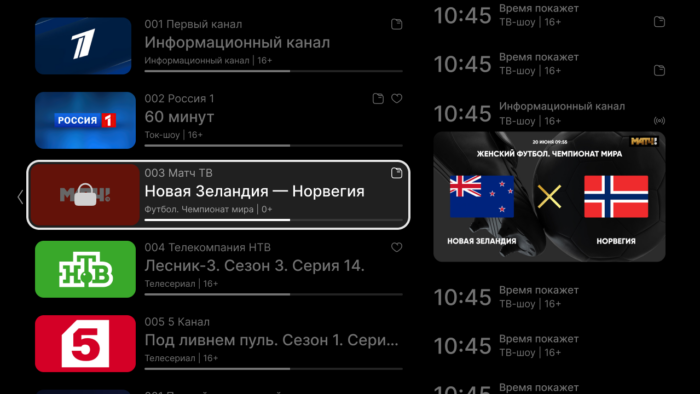
Television channels
Displayed in a grid of two lines of 9 elements.
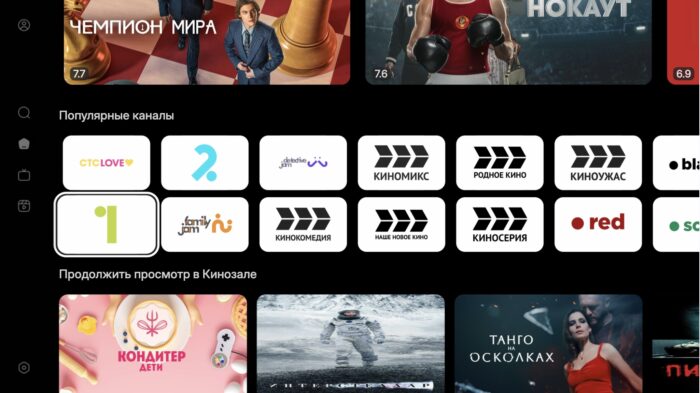
Films and film selection
For the film, you can specify the poster used in the field «Display Type »
normal_ad_banner— use horizontal banner advertising as cover- empty line — default value, standard vertical poster used
Recently watched movies
Displays the tape «Continue viewing» with movies and TV series that began to watch, but did not watch until the end. The series is considered reviewed if you have watched all episodes of all seasons.
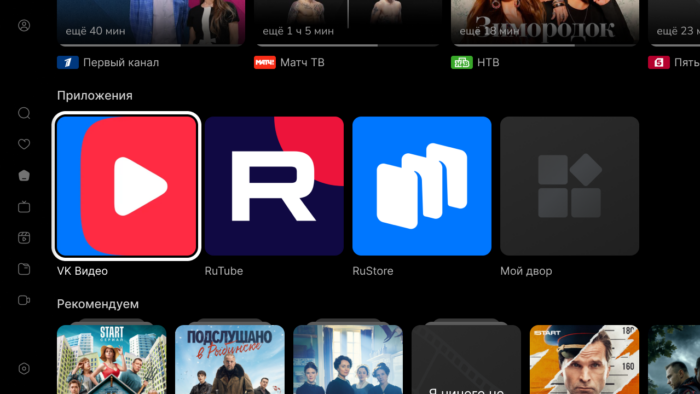
Widgets
The tape works in two modes:
- displaying applications running in Smarty & #8212; this mode is enabled by option
"show_installed_apps": false. Applications will appear in the feed if they have a checkbox «Show the application in the main menu» and the type corresponds to one of the listed: Web-application in the external window, Web-application in the internal window, launch the Android application by ID, launch the system application by ID. - display installed on the console applications (only for Android devices).
Transmissions
Transmissions: past or future. When you click on the past transfer, a full-screen player opens with its recording if available, otherwise the information pop-window is shown.
Restriction of portion of downloadable tapes
Option name: dashboard_load_portion, data type: int.
By default 4This means that after successfully downloading the first 4 tapes, they will be rendered, and the remaining tapes will continue to load as they navigate on the screen. The minimum value for this option is 2.
Example:
var CLIENT_SETTINGS = {
///...
'dashboard_load_portion': 4
};
Limit of elements in dashboard tapes
Option name: dashboard tape limit, data type: int.
How many items to request in the dashboard tapes? Channels, programs and movies are further limited by Smarty settings, the setting affects the selections. By default 17.
Example:
var CLIENT SETTINGS = {
///...
'dashboard tape limit': 17
};Items of the main menu are regulated by the option custom_main_menu_items, available values:
- main & #8212; item « Main»
- tv & #8212; item «Telechannels»
- vod & #8212; item «Kinosal»
- archive — item « Archive »
- search & #8212; item «Search»
- settings — item « Settings»
- my-collection — item «My collection»
Example:
var CLIENT_SETTINGS = {
  // ..
  'custom main menu items': ['main', 'tv', 'vod', 'search', 'my-collection', 'settings'],
};
Television channels and EPG
Limit the maximum length of the channel number
Option name: channel_number_max_length, data type: int. By default 3.
Set the maximum length of the channel number:
- on the television screen;
- when you directly enter the channel number from the digital buttons of the remote.
Example:
var CLIENT_SETTINGS = {
///...
'channel_number_max_length': 3
};
Depth of TV program display
Option name: max_epg_depth, data type: int.
Determines the depth of EPG in days for the TV screen:
- if morethe depth will be equal to this value;
- if the option is not set (or equal) 0), then:
- the archive depth will be used for the archive channel (server restriction),
- if the channel does not have an archive, the tv program will be displayed only for the current day.
By default 0.
Example:
var CLIENT_SETTINGS = {
///...
'max_epg_depth': 0
};
Optimizing the loading of the channel list
Option name: channel_info_request_depth, data type: int.
Determines the portion size of channels for which you need to get more detailed information, by default 24. The loading volume is calculated by the formula: channel_info_request_depth * 2 + 1, i.e. downloaded information about the channel on which the focus and channel_info_request_depth the channels that exist before and after it. Warning: for the correct operation of the option, the Smarty version is not lower than 2.4.
Example:
var CLIENT SETTINGS = {
///...
'channel info request depth': 24
};
Hiding the Zero Rating of TV Programs
Option name: epg_hide_zero_plus_rating, data type: bool.
Possible values:
- true rating 0+ will be hidden (only for the visual display of rankings, not content).
- falsely rating 0+ it will be displayed (by default).
Example:
var CLIENT_SETTINGS = {
///...
'epg_hide_zero_plus_rating': false
};
Switching channels within the selected category
Option name: switching_channels_inside_category, data type: bool.
Possible values:
- true switching channels with buttons Ch+/- it will take place within the selected channel category.
- falsely Switching will occur within the All category, even if another category is selected (by default).
Example:
var CLIENT_SETTINGS = {
///...
'switching_channels_inside_category': false
};
Automatic playback of the last channel viewed at launch
Option name: auto_launch_last_view_channel, data type: bool.
Possible values:
- true play the last channel automatically when the application starts.
- falsely display the main screen (by default).
Example:
var CLIENT_SETTINGS = {
///...
'auto_launch_last_viewed_channel': false
};Option name: autoplay_tv_preview_channels, data type: bool.
Possible values:
- true when navigating in the channel list (relevant to the mode) listthe player in the preview window automatically starts playing after a small timeout (by default).
- falsely When navigating in the list of channels, the preview player does not start. This value is recommended for low-performance devices for which the flow start operation in the preview window is too heavy to cause it so often.
Example:
var CLIENT SETTINGS = {
///...
'autoplay tv preview channels': true
};
Reproduction of streams-stubs for channels with locks
Option name: request_url_for_locked_channels, data type: bool.
Possible values:
- true when starting the channel with a lock, an attempt is made to start the stream-stub (if it is set) and display a banner-stub; if the stream-stub for the channel is not set, an information popp is shown.
- falsely when you start the channel with a lock, an information pop-up with a list of tariffs for connecting is shown (by default).
Example:
var CLIENT_SETTINGS = {
///...
'request_url_for_locked_channels': false
};
Remembering the latest TV category
Option name: save_last_tvcategory, data type: bool.
Possible values:
- true The application remembers the last selected channel category and restores it the next time you log in to the Channels.
- falsely category is not remembered (the default behavior of the interface).
Example:
var CLIENT SETTINGS = {
///...
'save last tvcategory': true
};
Randomization of the EPG update interval for past transmissions
Option name: expired_programs_update_interval_randomization, data type: int.
The option adds random bias to the periodic update of EPG data (including for past/completed transmissions) to reduce the likelihood of simultaneous requests from a large number of devices.
Example:
var CLIENT SETTINGS = {
///...
'expired programs update interval randomization': 30
};
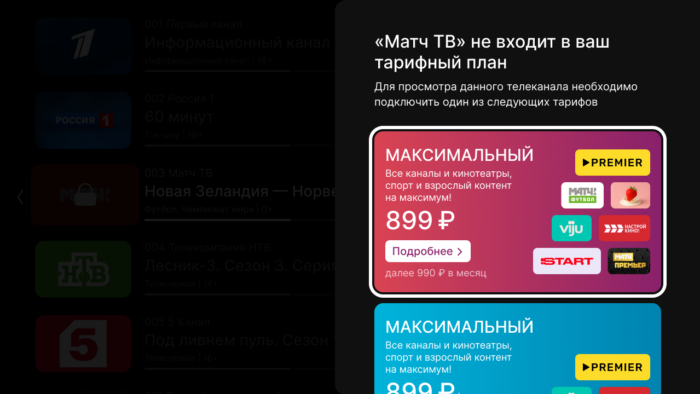
Popap display with a choice of tariff when starting a channel with a lock
Option name: show_locked_tariff_popup, data type: bool.
Possible values:
- true - when you start the channel with a lock or press the button «Buy» the film displays the pop-up of the tariff selection.
- falsely When you start the channel with a lock, an information popp is shown that the content is not available within the subscription (by default). The behavior of the button «Buy» the film is described in more detail below.
Example:
var CLIENT SETTINGS = {
///...
'show locked tariff popup': false
};
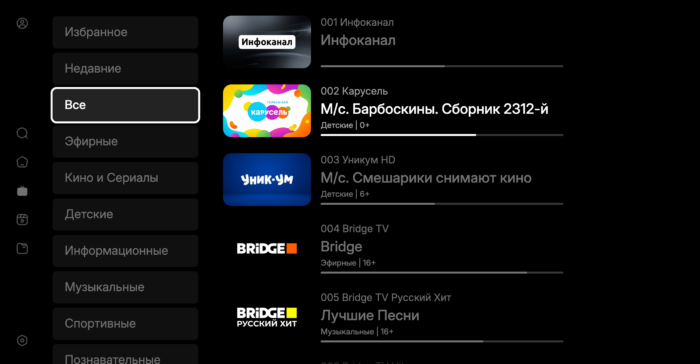
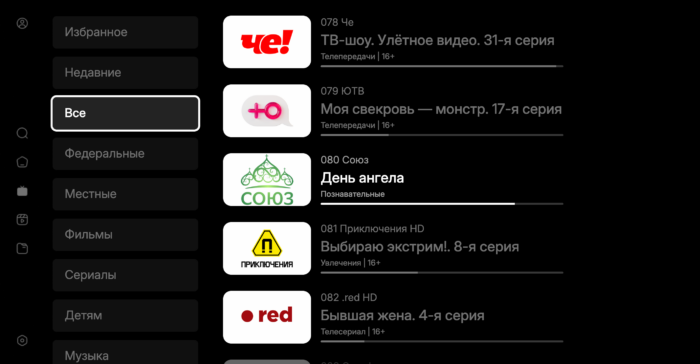
Display of channel icons
Option name: use cover for channel icons, data type: bool.
Possible values:
- true the channel icon is rectangular and occupies the entire area allocated to it in the interface (in the channel list, in the player, on the transmission screen and in the program elements —); smarty should have an icon size 376 by 224 pixels.
- falsely - the channel icon is square and inscribed in a rectangle with a white background (by default, in this format, icons are poured from an EPG source).
Example:
var CLIENT SETTINGS = {
///...
'use cover for channel icons': true
};
Player
Rewinding the archive by re-querying the position
Option name: server_rewind_mode, data type: bool.
Possible values:
- true - for rewinding will be used positioning by specifying the time stamp. The URL to the thread will be re-requested from the server at each rewind (by default).
- falsely fast-forward through the stream by the seek method by means of the player (does not always work correctly due to different implementations on players, but faster).
Example:
var CLIENT_SETTINGS = {
///...
'server_rewind_mode': true
};
Player rewind step
Option name: player_wind_step, data type: int.
Allows you to set the step of rewinding the player in the archive and video library mode in one click of the rewind button. Step is given in seconds, by default 60 in titanium (in other templates it may be 30).
Example:
var CLIENT SETTINGS = {
///...
'player rewind step': 60
};
Display time of the beginning and end of the transfer in the infobar
Option name: infobar_time_display_mode, data type: string.
Allows you to change the option of displaying the time of the beginning and end of the transfer in the infobar in the archive mode or paused Live TV.
Possible values:
- by_epg time in the infobar is displayed according to the transmission program (by default).
- by_duration the start time of the transmission is set at 00:00, and the end time is set equal to the duration of the transmission.
Example:
var CLIENT_SETTINGS = {
///...
'infobar_time_display_mode': "by_epg"
};
Automatically Hiding Menus When Playing Content
Option name: autohide_timer, data type: int.
Allows you to set a timeout (in minutes), after which the current screen will be hidden and open full-screen player, if at the moment there is a playback of some content.
By default 0 (hidden off).
Example:
var CLIENT_SETTINGS = {
///...
'autohide_timer': 2
};
Save the selected audio track language for each channel separately
Option name: save_audio_track_lang_per_channel, data type: bool.
Possible values:
- true in the application settings on the device, the user selected audio track language will be stored separately for each channel.
- falsely the last selected language common to all channels will be saved (by default).
Example:
var CLIENT_SETTINGS = {
///...
'save_audio_track_lang_per_channel': false
};
Save the selected subtitle language for each channel separately
Option name: save_subtitle_track_lang_per_channel, data type: bool.
Possible values:
- true the selected subtitle language is stored separately for each channel.
- falsely the last selected subtitle language common to all channels is saved (by default).
Example:
var CLIENT_SETTINGS = {
///...
'save_subtitle_track_lang_per_channel': false
};
Keeping the selected aspect ratio for each channel separately
Option name: save_aspect_ratio_per_channel, data type: bool.
Possible values:
- true in the application settings on the device, the aspect ratio selected by the user will be stored separately for each channel.
- falsely the last selected aspect ratio common to all channels will be retained (by default).
Example:
var CLIENT_SETTINGS = {
///...
'save_aspect_ratio_per_channel': false
};
Ignoring the aspect ratio value coming from Smarty
Option name: ignore_server_aspect, data type: bool.
Possible values:
- true Setting an aspect ratio on the channel editing page in Smarty will not affect the channel aspect ratio (by default).
- falsely The “Party Ratio” value on the channel editing page in Smarty will be taken by default for channels.
Example:
var CLIENT_SETTINGS = {
///...
'ignore_server_aspect': false
};
Setting a special ratio of screen sides when playing movies
Option name: set_default_aspect_ratio_for_vod, data type: bool.
Possible values:
- true after the inclusion of the playback of the film from the video library, the aspect ratio of 16×9 will be forcibly established.
- falsely - the aspect ratio selected earlier by the subscriber will be retained (by default).
Example:
var CLIENT_SETTINGS = {
///...
'set_default_aspect_ratio_for_vod': false
};
Sound control mode on Samsung Smart TV Orsay
Option name: samsung_smart_tv_volume_control_off, data type: bool.
Possible values:
- true sound control is carried out at the level of the operating system of the device (standard control inside the tv).
- falsely sound management is carried out at the application level (by default).
Example:
var CLIENT_SETTINGS = {
///...
'samsung_smart_tv_volume_control_off': false
};
Volume up/down step
Option name: volume_control_step, data type: int.
By default 5 (percentage points out of 100, where 100 is the maximum volume, 0 is the minimum).
Example:
var CLIENT_SETTINGS = {
///...
'volume_control_step': 5
};
Displacement to pause Live TV relative to current time
Option name: time_offset_from_now_for_tv_use_parameter, data type: int.
It is used to determine the availability of a live broadcast pause: the transmission time is compared with the current server time, taking into account a given offset (in seconds).
Example:
var CLIENT SETTINGS = {
///...
'time offset from now for tv pause parameter': 300
};
Shifting the Live TV pause by default
Option name: default pause live tv shift, data type: int.
Shift in seconds when working with a pause live (used to reduce the load on the streamer when resuming playback).
Example:
var CLIENT SETTINGS = {
///...
'default pause live tv shift': 0
};
Delay in live stream operations on pause
Option name: pause live stream delay, data type: int.
Delay in milliseconds before performing live stream operations in pause mode.
Example:
var CLIENT SETTINGS = {
///...
'pause live stream delay': 1000
};
Sending interval of viewing position
Option name: content_position_set_interval, data type: int.
The interval in milliseconds of periodically sending the viewing position to the server during playback.
Example:
var CLIENT_SETTINGS = {
///...
'content_position_set_interval': 30,000
};
Sending interval of viewing statistics
Option name: push_stat_interval, data type: int.
The interval in milliseconds of sending browsing statistics. If not set, the default value is used 300000 (5 minutes).
Example:
var CLIENT_SETTINGS = {
///...
'push_stat_interval': 300,000
};
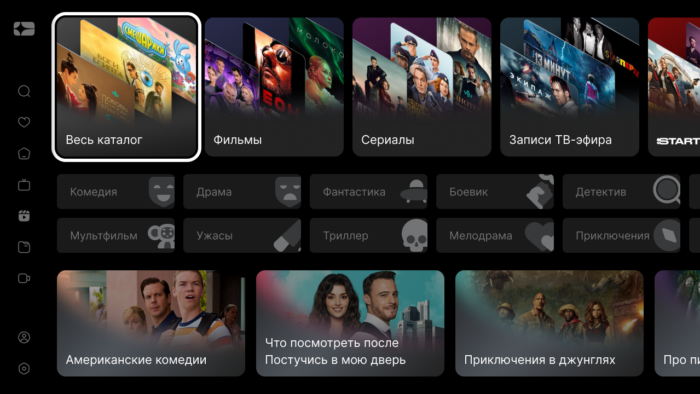
Video library
Включение раздела «Каталог»
Option name: use_video_dashboard, data type: bool.
Possible values:
- true — будет показан экран «Каталог» (по умолчанию).
- falsely — в меню будет отображён пункт «Кинозал» без промежуточного экрана «Каталог».
Grouping of films by category or genre
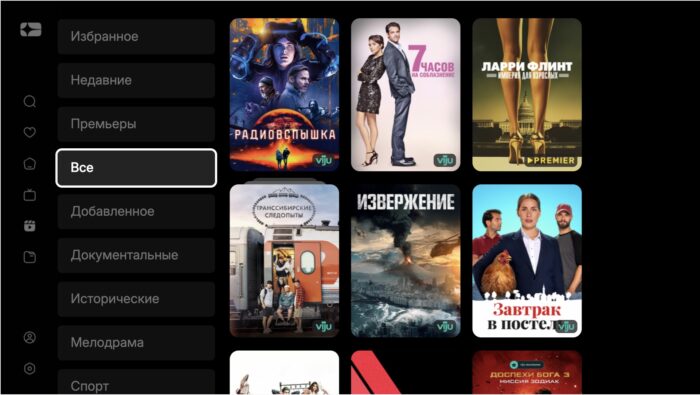
Option name: filter_videos_by_genres, data type: bool.
Possible values:
- true movies will be grouped by genre (by default).
- falsely Films will be grouped into categories (genres in Smarty with the option “Is a Category” enabled).
Example:
var CLIENT_SETTINGS = {
///...
'filter_videos_by_genres': true
};
Display of the category "Premier" in the video library
Option name: show_vod_premieres, data type: bool.
Possible values:
- true - in the list of categories of the video library will be displayed the category "Premier" (movies whose premiere date is not earlier than the number of days specified by the constant) TVMIDDLEWARE_VIDEO_PREMIERE_DAYS in the Smarty settings, or if specified TVMIDDLEWARE_VIDEO_PREMIERE_YEARS in Smarty settings, then only those films whose year of release is not earlier will fall into the sample TVMIDDLEWARE_VIDEO_PREMIERE_YEARS from the current.
- falsely The “Premier” category will be hidden (by default).
Example:
var CLIENT_SETTINGS = {
///...
'show_vod_premieres': false
};
Display in the video library of films, the source of which is archival records
Option name: show_archive_in_vod_screen, data type: bool.
To fill the video library with archival records, you need to use instructions for setting up a video library from archival records. To work correctly, you will need posters 2:3 for archival films.
Possible values:
- true when a video list is requested, films from archival records will be transmitted.
- falsely when you request a video list, you will not transfer movies from archive records (by default).
Example:
var CLIENT SETTINGS = {
///...
'show archive in vod screen': false
};
How to sort movies by default
Option name: default_vod_sort_order, data type: string.
Possible values:
- name - by name, in alphabetical order (by default).
- -name by name, in reverse alphabetical order.
- id - by date of addition to the catalog, first the oldest.
- -id - by date of addition to the catalog, first the newest.
- created update, first the oldest.
- - created_at upgrade date, first the newest.
-updated_at— on the date of addition of the film/episode, first the newest;updated— by date of addition of the film/episode, first the oldest;- premiere_date at the premiere date, first the oldest.
- -premiere_date at the premiere date, first the newest.
- year by the date of the film, first the oldest.
- -year by the date of the film, first the newest.
- average_customers_rating - according to the rating of subscribers, first the most unpopular.
- -average_customers_rating - according to the rating of subscribers, first the most popular.
- kinopoisk_rating According to the rating of the film, first the most unpopular.
- -kinopoisk_rating - according to the rating of the film, first the most popular.
- imdb_rating According to the IMDB rating, the most unpopular at first.
- -imdb_rating According to the IMDB rating, first the most popular.
- number_of_ratings - the number of estimates, at first less evaluated.
- -number_of_ratings by the number of estimates, first the most evaluated.
Example:
var CLIENT_SETTINGS = {
///...
'default_vod_sort_order': "-created_at"
};
Disabling the display of empty genres
Option name: vod_without_empty_genres, data type: bool.
Possible values:
- true The screens of “Video” will not display genres that do not correspond to any film. The exceptions are the Favorites, Novelties and Viewed categories – they will be displayed if the relevant options are enabled and even if they are empty.
- falsely All genres created in the Smarty administrative panel (by default) will be displayed.
Example:
var CLIENT SETTINGS = {
///...
'vod without empty genres': true
};
Sorting the list of actors on the film page
Option name: actors, data type: string.
Possible values:
- birthdate sorting by date of birth, from older to younger.
- birthdate sorting by date of birth, from younger to older.
- name sorting by name, in alphabetical order (by default).
- -name sorting by name, in reverse alphabetical order.
- cyrillic-first sorting by name, first come actors with cyrillic.
- film sorting actors by the number of films with their participation, in ascending order.
- -film_count sorting actors by the number of films with their participation in descending order.
Example:
var CLIENT SETTINGS = {
///...
'actors order': 'name'
};
Sorting the list of films on the actor's description screen
Option name: actor_vod_sort_order, data type: string.
Possible values:
- name - by name, in alphabetical order (by default).
- -name by name, in reverse alphabetical order.
- id - by date of addition to the catalog, first the oldest.
- -id - by date of addition to the catalog, first the newest.
- created update, first the oldest.
- - created_at upgrade date, first the newest.
-updated_at— on the date of addition of the film/episode, first the newest;updated— by date of addition of the film/episode, first the oldest;- premiere_date at the premiere date, first the oldest.
- -premiere_date at the premiere date, first the newest.
- year by the date of the film, first the oldest.
- -year by the date of the film, first the newest.
- average_customers_rating - according to the rating of subscribers, first the most unpopular.
- -average_customers_rating - according to the rating of subscribers, first the most popular.
- kinopoisk_rating According to the rating of the film, first the most unpopular.
- -kinopoisk_rating - according to the rating of the film, first the most popular.
- imdb_rating According to the IMDB rating, the most unpopular at first.
- -imdb_rating According to the IMDB rating, first the most popular.
- number_of_ratings - the number of estimates, at first less evaluated.
- -number_of_ratings by the number of estimates, first the most evaluated.
Example:
var CLIENT_SETTINGS = {
///...
'actor_vod_sort_order': '-kinopoisk_rating'
};
Limiting the number of actors on the film page
Option name: actors_request_limit, data type: int. By default 16.
Example:
var CLIENT SETTINGS = {
///...
'actors request limit': 16
};
Mechanics of generation of the film "Similar films"
Option name: similar_video_genre_limit, data type: int. By default 3.
This option specifies the number of genres to use to search for similar films – for example, by default, films are considered similar if they have 3 genres.
Example:
var CLIENT SETTINGS = {
///...
'similar video genre limit': 3
};
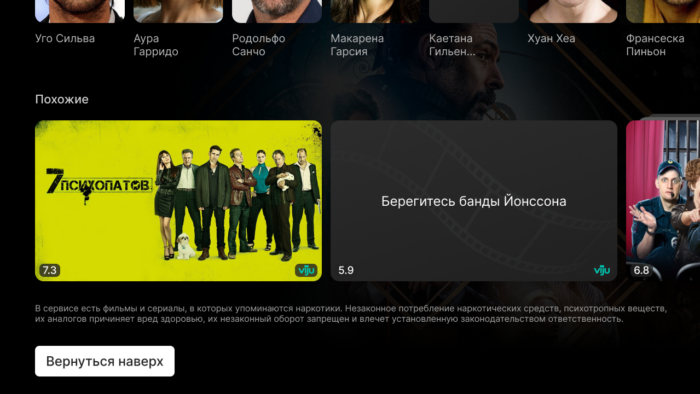
Display Disclaimer about the dangers of drugs
Option name: show drug disclaimer, data type: bool.
Possible values:
- true disclaimer will be displayed in the content card if the age rating of the film is not below the threshold (in the titanium template, the threshold is set by a constant) 12).
- falsely disclaimer in the content card will not be shown (by default).
Example:
var CLIENT SETTINGS = {
///...
'show drugs disclaimer': true
};
Showing a QR code with a support number when buying a movie
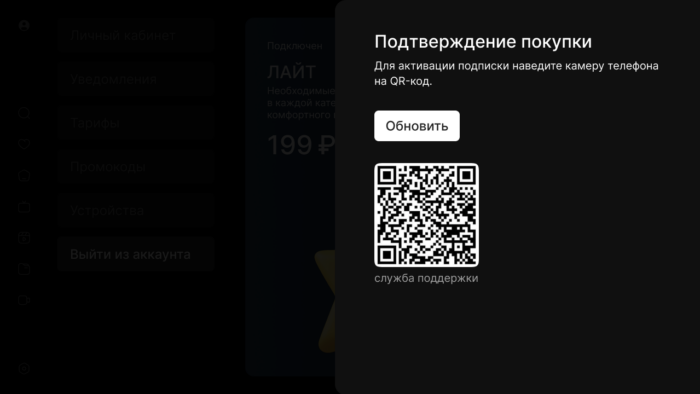
Option name: use_video_purchase_via_sale_qr, data type: bool.
Possible values:
- true When you click the “Buy” button on the film page, a pop window with a QR code will be shown, in which the technical support / sales department phone number will be sewn. The option is relevant if there is no integration with external billing for the purchase of films - in this case, the specialist includes access to the film manually on call.
- falsely The purchase of the film works on the internal mechanism of Smarty (by default).
Example:
var CLIENT SETTINGS = {
///...
'use video purchase via sale qr': false
};
At the same time, the purchase of films is still influenced by the option show_locked_tariff_popupbelow is a table of correspondences between these options:
show_locked_tariff_popup | use_video_purchase_via_sale_qr | The result |
| true | true | There will be a pop-up with fares |
| true | falsely | There will be a pop-up with fares |
| falsely | falsely | The button «Buy» will call the internal mechanism of buying a movie in Smarty (VideoAction) |
| falsely | true | A pop-up with a QR code will be shown |
Search
In the search screen before entering the search bar, the on-screen keyboard is displayed, and optionally you can display the recommended selection for the subscriber using the option search_recommended_election_id, which indicates the ID of the selection of films from Smarty.
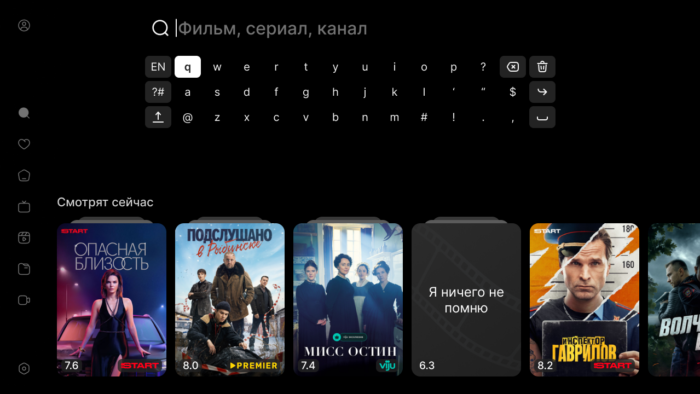
Example:
var CLIENT_SETTINGS = {
  // ..
  'search_recommended_election_id': 123,
};
Automatically sending a search query starts with 3 characters, searching through channels, programs, movies and actors.
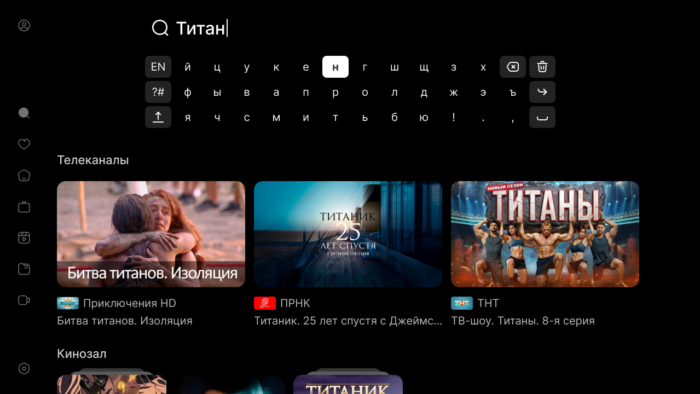
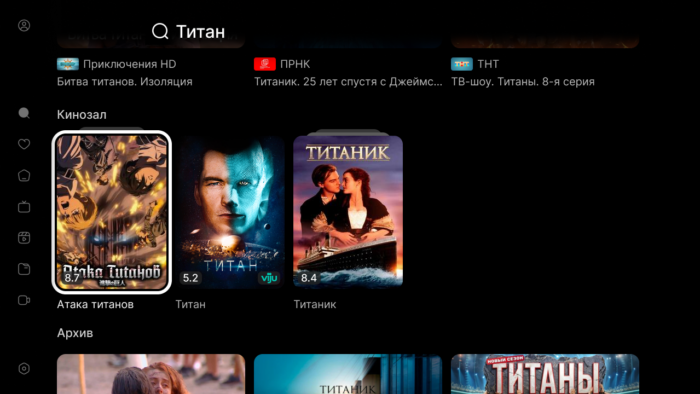
Delay in search
Option name: search_request_delay, data type: int. Set in milliseconds, the default value is: 3000.
Allows you to set the delay time before starting search queries (after entering 3 characters in the on-screen keyboard). It is designed to reduce the number of search queries to Smarty.
Example:
var CLIENT_SETTINGS = {
///...
'search_request_delay': 3000
};
Smart film search
Option name: use smart video search, data type: bool.
Substitute the search for a list of films smart search.
Possible values:
- true – films and archives are searched through
smart search. - false – Standard Smarty search is used (by default).
Example:
var CLIENT SETTINGS = {
///...
'use smart video search': true
};
Personal office
Personal account by QR code
Option name: show profile qr, data type: bool.
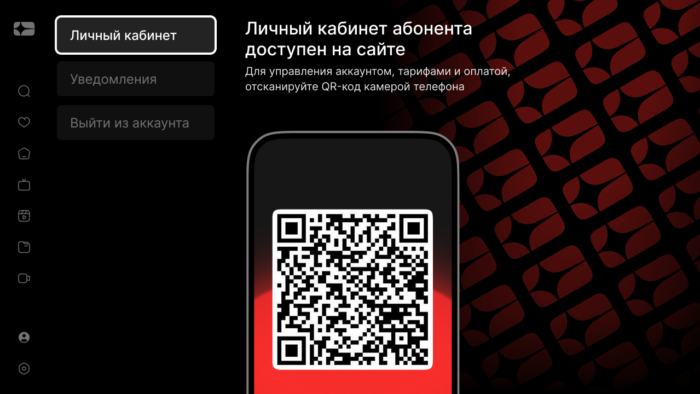
Adds to the profile the item “Personal account” with a QR code for entering the operator’s website. The address in the title is taken from site_url, picture QR - from profile qr code mas k, logo inside the phone image - from the field « Logo for the main menu » in the admin Smarty. The background of the screen is set by a separate customization picture, similar to the background of the “Exit Account” section. To generate a unique QR code on the fly is required PP-service.
Possible values:
- true - the item "Personal Cabinet" is displayed.
- false - the point is hidden (by default).
Example:
var CLIENT SETTINGS = {
///...
'show profile qr': true
};
The address of the site in the personal account
Option name: site_url, data type: string.
The address of the operator's website in the header of the personal account screen. Used together with show profile qr. No default.
Example:
var CLIENT SETTINGS = {
///...
'site url': 'https://example.com'
};
Mask QR code of the personal account
Option name: profile qr code mas k, data type: string.
The URL template where the portal requests a QR image to enter the personal account. It's a template {$login}, {$password} and {$authkey}. If there is no value, the corresponding parameter is removed from the link. No default.
Example:
var CLIENT SETTINGS = {
///...
'profile qr code mask': 'https://smarty.example.com/qr/?data=https://example.com/login?login={$login}&password={$password}
};
Tariffs
Item « Tariffs » included by portal option show_packagesfor example:
var CLIENT_SETTINGS = {
///...
-show_packages': true,
};
The tariff card is customized by the following means on the tariff page in the Smarty admin:
- field «Icon for STB and Smart TV» used as labels
- field
bg_first_colorandbg_second_colorused to set colors for the gradient against the background, for example:
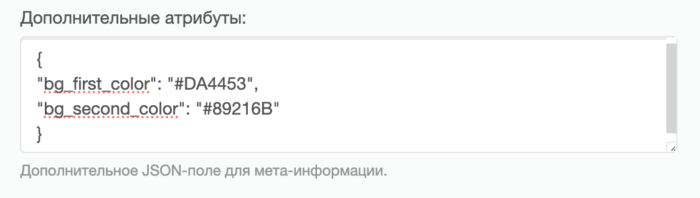
- also in the card fields «Name», «Description», «Cost» and «Cost of Activation» are used.


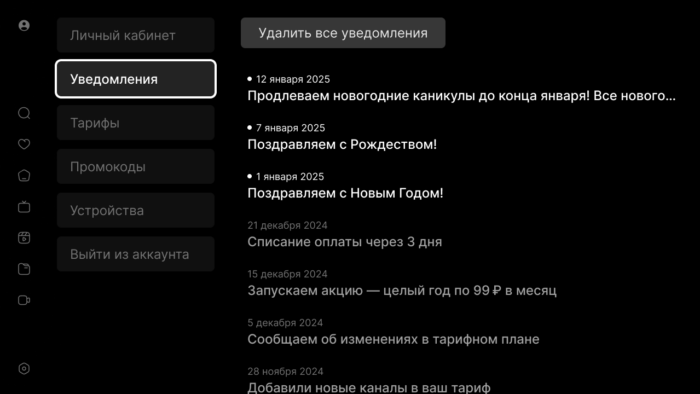
Notifications
Item « Tariffs » included by portal option show_messages_menufor example:
var CLIENT_SETTINGS = {
///...
-show_messages_menu': true,
};
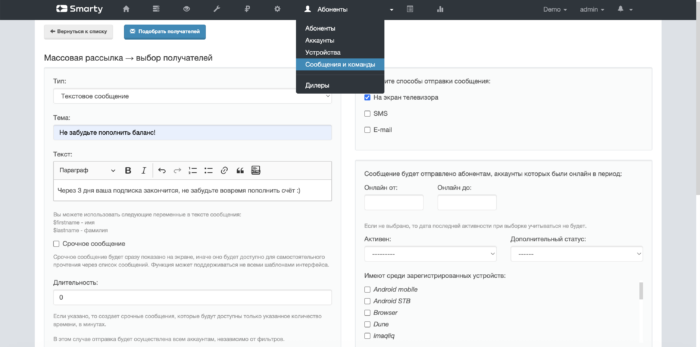
This screen receives messages sent to the subscriber using the tool «Messages and commands» in the admin Smarty (you can also automate sending messages via the app) Billing API Methods). Messages with the flag «Urgent» are also shown in this section, with the difference that they will be shown in the pop-up window on top of the interface.
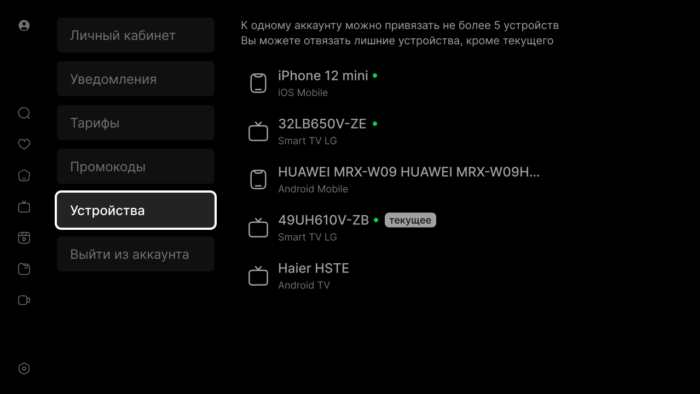
Devices
Option name: show_device_list_management, data type: bool.
Possible values:
- true In the screen “My profile” will display the item “My devices”, where you can view the list of devices associated with the account and untie unnecessary.
- falsely “My devices” will be hidden (by default).
The list of devices can also be displayed in case of unsuccessful authorization due to the excess of the number of associated devices.
Example:
var CLIENT SETTINGS = {
///...
'show device list management': true
};
Exit from the account
Item «Log out » can be shown using the option show_logout_optionfor example:
var CLIENT_SETTINGS = {
  // ..
  'show_logout_option': true,
};
By default, the item is hidden — this behavior is relevant for authorization mode by IP-address / device identifier — in this case, the subscriber cannot log off on the current device.
Settings
Selection of the interface used on the Settings page
Option name: show_change_template_settings, data type: bool.
Possible values:
- true – on the “Settings” page in the application, the “Selection of a template” item will be displayed. The list of templates for selection will be formed from the array prescribed in the option
available_templates. - falsely - the item "Select the template" on the settings page will be hidden (by default).
Example:
var CLIENT SETTINGS = {
///...
'show change template settings': true,
'available templates': ['titanium', 'sibseti'
};
List of available templates to select
Option name: available_templates, data type: array.
An array of pattern system names available for selection in settings (used with show_change_template_settings).
Example:
var CLIENT SETTINGS = {
///...
'available templates': ['titanium', 'sibseti'
};
Ability to change the interface language
Option name: show_change_lang_settings, data type: bool.
Possible values:
- true – on the “Settings” page in the application, the “Language/Language” option will be displayed (by default).
- falsely The “Language” item on the settings screen will be hidden.
Example:
var CLIENT_SETTINGS = {
///...
'show_change_lang_settings': true
};
Managing the display item "Player Selection" in the "Settings" screen
Option name: show_change_player_settings, data type: bool.
Possible values:
- true On the Settings page inside the application, the “Select Player” option will be displayed for those devices that support it (currently these are Android devices within the build version above 2.0).
- falsely - the item "Select player" on the settings page will be hidden (by default).
Example:
var CLIENT_SETTINGS = {
///...
'show_change_player_settings': true
};
Managing the display of the item “Player Options” in the screen “Settings”
Option name: show_player_options, data type: bool.
Note: option show_change_player_settings higher priority show_player_options. I mean, if show_change_player_settings meaningfully falselythen show_player_options it is also defined as falsely.
Possible values:
- true On the Settings page inside the application, the option “Player Options” will be displayed for those devices that support it (currently these are Android devices in the build version above 2.0). The list of options depends on the selected player.
- falsely - the item "Player Options" on the settings page will be hidden (by default).
Example:
var CLIENT SETTINGS = {
///...
'show player options': true
};
The ability to select a data center in the settings menu
Option name: allow_to_change_data_center, data type: bool.
Possible values:
- true In the settings menu, the user can independently choose the broadcast server (corresponds to the configured data centers in Smarty).
- falsely the user will not be able to select the broadcast server (by default).
Example:
var CLIENT_SETTINGS = {
///...
'allow_to_change_data_center': false
};
Logic of work
Delayed application loading at start
Option name: loading_timeout, data type: int. Set in milliseconds, the default value is: 1000.
The option allows you to set the number of milliseconds by which the initial download of the portal will be delayed. It can be used, for example, to customize the portal to display a welcome picture before launching.
By default 1000, which corresponds to one second. If you specify a zero or too small value, then some application functions on some devices may be disrupted due to asynchronous implementation of the API of some devices. For example, a small delay is necessary to be able to determine the device not only by type, but also by model (if Smarty configures the appropriate types of devices with a model) for Android consoles.
Example:
var CLIENT_SETTINGS = {
///...
'loading_timeout': 1000
};
Verification of additional account status
Option name: check_account_status_reason, data type: bool.
Possible values:
- true Additional account status will be checked even in case of successful authorization (by default). For example, if the account is active, but the additional status is “Blocked for debt”, then the corresponding authorization error will be issued in the portal.
- falsely additional status will not be checked.
Example:
var CLIENT SETTINGS = {
///...
'check account status reason': true
};
Selection of the application interface used through account settings in Smarty
Option name: check_account_template, data type: bool.
Possible values:
- true After logging in, the template installed in the Smarty account settings will be checked, and if it differs from the one used, the application will be restarted in the desired template (by default).
- falsely The set template in the account settings in Smarty will be ignored.
Example:
var CLIENT_SETTINGS = {
///...
'check_account_template': true
};
Suspension of server requests in Stand-By mode
Option name: block_request_in_standby, data type: bool.
Possible values:
- true This includes blocking requests to the server if the device is in Stand-By mode. After leaving Stand-By, sending requests to the server is restored, however, the data in the interface may be outdated for some time.
- falsely Requests do not stop even in Stand-By, the data displayed in the interface does not become outdated (by default).
The option allows you to save server resources in moments of downtime of user devices.
Example:
var CLIENT_SETTINGS = {
///...
'block_requests_in_standby': false
};
Periodic HealthCheck
Option name: enable_health_check, data type: bool.
In a template titanium meaningfully true after successful entry, a periodic call is planned requestHealthCheck optionally health check_interval (a random component of up to 60,000 ms is added to the interval).
Possible values:
- true Periodic HealthCheck is on.
- falsely Periodic HealthCheck is not scheduled (by default).
Example:
var CLIENT SETTINGS = {
///...
'enable health check': false,
'health check interval': 300,000
};
HealthCheck Interval
Option name: health check_interval, data type: int.
The interval in milliseconds between periodic HealthCheck requests. Used together with enable_health_check. In the code to the value of the interval is added a random addition to 60000ms.
Example:
var CLIENT_SETTINGS = {
///...
'health_check_interval': 300,000
};
Update to build the application on Android STB/TV
Option name: app_package_updating_url, data type: string.
When specifying the URL to download apk in this option, the application will attempt to download it and self-update it. When updating, the current version of the application is checked - the download and install mechanism is launched only if the version specified in the url is larger than the current version of the installed apk (in the example below, the version is a substring) 1.0.0).
The application self-update function is enabled separately when apk is assembled at the operator’s request. For assemblies published in markets, this function is turned off by default. The option is only available for Android STB/TV builds over 2.3.
Example:
var CLIENT_SETTINGS = {
  // …
  'app_package_updating_url': "http://your-website.com/example-app-1.0.0_100100.apk"
};
Update build launcher on Android STB/TV
Option name: launcher_package_updating_url, data type: string.
When specifying the URL to download apk in this option, the application will attempt to download it and self-update it. When updating, the current version of the launcher application is checked - the download and install mechanism is launched only if the version specified in the url is larger than the current version of the installed launcher (in the example below, the version is a substring) 1.0.0).
The application self-update function is enabled separately when apk is assembled at the operator’s request. For assemblies published in markets, this function is turned off by default. The option is only available for Android STB/TV builds over 2.3.
Example:
var CLIENT SETTINGS = {
///...
'launcher package updating url': "http://your-website.com/example-launcher-1.0.0 100100.apk"
};
Enabling the system debugging console on a device with a specific User-Agent
Option name: enable_system_debug_for_user_agent, data type: string.
If User Agent the device coincides with the specified option value, system debugging on the device is enabled.
Example:
var CLIENT_SETTINGS = {
///...
"enable_system_debug_for_user_agent": "Mozilla/5.0 (Web0S; Linux/SmartTV) AppleWebKit/537.36"
};
Adding Market Name to Device Type
Option name: use_store_flag_from_device_meta, data type: bool.
The name of the market is added to the type of device through the lower underline (for example, android stb googleplay). The name of the market is taken from the assembly, that is, it must be sewn into it. This option is only available for Android stores and will require a separate build for each of them. List of available markets: googleplay, sberbox, yandextv, rustore.
Possible values:
- true the market specified in the device metadata will be transmitted.
- falsely - will be transmitted by default (by default).
Example:
var CLIENT SETTINGS = {
///...
'use store flag from device meta': true
};
Disabling the SET button on MAG consoles
Option name: disable_set_button_on_mag, data type: bool.
Possible values:
- true The SET (Setup) button on the MAG console will be blocked.
- falsely the button will work according to the settings in the firmware (by default).
Example:
var CLIENT_SETTINGS = {
///...
'disable_set_button_on_mag': false
};
Additional CSS class for body interface
Option name: custom, data type: string.
Allows you to connect an additional class to the tag body portal. It can be used to customize the interface through an additional CSS file.
No default.
Example:
var CLIENT_SETTINGS = {
///...
'custom_body_class': 'custom'
};
PP service address for optimizing graphics and generating QR
Option name: pp service url, data type: string.
The address where the generated images will be sent. Deployment is required for correct operation PP-service.
Example:
var CLIENT SETTINGS = {
///...
'pp service url': "http://pp.example.com"
};
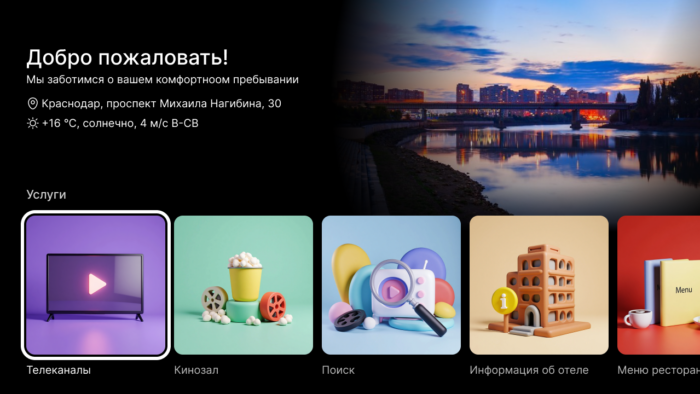
Hotel accommodation
The hotel mode replaces the dashboard tapes and the side menu with one tape on the home screen. The tape consists of the main sections of the TV service and widgets: weather, hotel address, advertising services, city sights.
1. Installation of hotel mode of the main screen
var CLIENT SETTINGS = {
///...
'main screen mode': 'hotel'
};
2. Main screen background image
The absolute URL of the background picture of the main screen in hotel mode. Image size is 683×424. No default.
Example:
var CLIENT SETTINGS = {
///...
'main screen banner': 'https://example.com/hotel-background.png'
};
3. Composition of the tape
Option name: custom_main_menu_items, data type: array.
Items that stand at the beginning of the hotel mode tape. The following are used for the hotel:
tv- Television channels;vod- "Kinosal";search- Search.
The icons of these three sections are changed by template customization, size 254×254.
Example:
var CLIENT SETTINGS = {
///...
'main screen mode': 'hotel',
'custom main menu items': ['tv', 'vod', 'search']
};
4. Widgets and applications on tape
Additional widgets are opened in the Smarty panel in the “App Directory” section. In the tape they go after the items from custom_main_menu_items. Types are supported: external application, Android applications, launch of the system application by ID and widget.
Advertising hotel services and attractions of the city is the Banner widget. The widget is arranged in the same way as banner widget in Futuristic: the picture is shown in the tape, a large banner opens upon clicking. The links are only absolute.
Annex fields:
- The name is any, the subscriber sees it.
- System name:
PromoImageWidget. - Type: Widget.
- URL / Application name / ID:
/templates/titanium/default/apps/promo-image-widget/promo.image.widget. js.
Additional attributes:
image_url- picture of the tile on the tape, 254×254.big_image_url- a banner that opens by pressing the tile. The size of the portal screen, Futuristic uses 1280×720 for this attribute.
Instructions for first launch
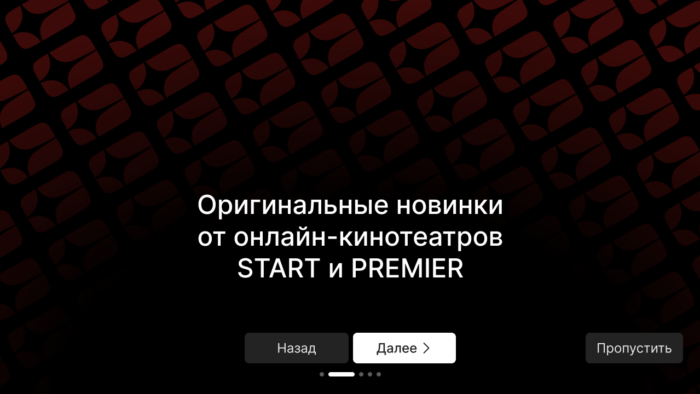
At the first launch, Titanium can show instructions from pictures: the benefits of the service and hints on the interface.
1. Showing instructions
Option name: show_setup_intro, data type: bool.
Include instructions at the first start.
2. Pictures of instructions
Option name: setup full remote instructions, data type: array.
List of paths to image instructions.