
These options allow you to change the appearance and behavior of the application and are set during assembly.
Options can also be redefined through the Smarty control panel in the Portal and Application Configuration block on the device page, if the mobile client build supports this (for Android - since version 3.6, for iOS - applications collected later than 26.01.2021).
Tegom #hardcoded options are marked that are sewn into the build and cannot be overridden by Smarty. Tego n #required required options are indicated.
- Installation of the annex
- Authorization and registration
- Authorization regime
- Display of the button for selecting the authorization method (by login and password or phone number)
- Disabling automatic registration when authorizing by phone number
- Authorization by unique device identifier
- Activation of the registration screen
- Automatic authorization after registration
- Placeholder phone number
- Phone number mask
- Use of the symbol input component
- Length of confirmation code from SMS message
- Length of confirmation code by phone number
- Sending SMS with account data during registration
- Block timer for repeated confirmation code request
- Duration of the promotional period after registration
- Delay before the autologin after registration
- Content
- Maximum EPG depth in the past
- Maximum EPG depth into the future
- Auto Start Player When Opening Channel Page
- Disabling static categories for channels
- Disabling dynamic categories for channels
- Inclusion of genre categories for video library or archive
- Channel sorting
- Dashboard slider tape
- Mechanics of generation of the film "Similar films"
- Frequency of requests to save viewing position
- Content filtering by year n
- Inclusion of user rating
- Display Disclaimer about the dangers of drugs
- Display of the chosen one
- Personal office
- Activation of promo code
- Tariff display
- Displaying balance information
- Displaying the end date of the subscription
- Displaying password information
- Display of the password change button
- Displaying the data editing button
- Displaying a personal account instead of a login
- Length of PIN code
- Verification of additional account status
- Frequency of account status requests
- Dashboard template
- Commentary on legal instruments
- Display «Privacy Policy»
- Display «User Agreement»
- Display «Service Terms »
- Technical support phones
- Link to the Technical Support Channel
- Payment
Installation of the annex
Duration of the starter screening
Option name: splashScreenDuration, data type: int. #hardcoded
Determines the duration of the screensaver, set in milliseconds. By default 1500.
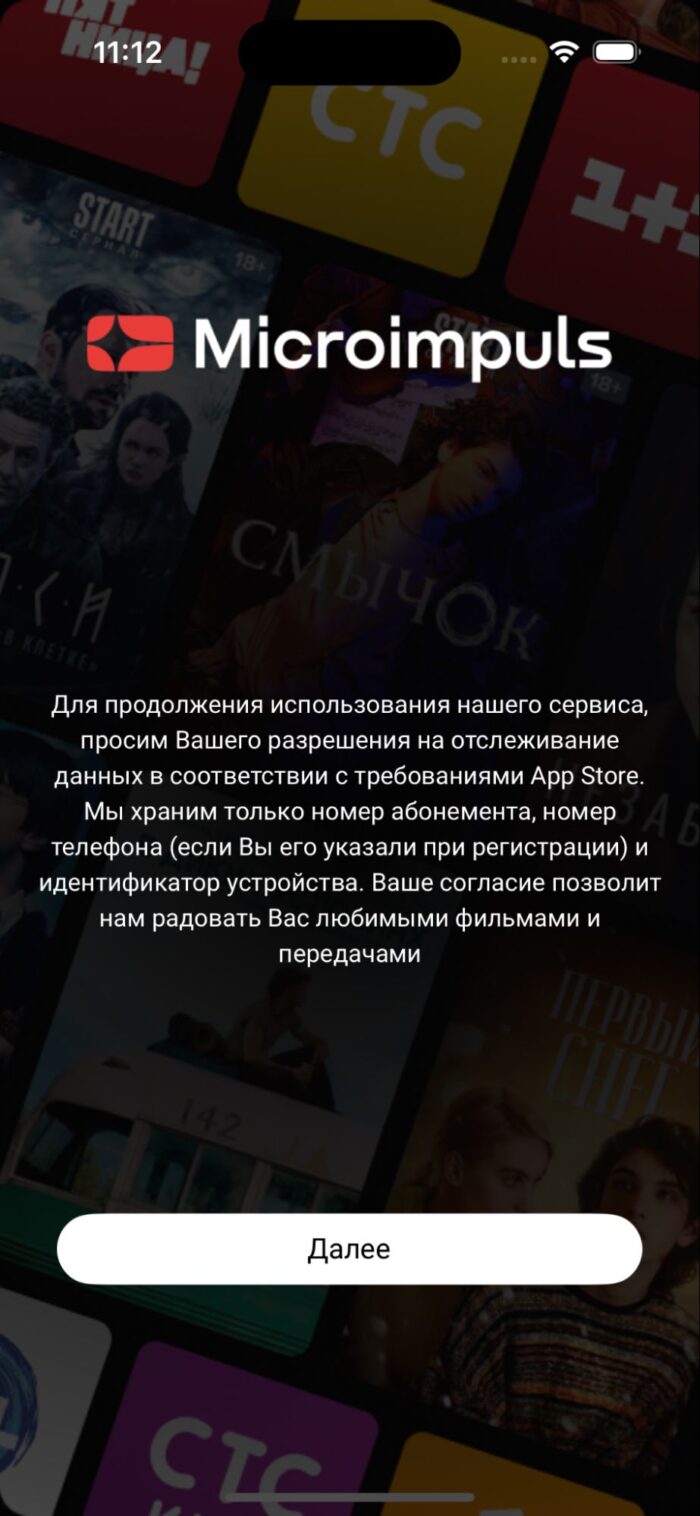
Communication of the purpose of data collection
Option name: appTrackingTransparencyMessage, data type: string. #hardcoded, #required
Display a message about the purpose of data collection using a unique IDFA. (IOS 14.5+ requirement). By default null. It only applies to iOS.
Example message: «To continue using our service, we ask for your permission to track data in accordance with the requirements of the App Store. We store only the subscription number, phone number (if you specified it during registration) and device ID. Your consent will allow us to please you with your favorite films and programs & #187.
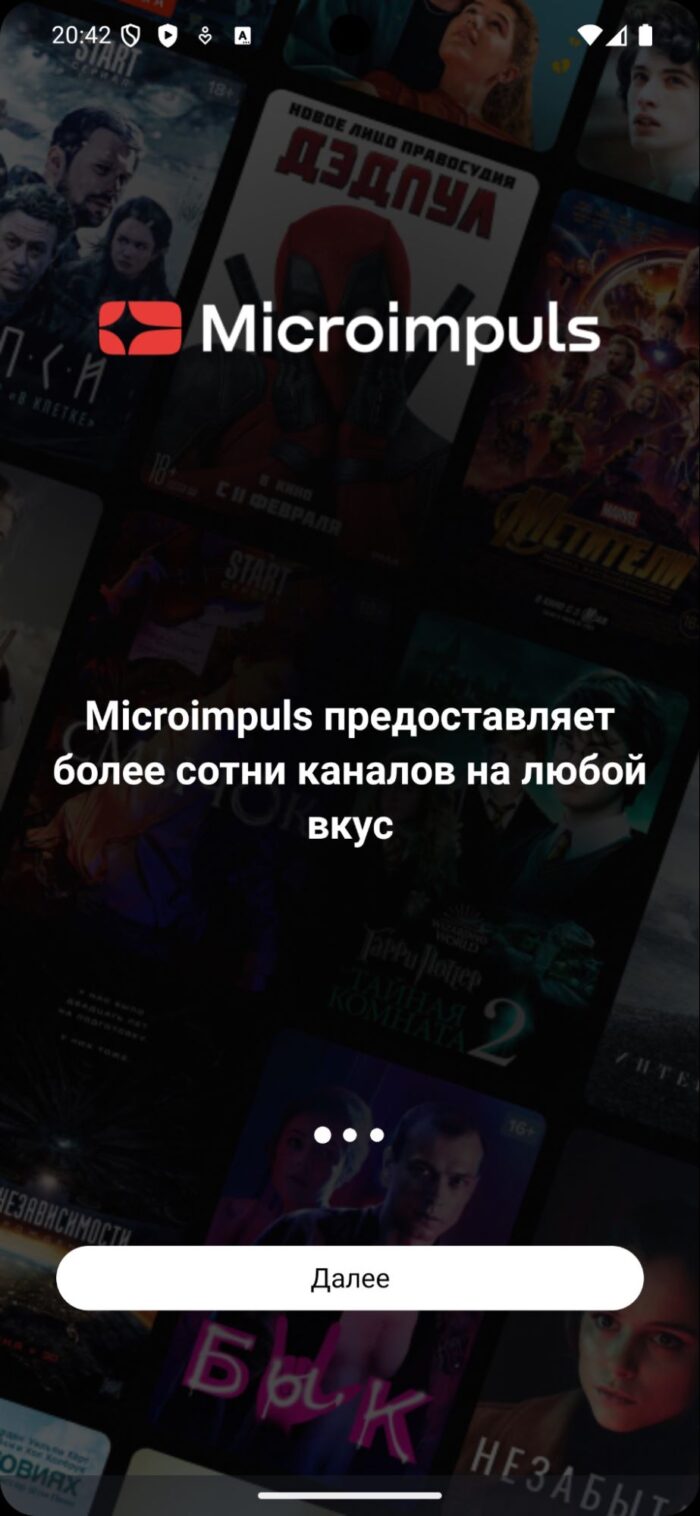
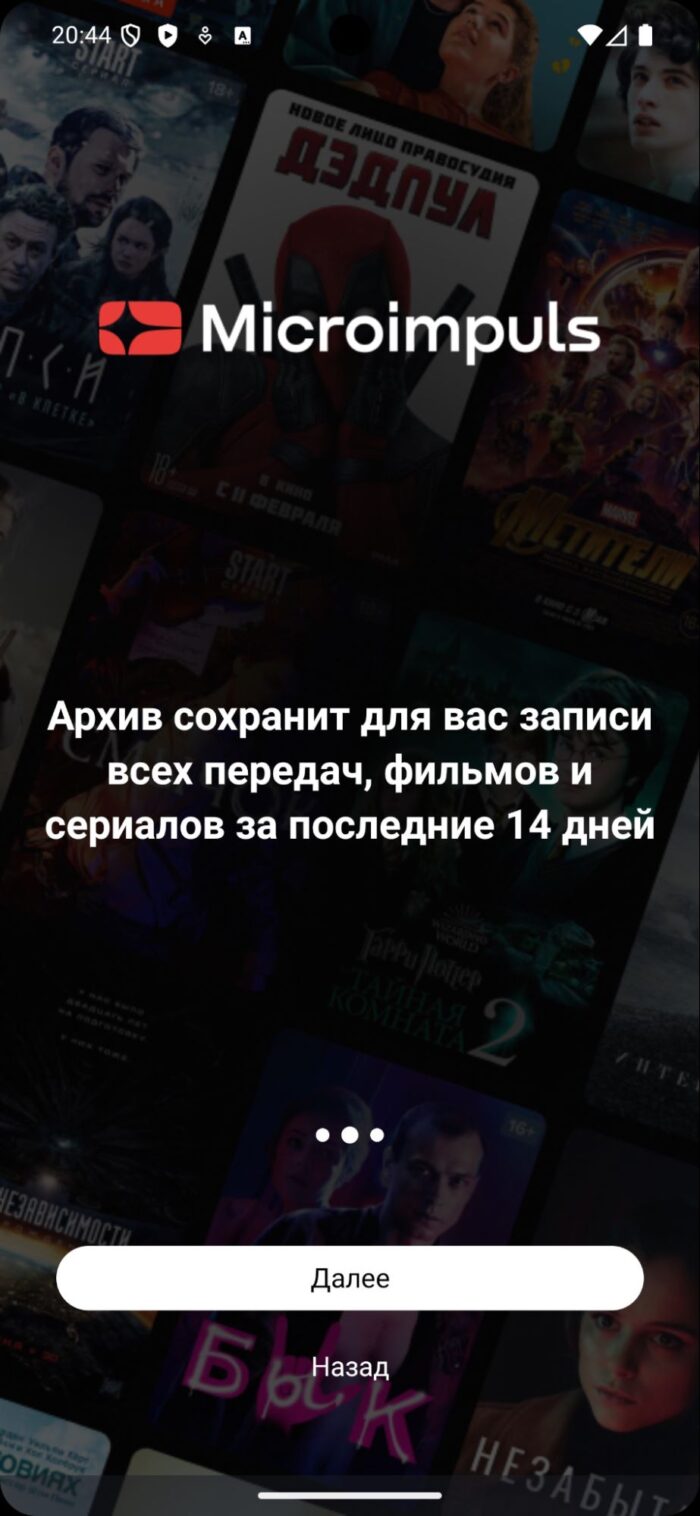
Display of advertising text
Option name: promo_signup_screen_message, data type: string. #required
Allows you to specify messages for the onboarding screen in the format: « line1; line2; line3, ...» where each of the rows separated by the symbol «;» will be displayed separately. By default null.
Example message: «Microimpuls provides more than a hundred channels for every taste The archive will store for you the records of all programs, films and TV series in the last 14 days; Download your favorite movies and TV shows to watch offline & #187.

Sending data to Yandex AppMetrica
Option name: app_metrica_api_key, data type: string.
Activates the analytics service AppMetrica, which includes tools for tracking application installations and conducting personalized push companies. By default null.
Warning: for the operation of the option is not enough to include it, additional work will be required, as well as reassembly of the application.
Activate push notifications via Firebase
Option name: enable firebase, data type: bool.
Includes Firebase-dependent application logic, which is necessary for the operation of push notifications. When enabled, it requests the necessary permissions from the user. By default falsely.
Warning: for the operation of the option is not enough to include it, additional work will be required, as well as reassembly of the application.
Prefix for device type
Option name: devicePrefix, data type: string. #hardcoded
Allows you to add a prefix for the type of device that is transmitted to the parameter device smarty requests. In the usual case device the line is transmitted «ios» / «android». When the option is set to «test » for example, the string «test ios» / «test android» will be transmitted. By default «» (empty line).
Authorization and registration
Authorization regime
Option name: auth_mode, data type: string.
Possible values:
- password - by login and password (by default).
- phone number - by phone number.
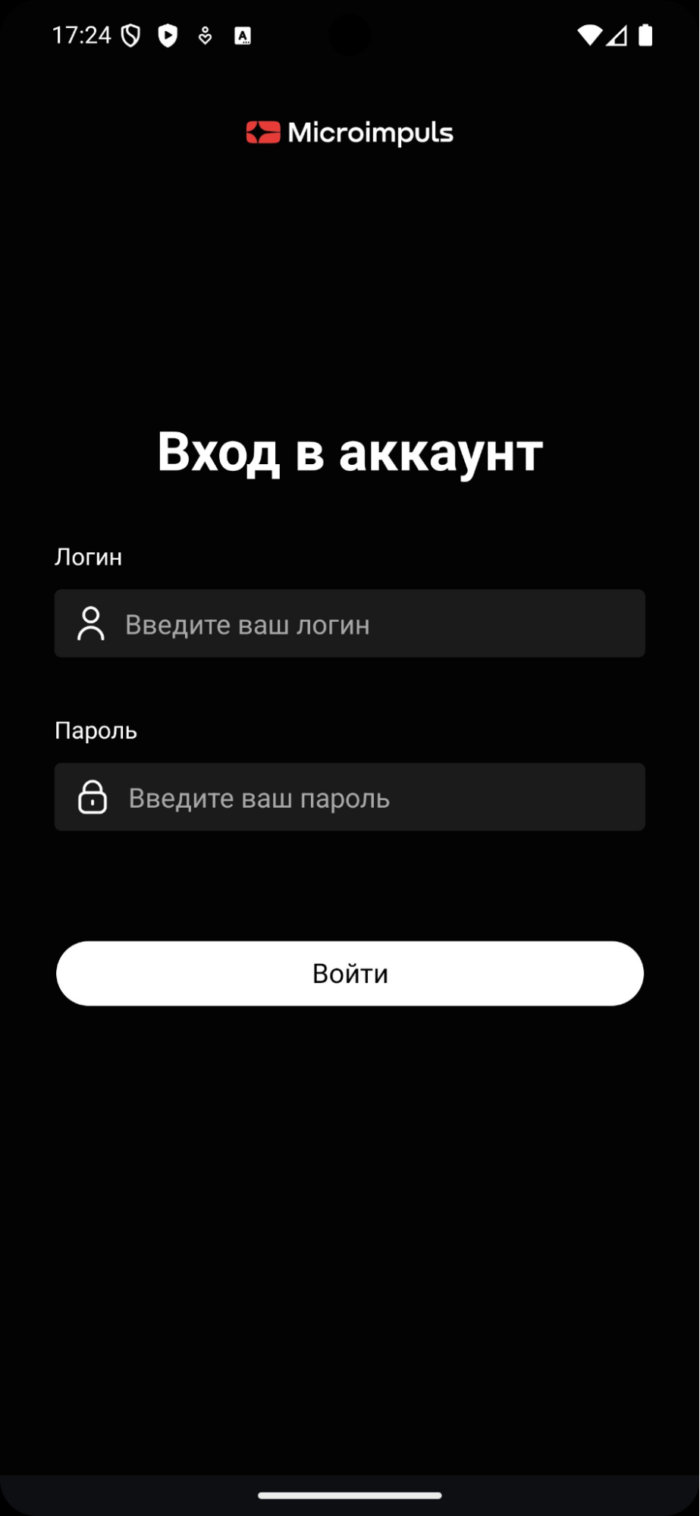

Option name: show_alter_auth_button, data type: bool.
Possible values:
- true - the authorization screen will display the button for selecting the login method.
- falsely - the button for selecting the login method will not be displayed (by default).

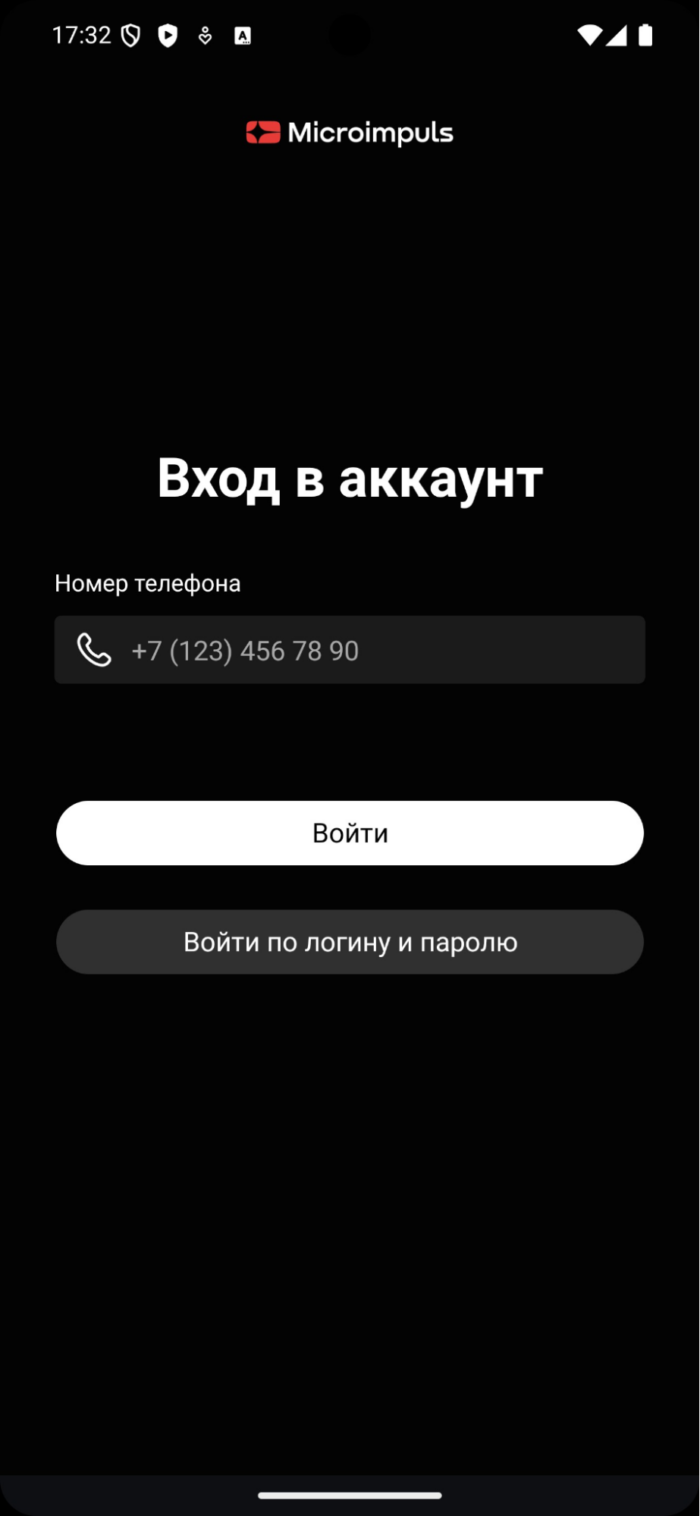
Option name: disable registration on phone auth, data type: bool.
Possible values:
- true - after pressing the button «Login» on the authorization screen by phone number, an attempt to log in to the account will be made.
- falsely - after pressing the button «Login» on the authorization screen by phone number, a hidden attempt to register an account will be made with subsequent authorization to it (by default).
Authorization by unique device identifier
Option name: try_login_without_login_password, data type: bool.
Possible values:
- true Authorization will occur by a unique device identifier or IP address.
- falsely - authorization will occur by login and password (by default).
Activation of the registration screen
Option name: registration_enabled, data type: bool.
Includes registration elements on the authorization screen by phone number and the registration screen itself. By default falsely.

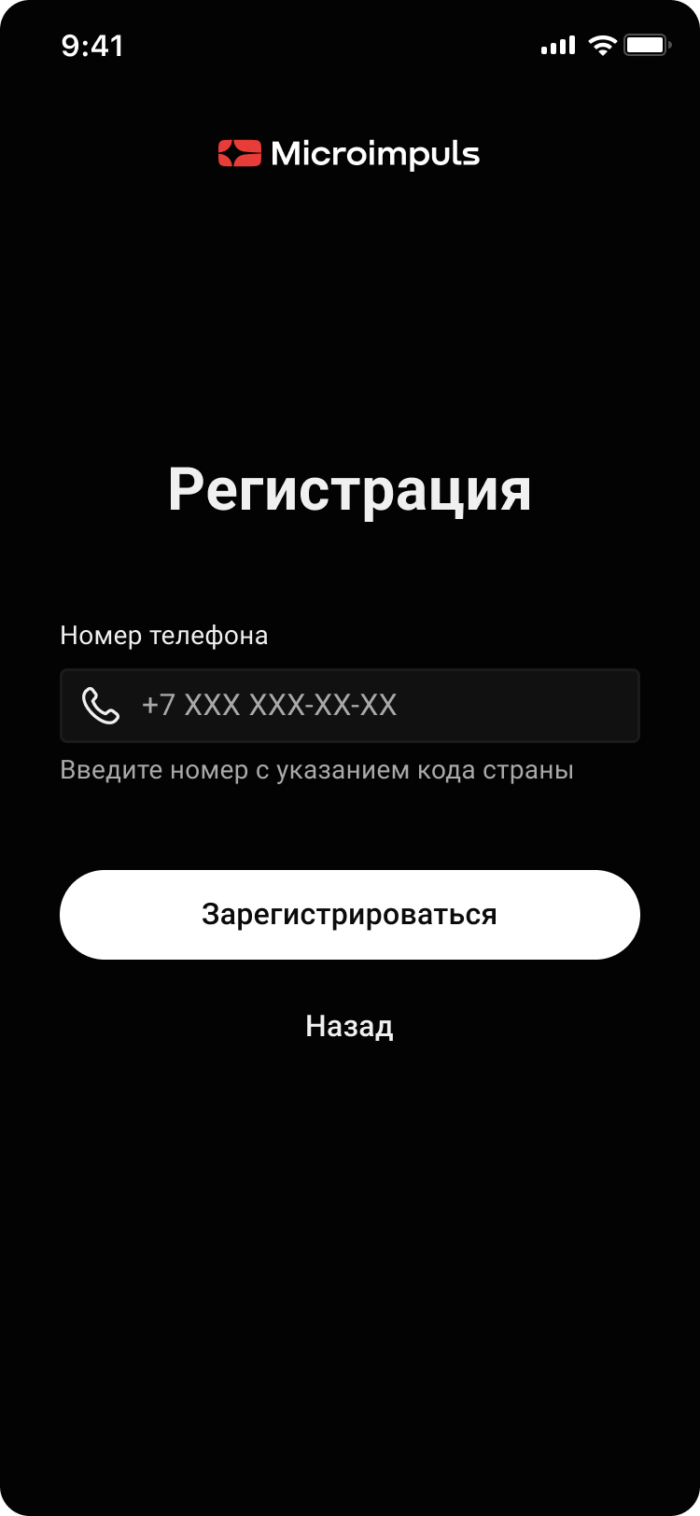
Option name: enable autologin after registration, data type: bool.
Possible values:
- true after successful registration through the registration screen, an attempt will be made to automatically log in to the new account.
- falsely after successful registration through the registration screen, there will be no automatic authorization, the user will have to return to the authorization screen (by default).
Placeholder phone number
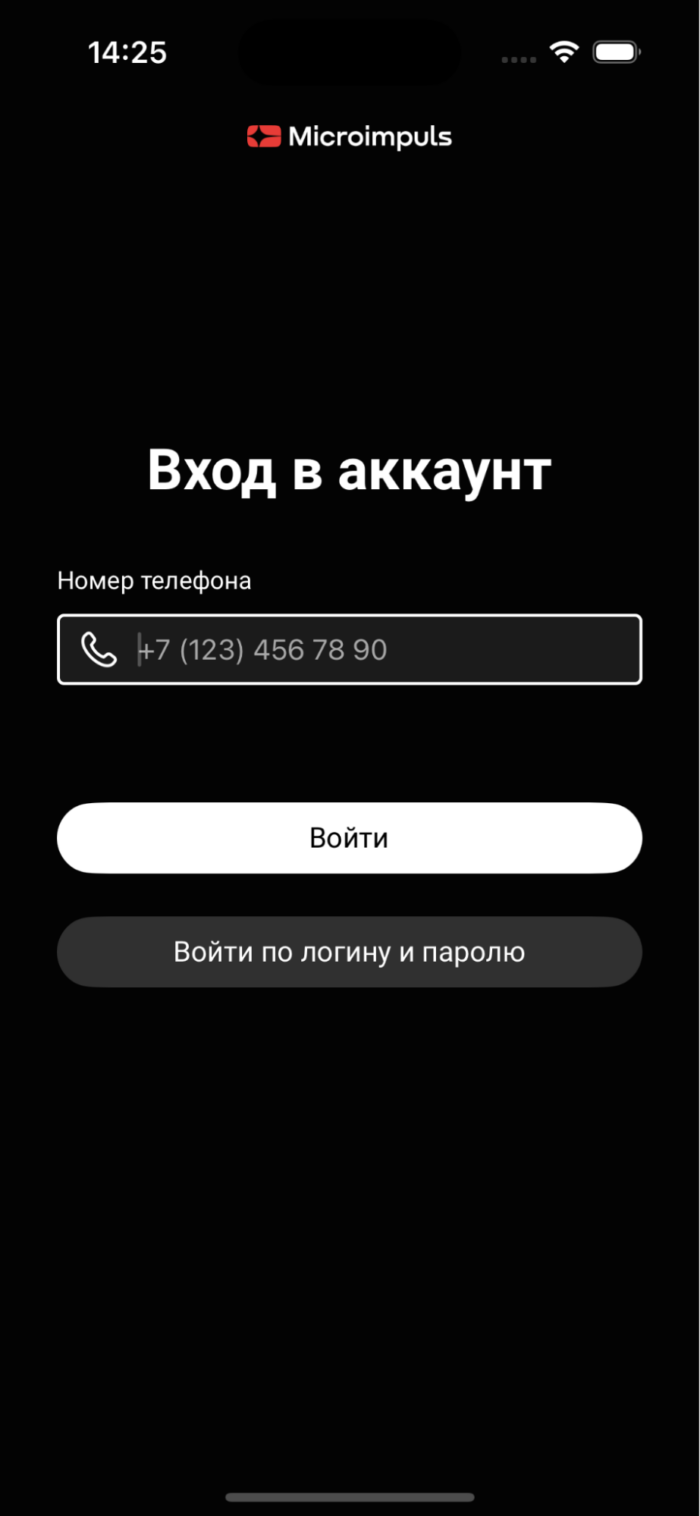
Option name: phone_number_placeholder, data type: string. #required
An option to specify a placeholder for a phone number on the sign-up screen (a hint in the input fields that tells the user what information to enter is displayed before entering any character in the field). By default null.
Phone number mask
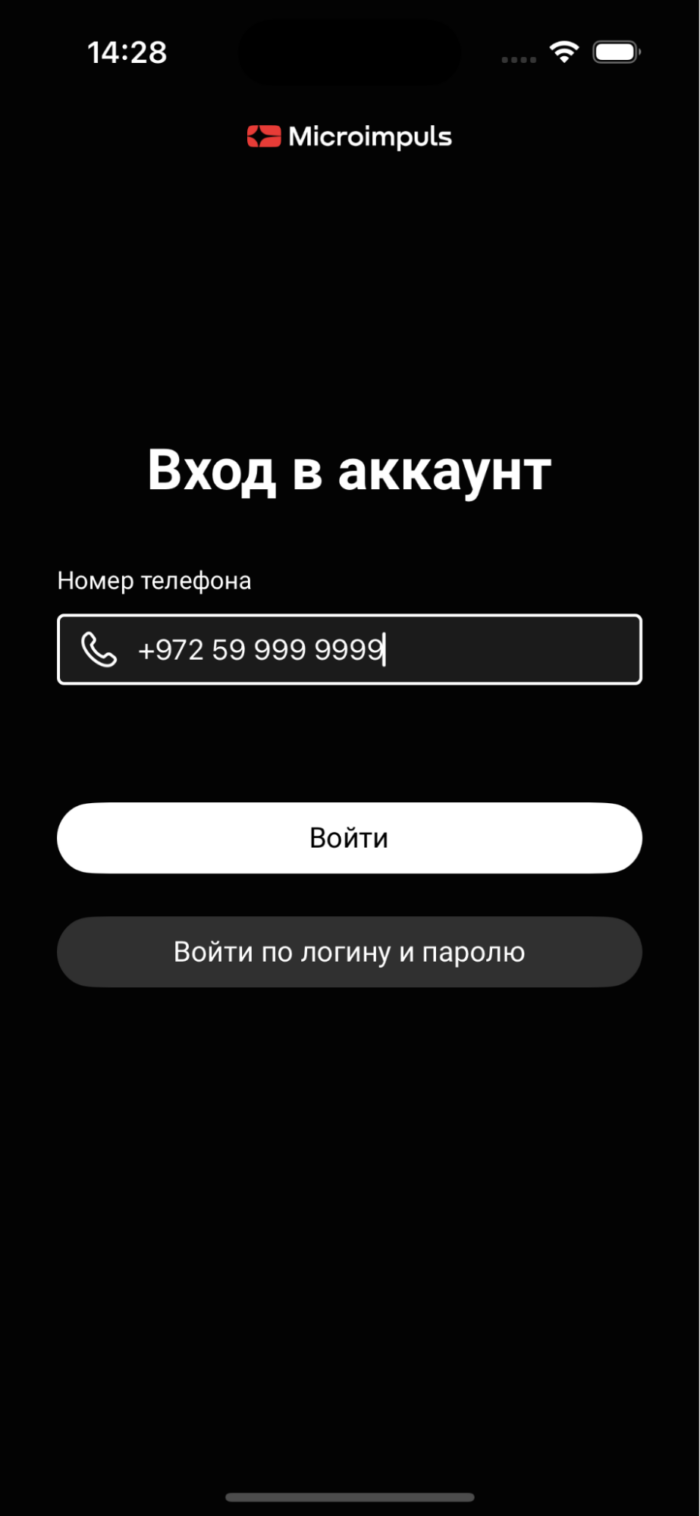
Option name: registration_phone_mask, data type: string. #required
Shows a phone number input mask (a template that automatically formats user input data into a specified standard). These spaces, symbols and numbers are reserved characters, the remaining digits for input are marked with the symbol «d» In Smarty, a numerical value will go without spaces and symbols.
Example of mask: « +7 ddd ddd ddd dd» Symbol + and number 7 will be inserted automatically when the first character is entered, subsequent characters will be inserted on a given mask with spaces in the corresponding positions.
Example of mask: « +972 5d ddd ddd & #187; Symbol + and numbers 9725 will be inserted automatically when the first character is entered, taking into account the spaces in the mask, the subsequent characters will be inserted on a given mask with spaces in the corresponding positions. By default null.

Use of the symbol input component
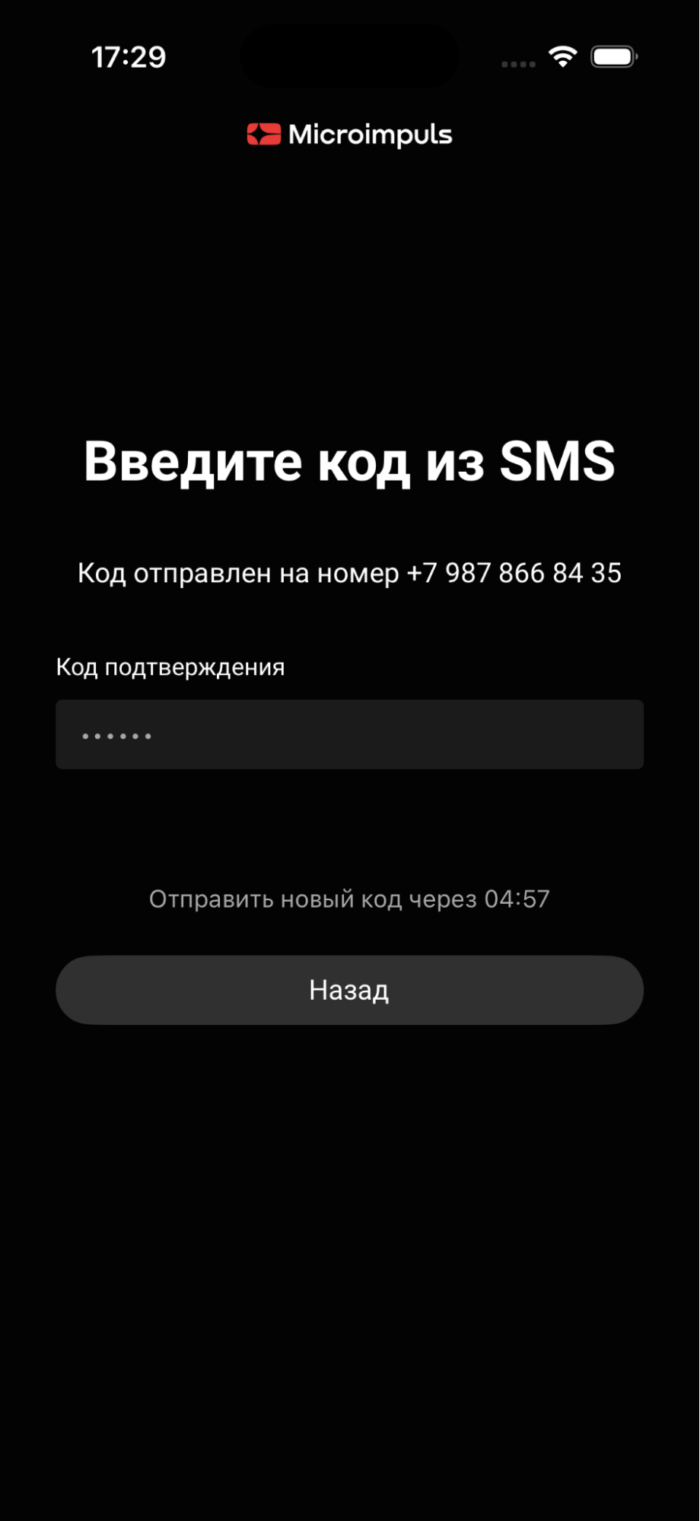
Option name: use code input component, data type: bool.
Possible values:
- true the confirmation code will use a component in the form of separate windows for entering each character (by default).
- falsely a standard input field will be used for the confirmation code.

Length of confirmation code from SMS message
Option name: sms_code_length, data type: int.
The length of the confirmation SMS code. By default 4.
Length of confirmation code by phone number
Option name: phone_code_length, data type: int.
The length of the confirmation code from the phone number. By default 4.
Sending SMS with account data during registration
Option name: send_sms, data type: int.
Adjust the corresponding parameter in the request AccountRegisterSend SMS or not to a mobile phone with the data of the created account. Possible values: 0/1. By default 0.
Block timer for repeated confirmation code request
Option name: code_waiting_timer, data type: int.
Determines the time to block the repeated request of the confirmation code in seconds. By default 60.
Duration of the promotional period after registration
Option name: signup_auto_activation_period, data type: int.
Allows you to set the number of days for which free access will be issued for the initial use of the account after registration. Regulates the parameter auto activation period request AccountRegister. By default 0.
Delay before the autologin after registration
Option name: after register login delay, data type: int.
Determines the duration of the delay before the autologin after registration, is set in milliseconds. By default 1500.
Content
Maximum EPG depth in the past
Option name: max_pvr_depth, data type: int.
The depth is indicated in days, if you do not specify the value, then the depth of the archive will be equal to the depth of recording archival broadcasts on the channels. By default null.
Maximum EPG depth into the future
Option name: max_future_epg, data type: int.
Depth is indicated in days, by default 7 days.
Auto Start Player When Opening Channel Page
Option name: autoplay, data type: bool.
Includes autoplay in preview players in channel and transmission screens.
Possible values:
- true start a channel when you click on it from the list.
- falsely When you click on the channel / transfer in the list, the corresponding screen opens and the preview player window is shown in the pause state (by default). For the transmission screen, launch is possible if there is a record.
Disabling static categories for channels
Option name: consider_epg_channel_category, data type: int.
This option is valid only when the flag is on TVMW_CONSIDER_PROGRAM_CATEGORY in the Smarty configuration.
Possible values:
- 0 channels are distributed according to dynamic categories only (according to the current transmissions on the channels).
- 1 channels are distributed according to dynamic and static categories (by default).
Disabling dynamic categories for channels
Option name: consider_program_category, data type: int.
This option is valid only when the flag is on TVMW_CONSIDER_PROGRAM_CATEGORY in the Smarty configuration.
Possible values:
- 0 channels are distributed according to static categories only.
- 1 channels are distributed according to dynamic and static categories (by default).
Inclusion of genre categories for video library or archive
Option name: use_category_genres, data type: int.
Possible values:
- 1 - group video library films according to genre categories (genres that have a checkbox "is a category" in the Smarty control panel).
- 0 - group films by usual genres (by default).
Channel sorting
Option name: channel_sort_id, data type: int.
Option to specify the channel sorting ID. If not transmitted, standard sorting is used. By default NaN.
Dashboard slider tape
Option name: slider tape id, data type: int.
Option to specify the ID of the tape-slider in the dashboard. It can only be a video tape or video selections; if the option is not specified, then the first video tape (not collections) from the list of dashboard tapes is taken. By default -1.
Mechanics of generation of the film "Similar films"
Option name: similar_video_genre_limit, int data type.
This option specifies the number of genres to use to search for similar films – for example, by default, films are considered similar if they have 3 genres. By default 3.
Frequency of requests to save viewing position
Option name: content_position_set_interval, data type: int.
Frequency of requests to the Smarty server to save the current viewing position of the PVR and VOD content for the return function to the last saved viewing position. It's set in milliseconds. By default 30000 (30 seconds).
Content filtering by year n
Option name: filtration year start, data type: int.
Determines the initial year of the content filter by year. By default 1888.
Inclusion of user rating
Option name: show average customers rating, data type: bool.
Possible values:
- true the user rating will be displayed.
- falsely external rating will be displayed (by default).
Display Disclaimer about the dangers of drugs
Option name: show drug disclaimer, data type: bool.
Possible values:
- true disclaimer will be displayed in the content card if the age rating of the film is not below the threshold (in the application the threshold is set by a constant) 12).
- falsely disclaimer in the content card will not be shown (by default).

Display of the chosen one
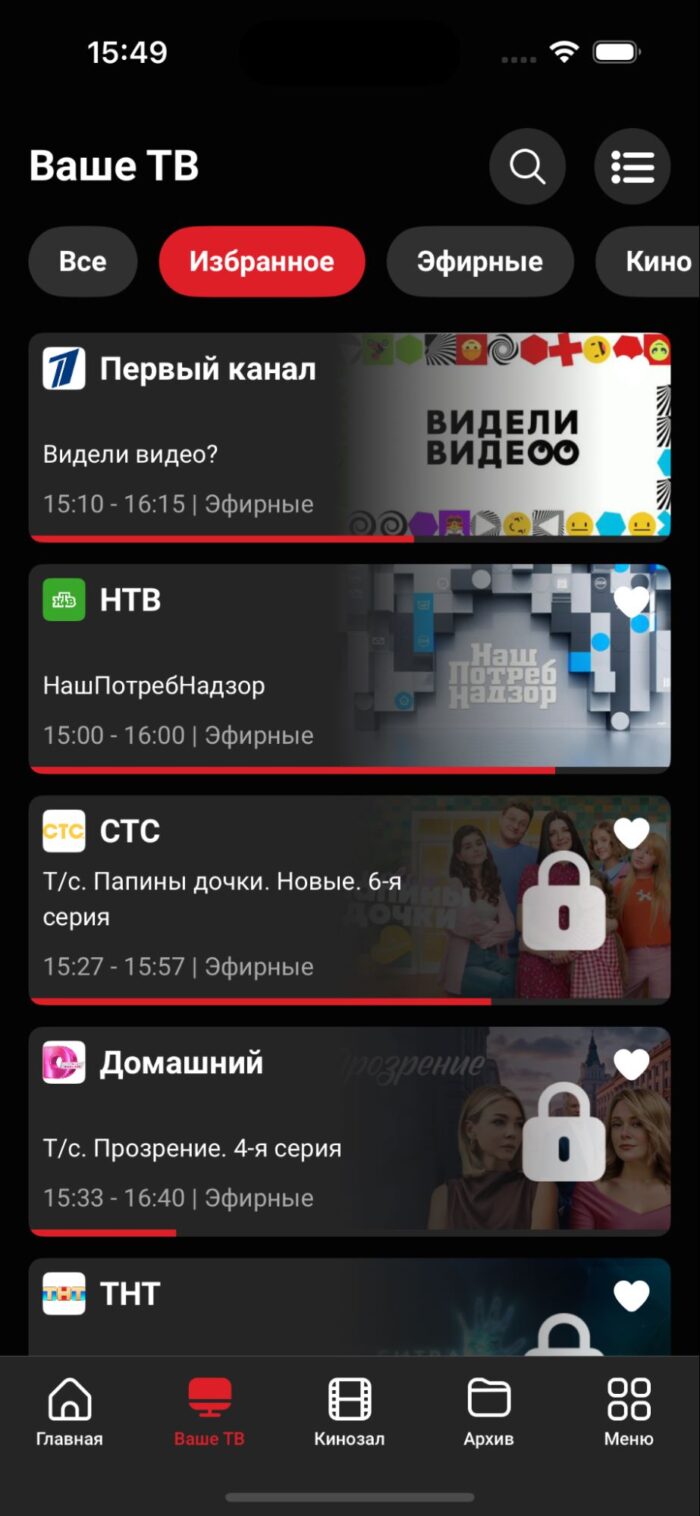
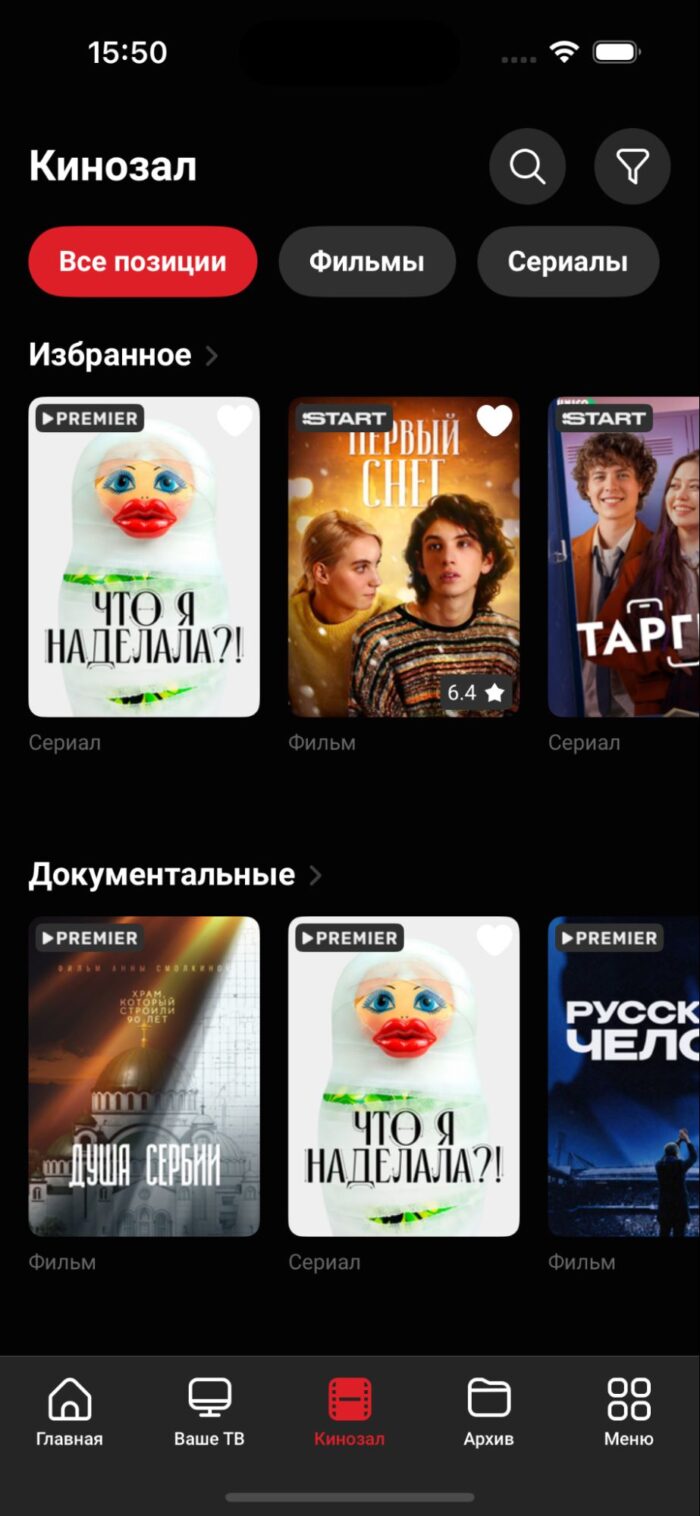
Option name: show_favorites, data type: bool.
Includes the behavior and sections of the chosen one. By default falsely.
Personal office
Activation of promo code
Option name: show_promo_code, data type: bool.
Possible values:
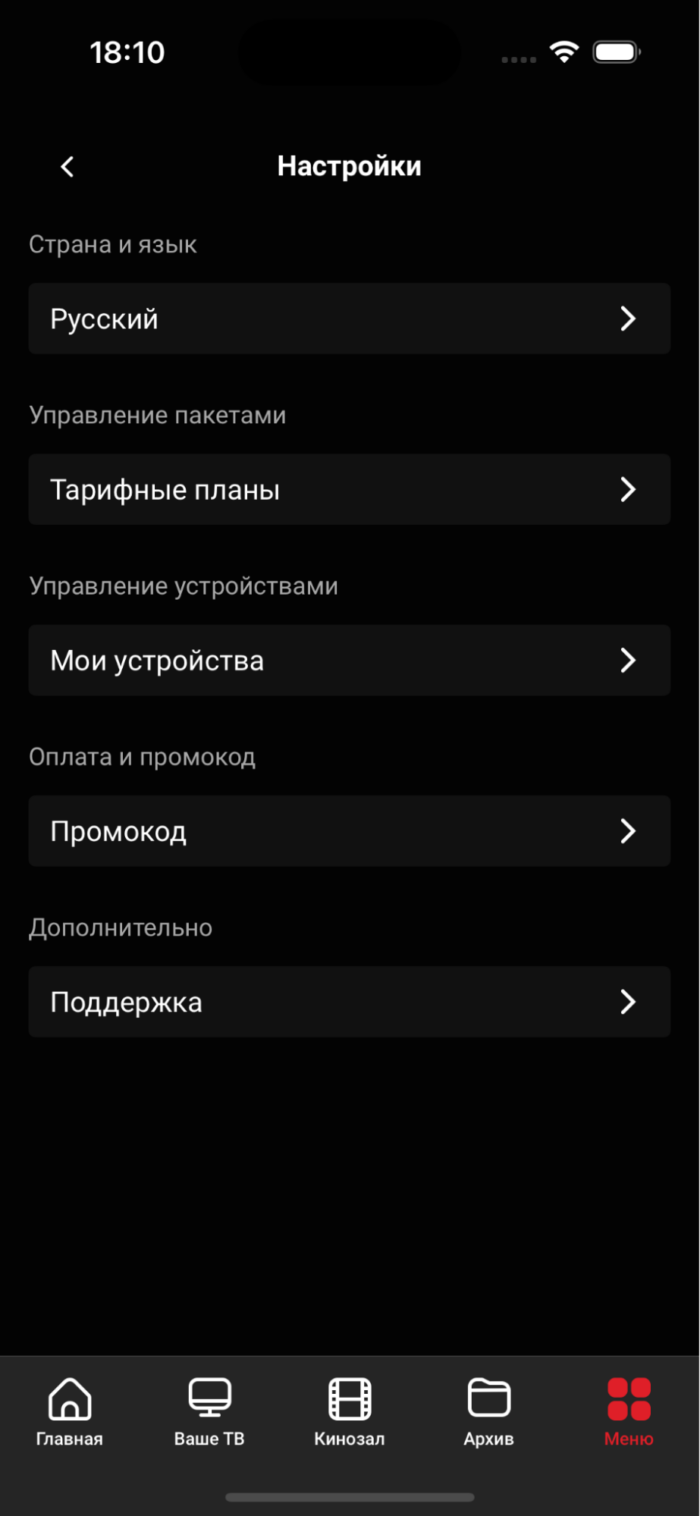
- true display the promo code activation section in the settings and the corresponding screen (by default).
- falsely do not display the promo code activation section in the settings.


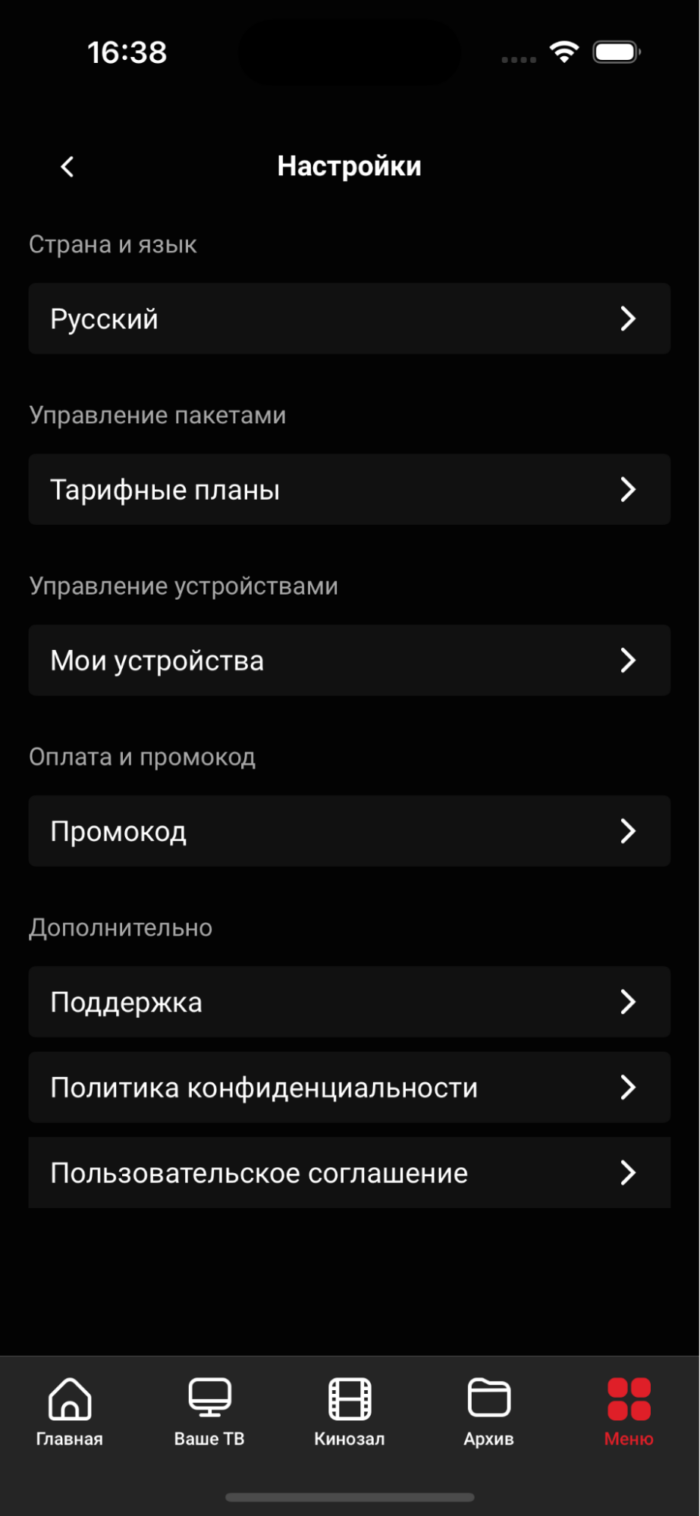
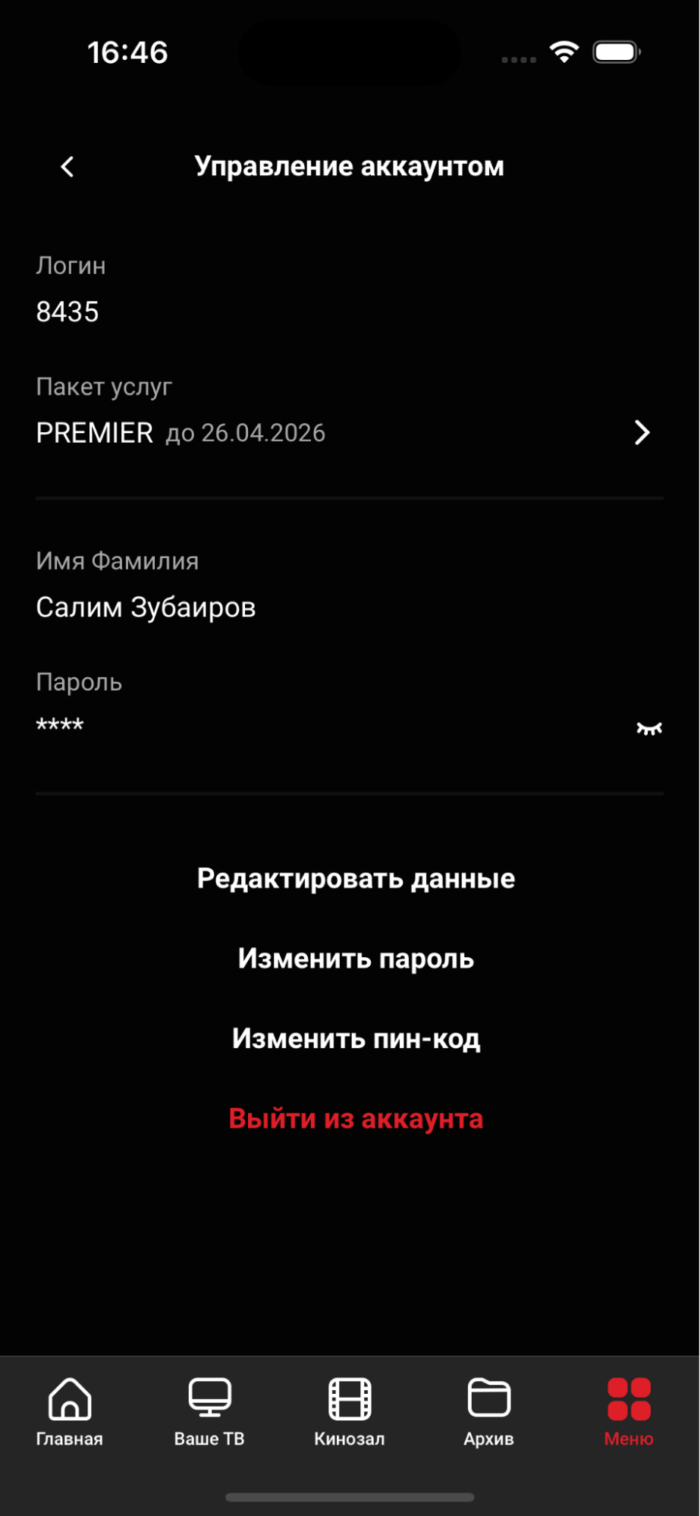
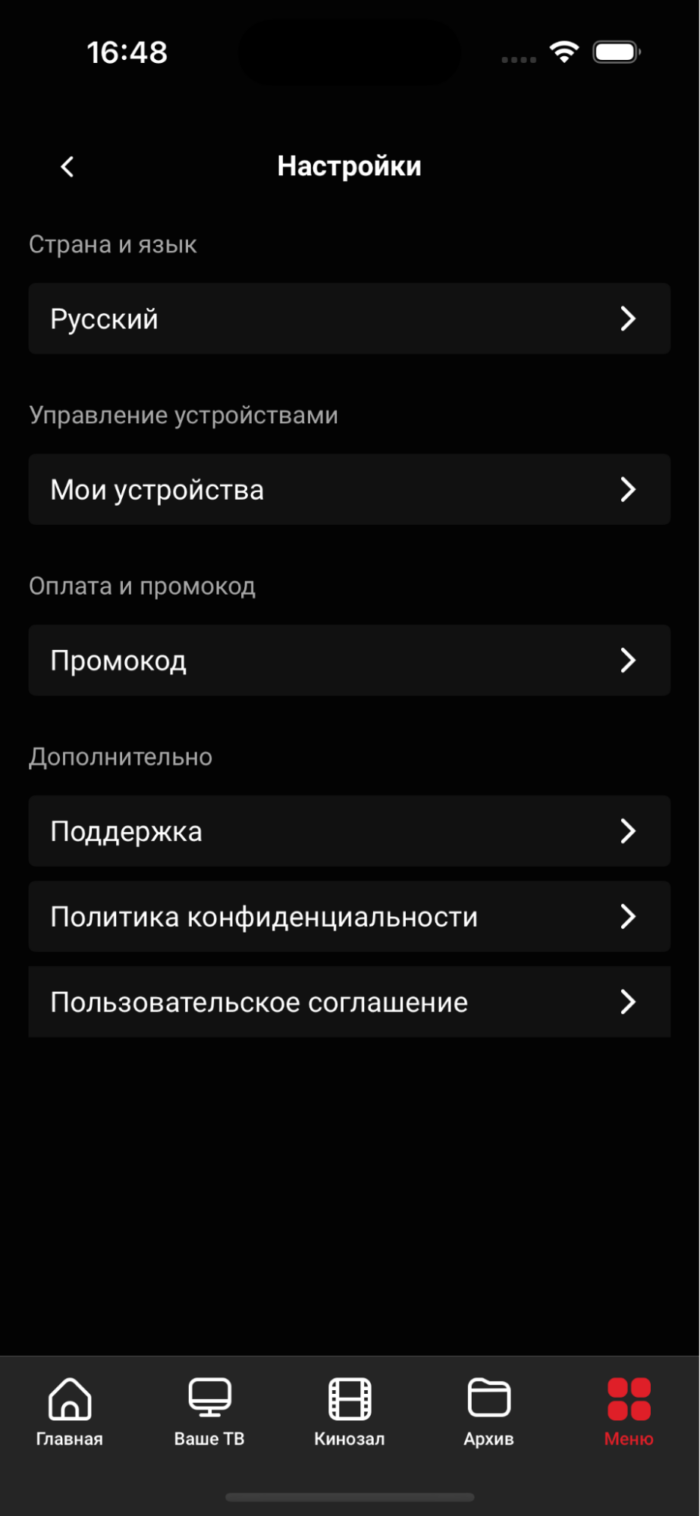
Tariff display
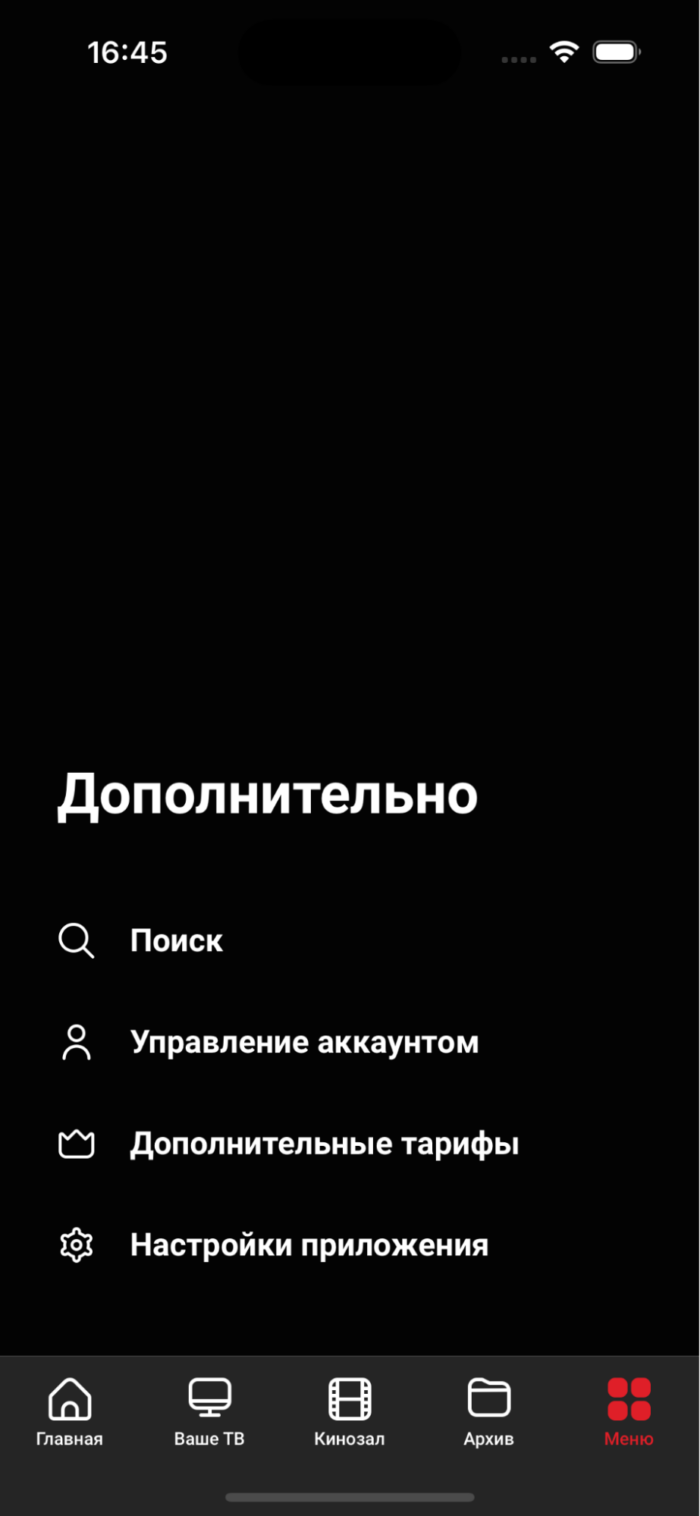
Option name: show tariffs, data type: bool.
Possible values:
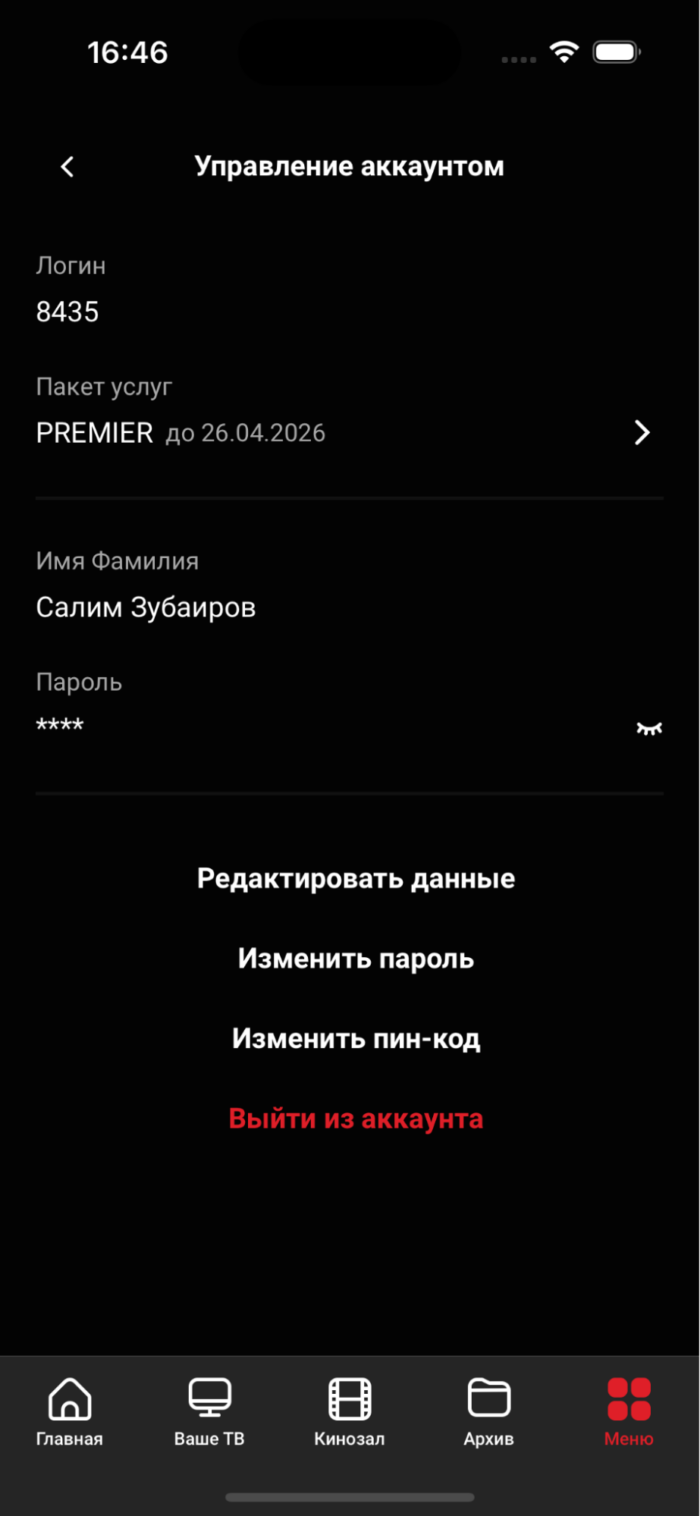
- true - display the tariff section in the screens «Menu», «Settings» and « Account Management» (by default).
- falsely do not display the tariff section in the settings.


Displaying balance information
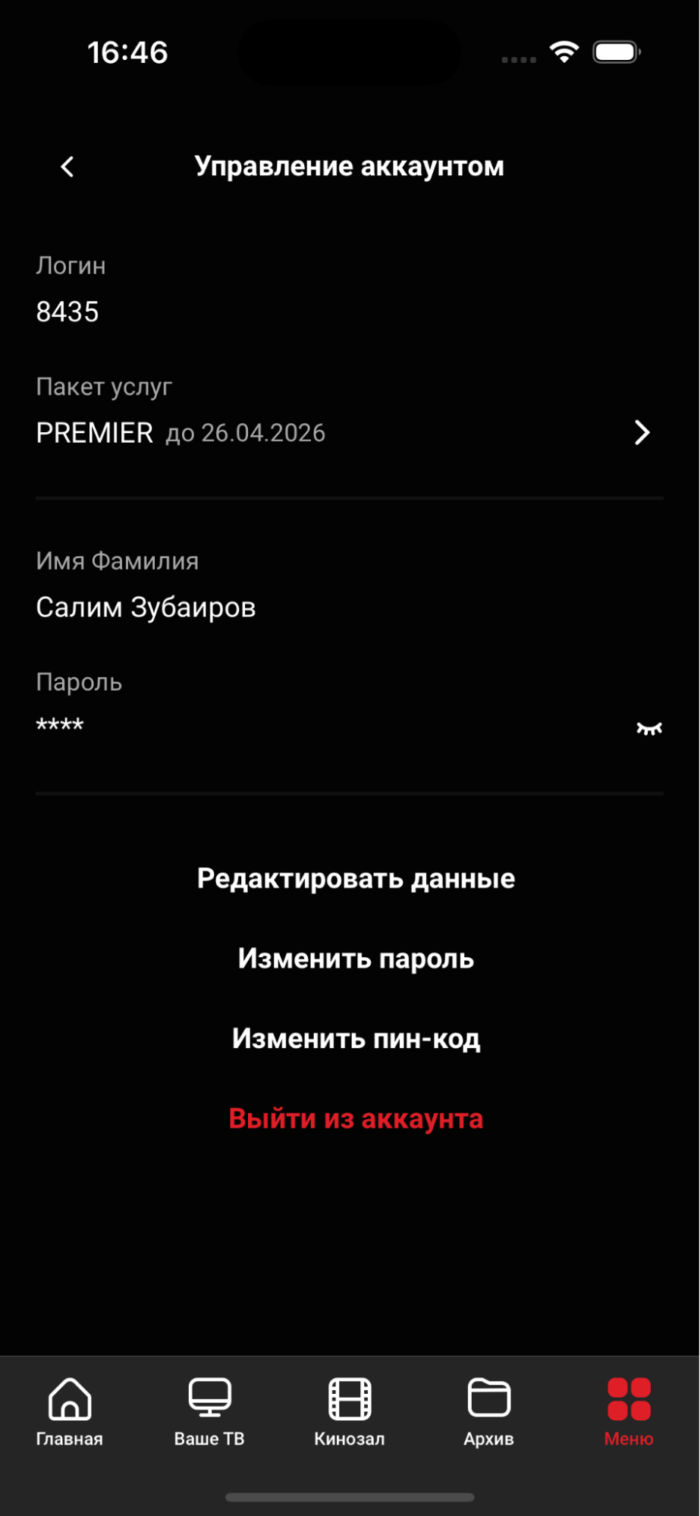
Option name: show balance, data type: bool.
Possible values:
- true - in the section « Account management » will be displayed item «Balance ».
- falsely - item «Balance » will be hidden (by default).
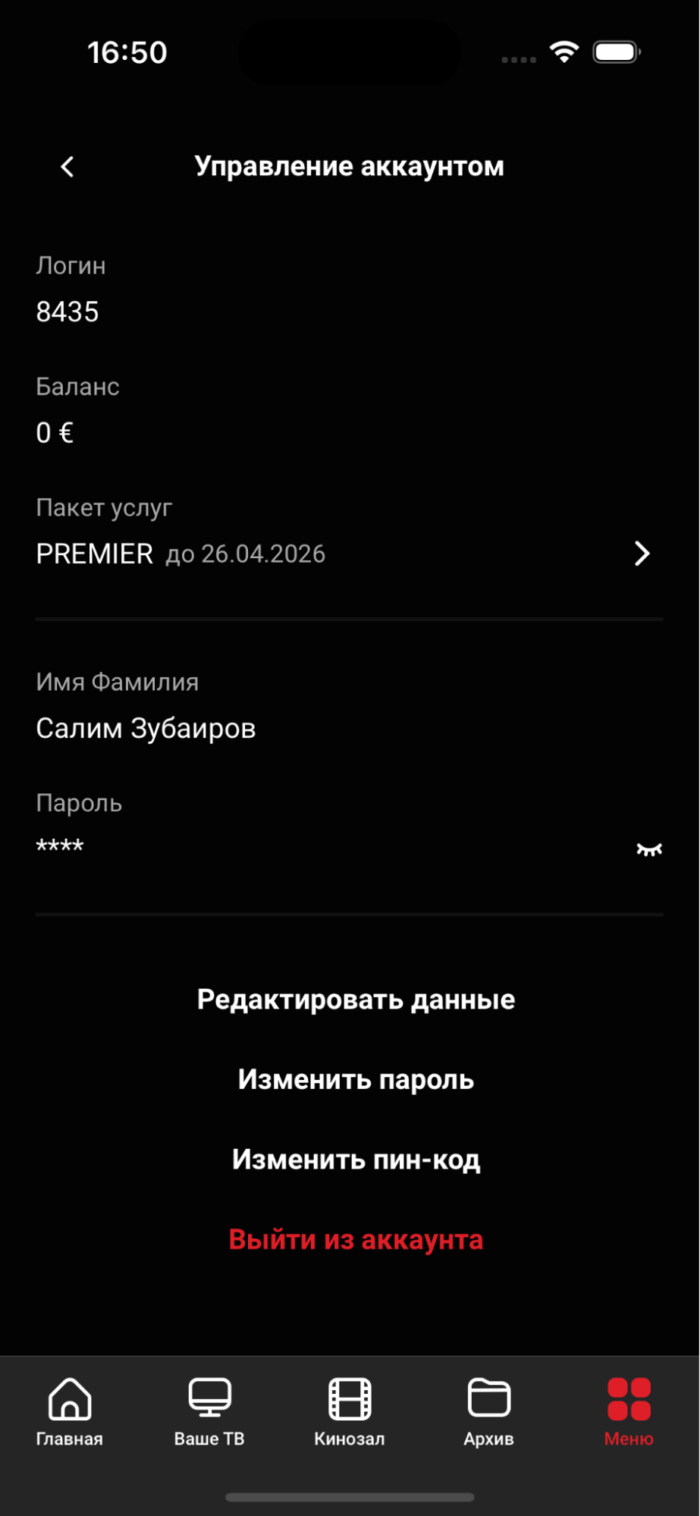
Displaying the end date of the subscription
Option name: show activation days left, data type: bool.
Possible values:
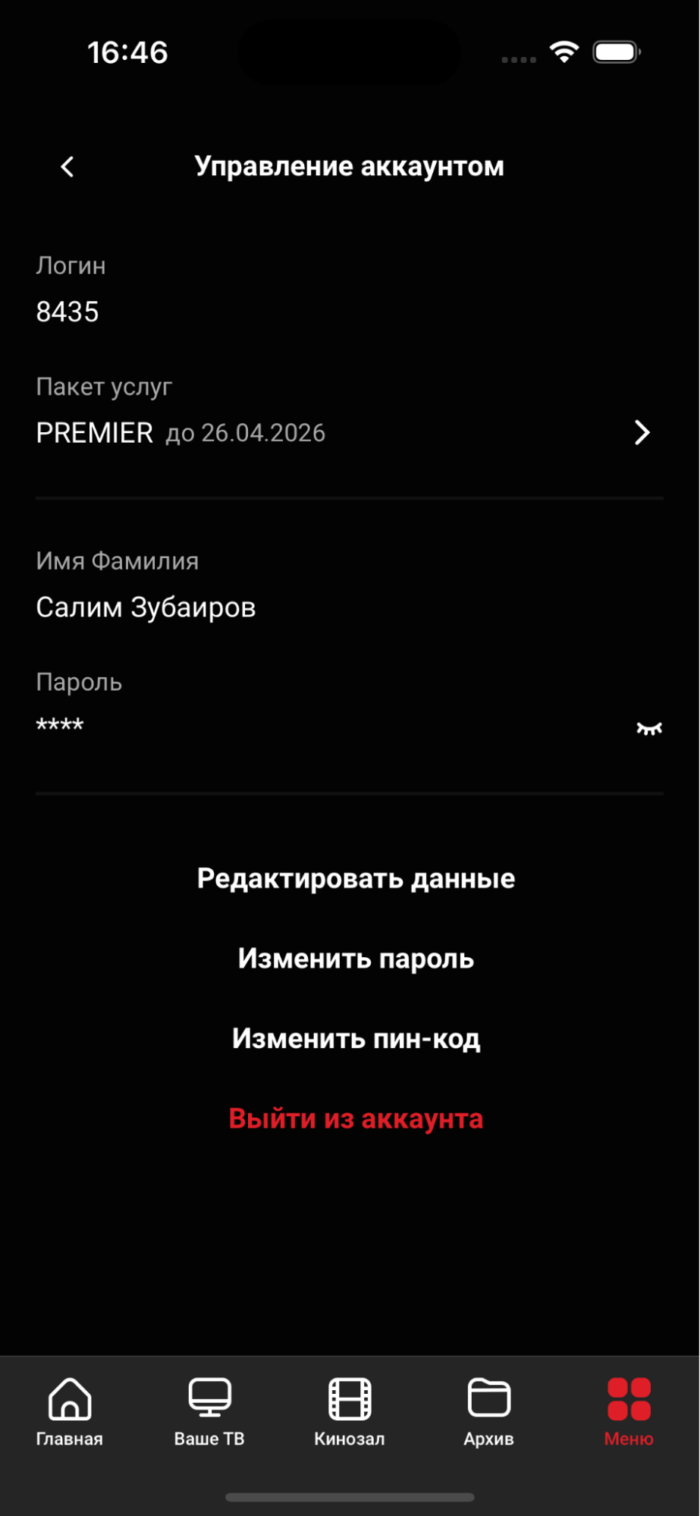
- true - in the section « Account management » information about the subscription end date will be displayed (by default).
- falsely the subscription end date will not be displayed.


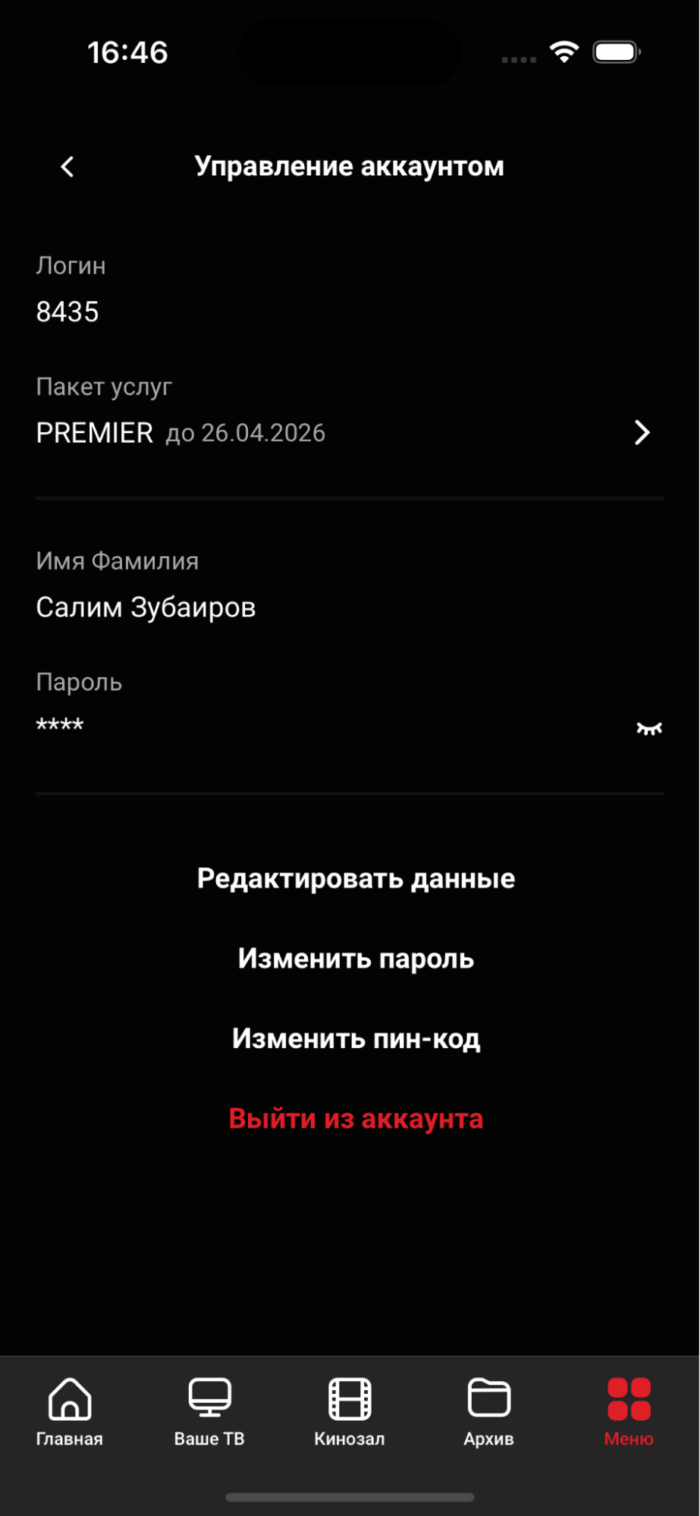
Displaying password information
Option name: show, data type: bool.
Possible values:
- true - in the section « Account management » password information will be displayed (by default).
- falsely password information will not be displayed.
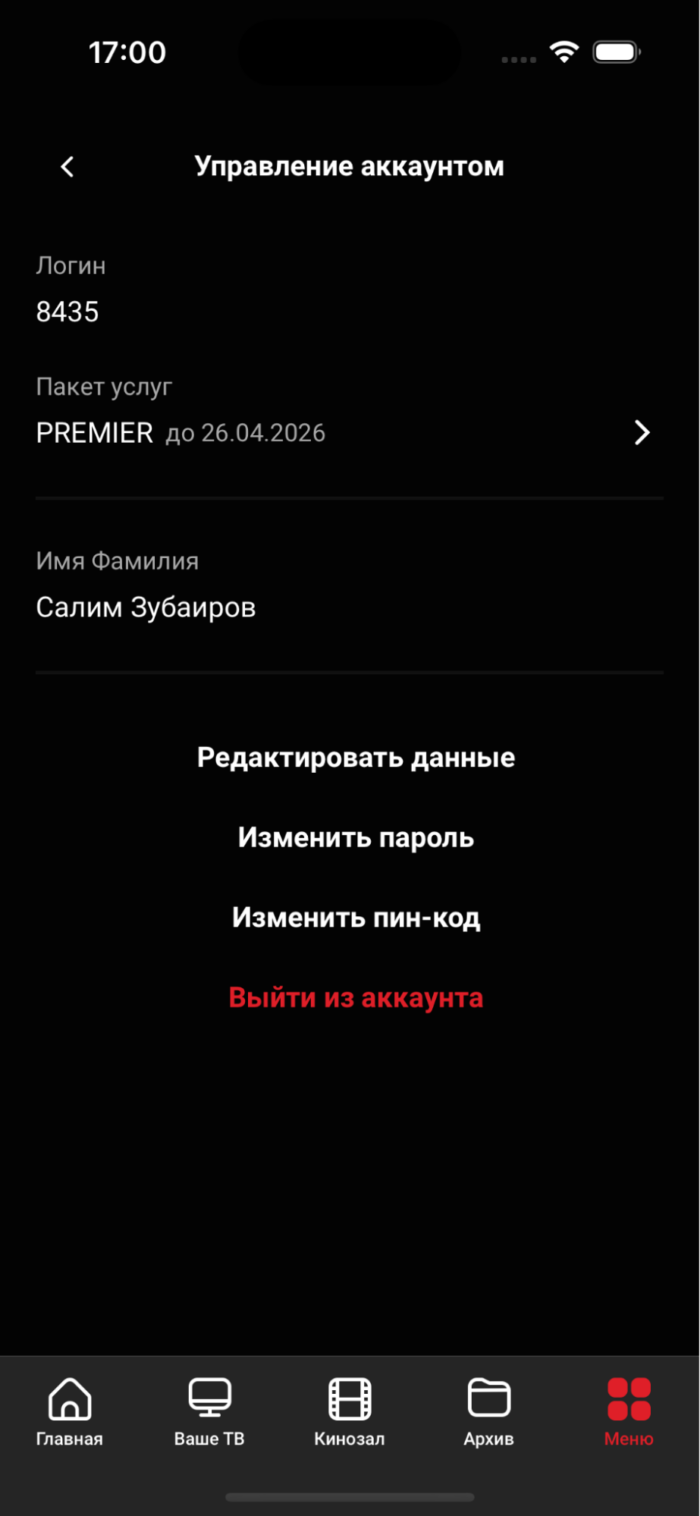
Option name: show change password button, data type: bool.
Possible values:
- true - in the section « Account management » the password change button (by default) will be displayed.
- falsely the password change button will not be displayed.

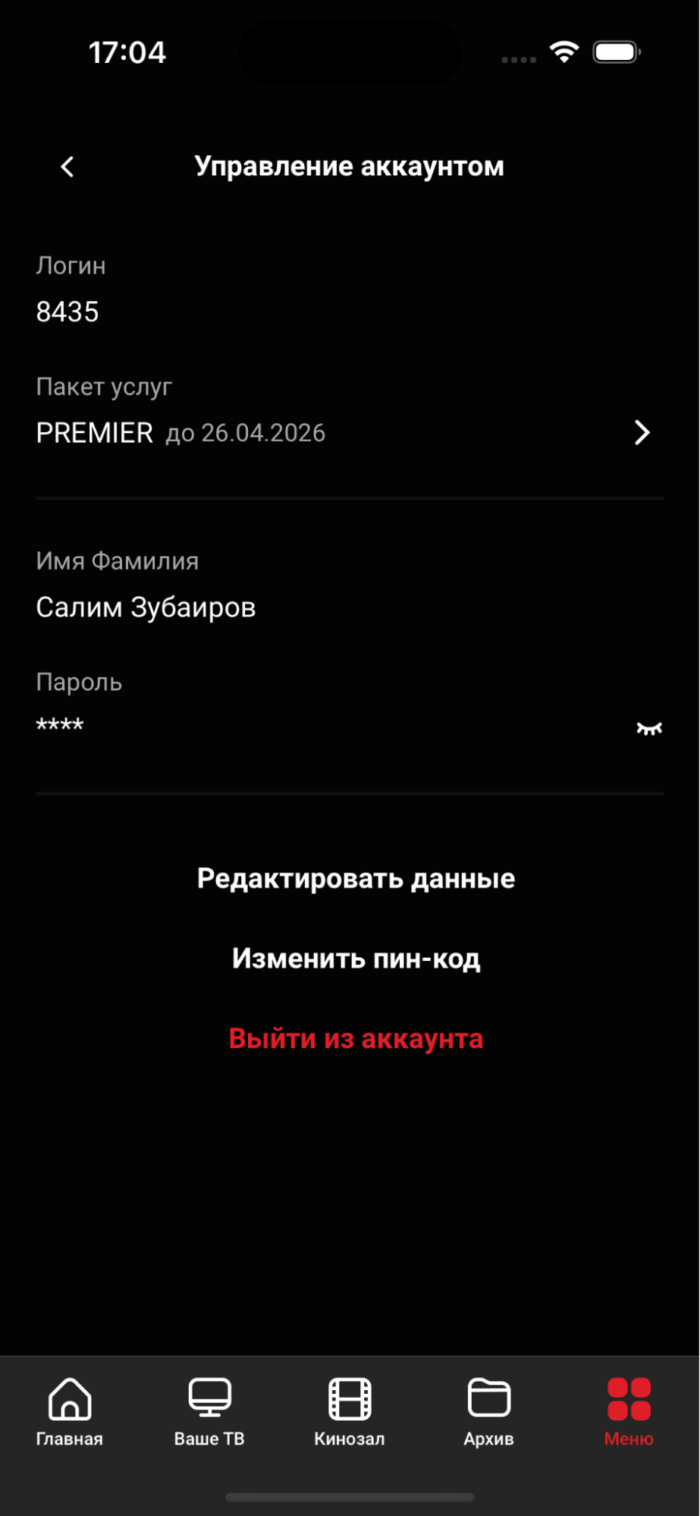
Option name: show change data button, data type: bool.
Possible values:
- true - in the section « Account management » the data editing button (by default) will be displayed.
- falsely the data editing button will not be displayed.

Displaying a personal account instead of a login
Option name: show ext id, data type: bool.
Possible values:
- true - in the section « Account management » the personal account will be displayed (
ext_id) instead of login. - falsely - in the section « Account management » the login will be displayed (by default).

Length of PIN code
Option name: max pin code length, data type: int.
Limit the maximum length of the PIN code. By default 16.
Verification of additional account status
Option name: check_account_status_reason, data type: bool.
Possible values:
- true Additional account status will be checked even in case of successful authorization. For example, if the account is active, but the additional status is “Blocked for debt”, then the corresponding authorization error will be issued in the portal.
- falsely additional status will not be checked (by default).
Frequency of account status requests
Option name: account_status_interval, data type: int.
Allows you to set the custom value of the AccountStatus request intervals in the portal. When specifying a small value (<60000), the check will be carried out with an interval of 1-2 minutes. It's set in milliseconds. Default value 600000 10 minutes.
Dashboard template
Option name: dashboard template, data type: string.
Regulates the parameter template request PortalDashboardListIt describes the name of the UI pattern that is currently used on the device. By default futuristic.
Commentary on legal instruments
Option name: legal_docs_message, data type: string.
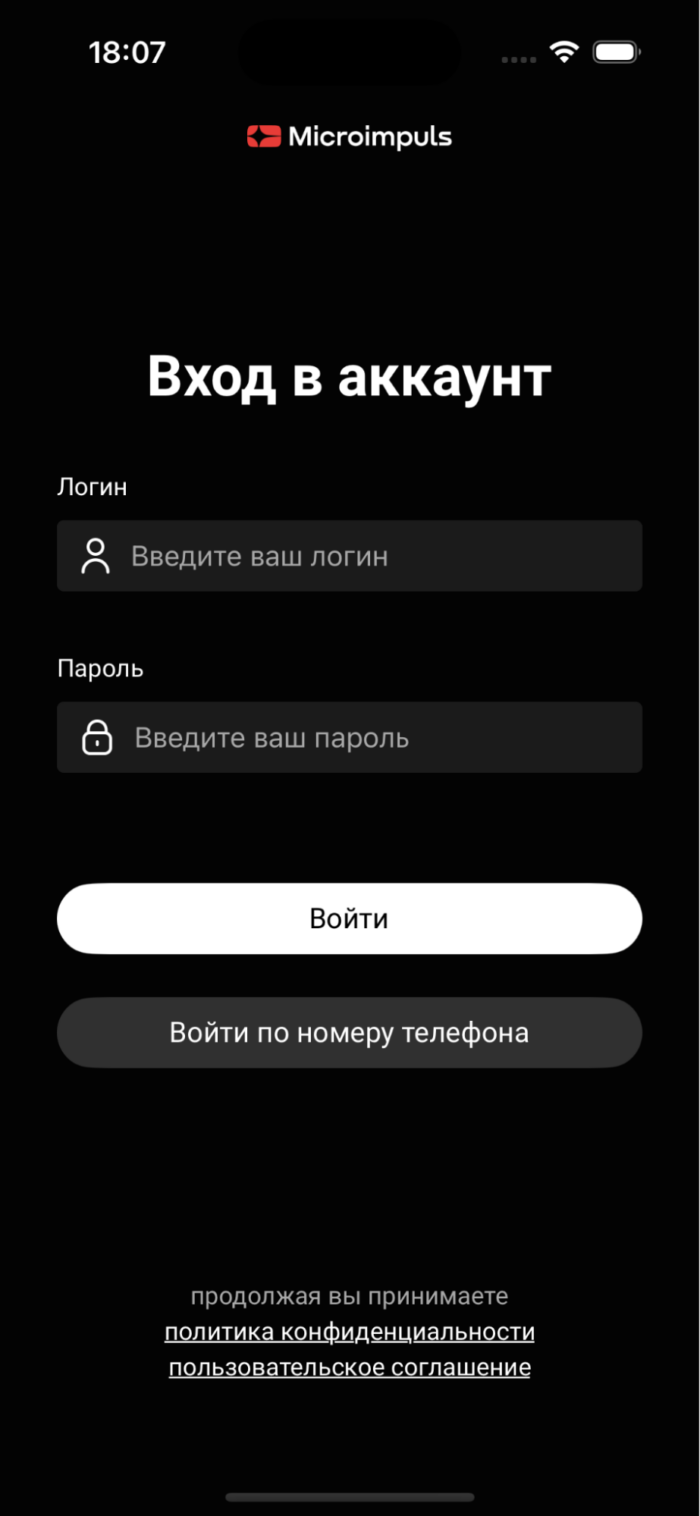
Defines text next to legal documents on the authorization/registration screen.
Example message: « continuing you accept ». To display the line and legal documents, you need the line to be set and at least one legal document with the type «Show at authorization» (for the authorization screen) or «Show at registration» (for the registration screen) with Smarty. By default null.

Display «Privacy Policy»
Option name: legal document policy id, data type: int.
The option to specify the document identifier governs the display of item «Privacy Policy».
Possible values:
- >.0 — in the section « Account management » will be displayed « Privacy Policy ».
- -1 - «Privacy Policy» will not be displayed.

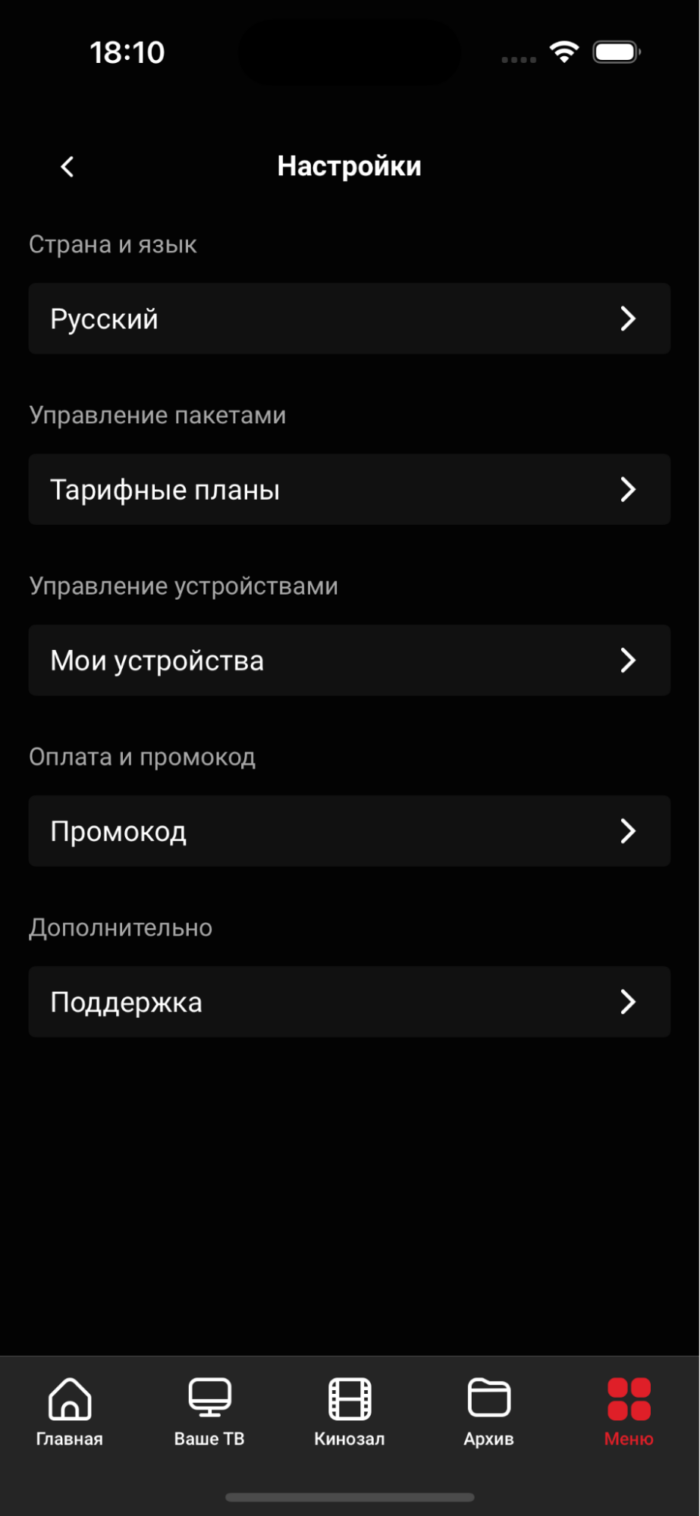
Display «User Agreement»
Option name: legal document user terms id, data type: int.
The option to specify the document identifier governs the display of item «User Agreement».
Possible values:
- >.0 — in the section «Account management» will display «User Agreement».
- -1 - «User Agreement» will not be displayed.

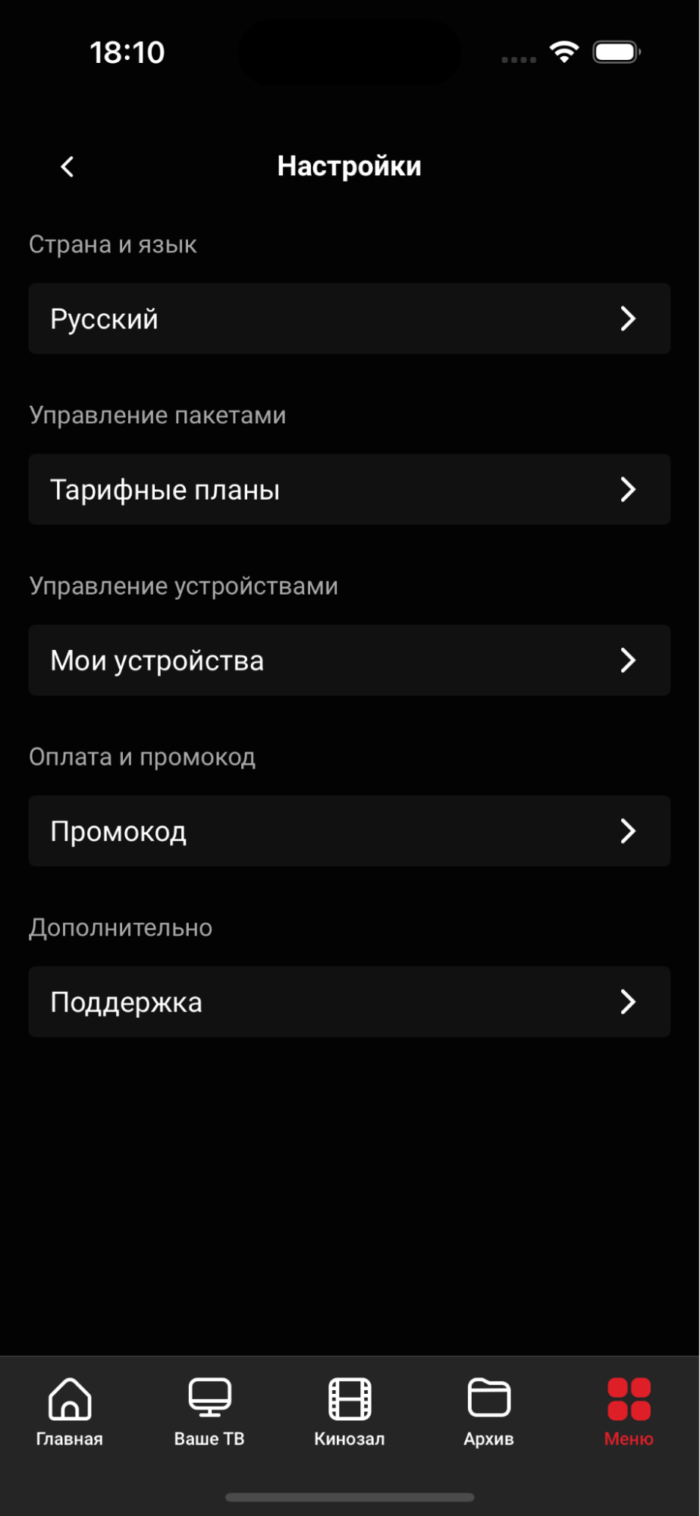
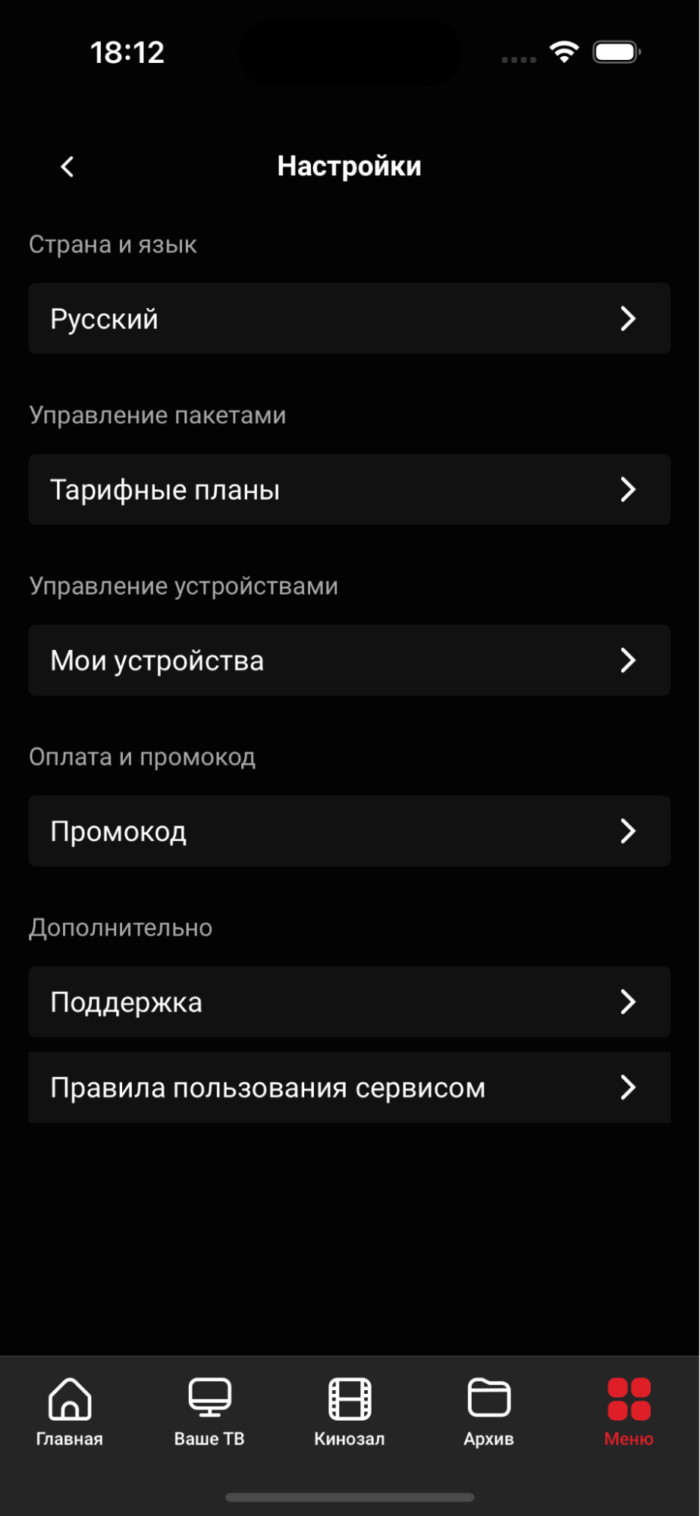
Display «Service Terms »
Option name: legal document service usage rules id, data type: int.
The option to specify the document identifier regulates the display of item «Rules of use of the service».
Possible values:
- >.0 - in the section « Account management » will be displayed « Terms of use of the service ».
- -1 - «Service Terms » will not be displayed.
Technical support phones
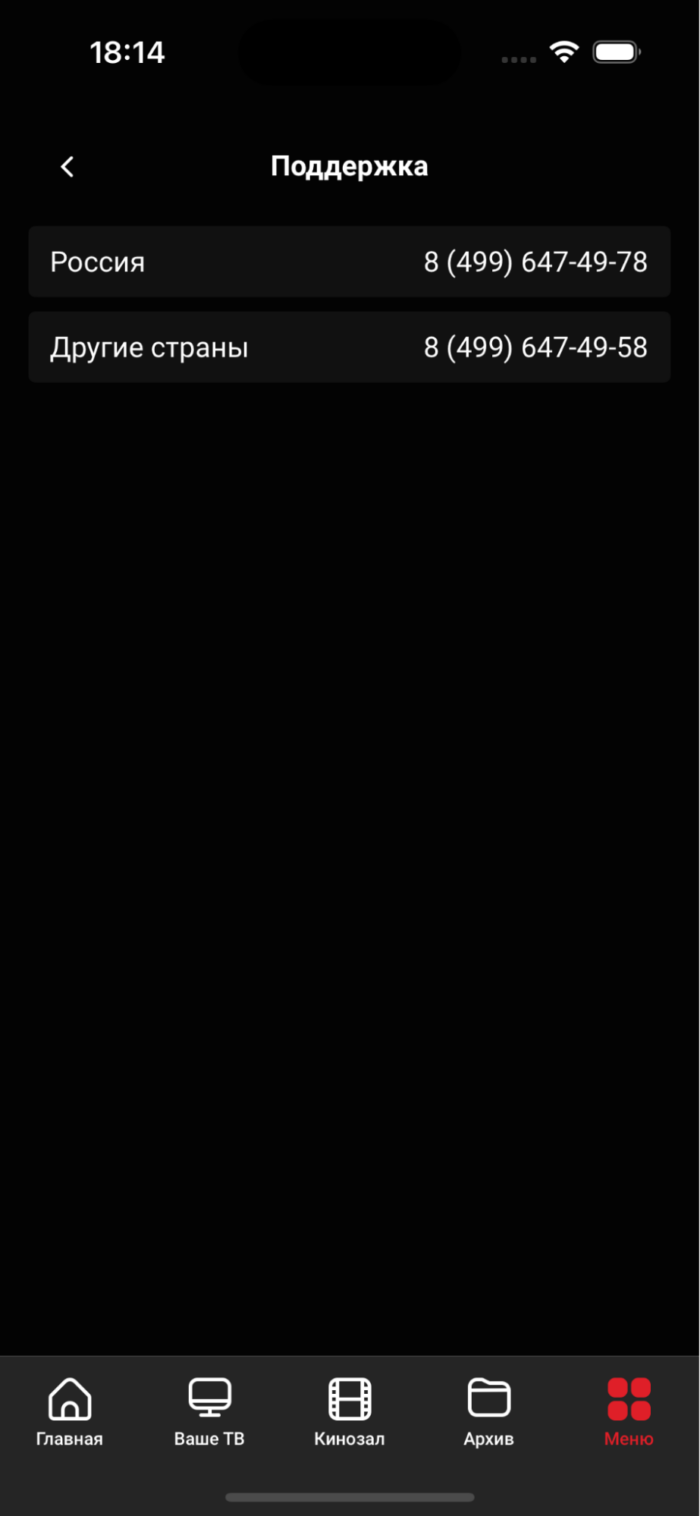
Option name: supportPhoneNumbers, data type: array. #hardcoded
Determines the list of support phones indicating the country (with localization) and the phone number, when you click on which the dialer with the specified number opens.
Example:
var CLIENT_SETTINGS = {
  // ..
  supportPhoneNumbers: [
      {
        country:
          en: "Russia,",
          en: "Russia",
        },
        number: '8 (499) 647-49-78',
      },
      {
        country:
          en: "Other countries",
          "Other countries",
        },
        number: '8 (499) 647-49-58',
      },
    ],
};
Link to the Technical Support Channel
Option name: supportLin k, data type: string. #hardcoded
Defines a link to an external support channel (chat/site/cabinet).
Example: «Chat support in VK».

Payment
Payment page template
Option name: payment_template, data type: string.
Regulates the parameter template request PaymentCreate, describing the name of the form template (if there is gateway support) to which the redirect will be made when paying. By default null.
Type of Merchant for Screen Payment
Option name: merchant_type, data type: string.
Possible values:
- empty value – the merchant installed on the server by default (by default) will be used.
- w1 - Wallet One merchant.
- paymaster - Merchant Paymaster.
- pay - Merchant Payture.
