
Windycast is an additional Smarty service for interacting devices with each other. Based on Websocket technology, it allows instant transfer of information between systems and applications.
Windycast is currently used to:
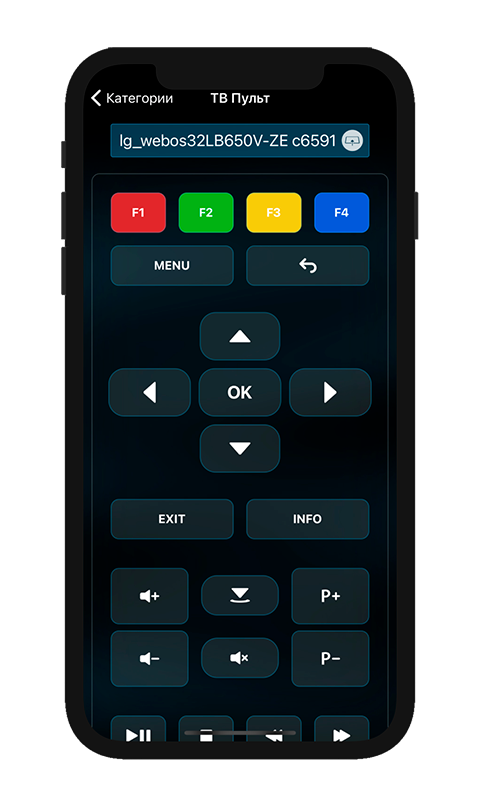
- control STB and Smart TV using the application on the smartphone;
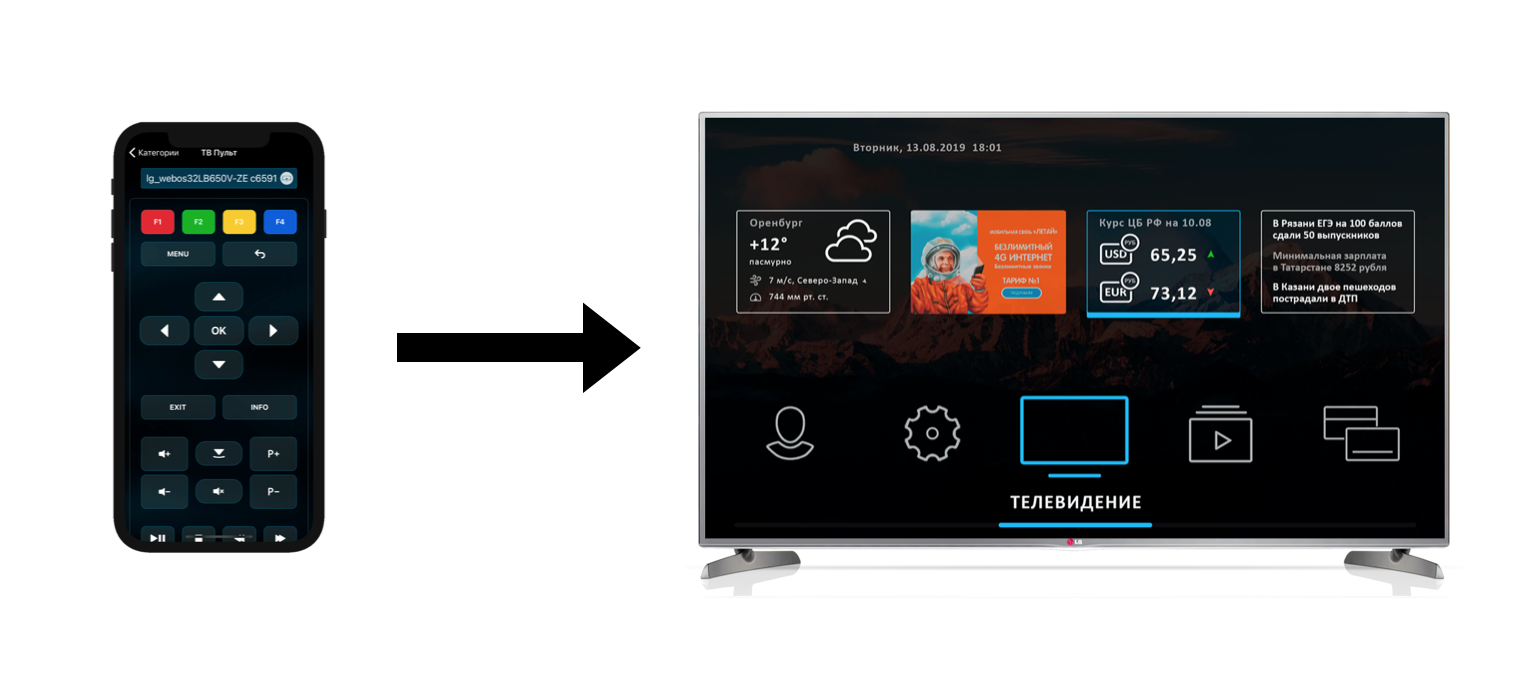
- send and display intercom notifications (implemented for Sevstar, Sevstar X and Futuristic templates).
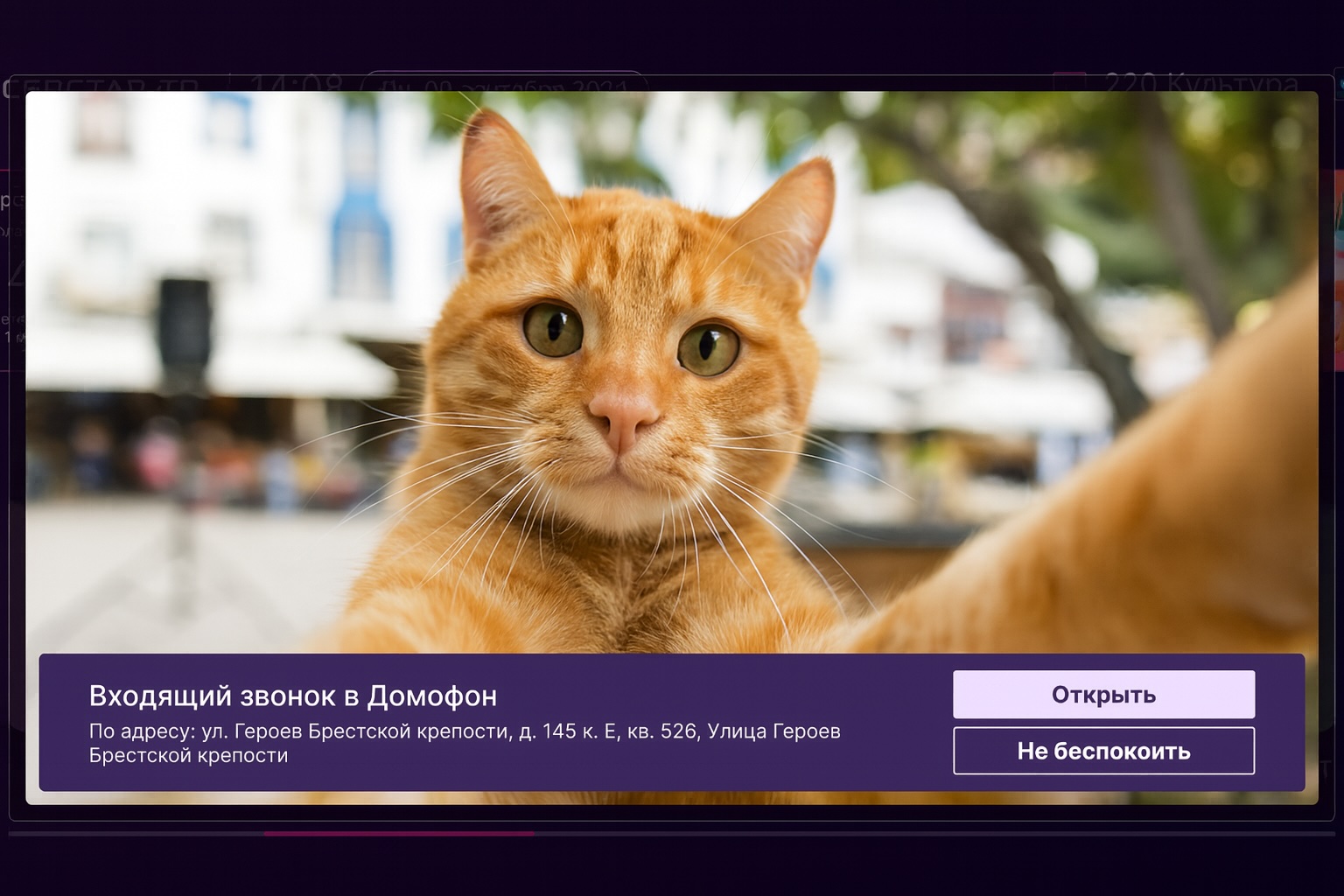
Smartphone TV control
1. When it is turned on in the service, a new menu item “TV remote” appears in the mobile application, as well as a new icon in the channel viewing screen.
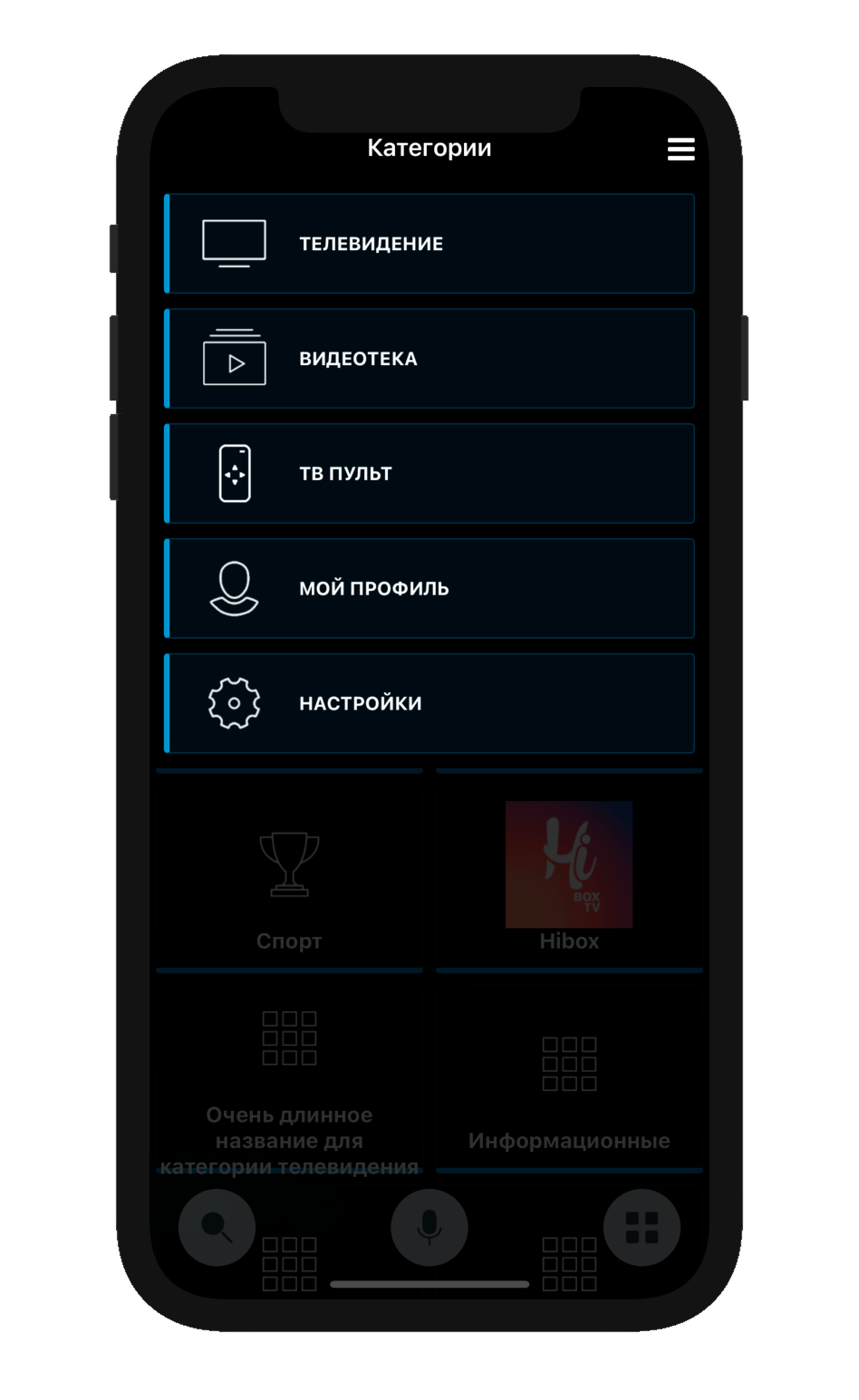
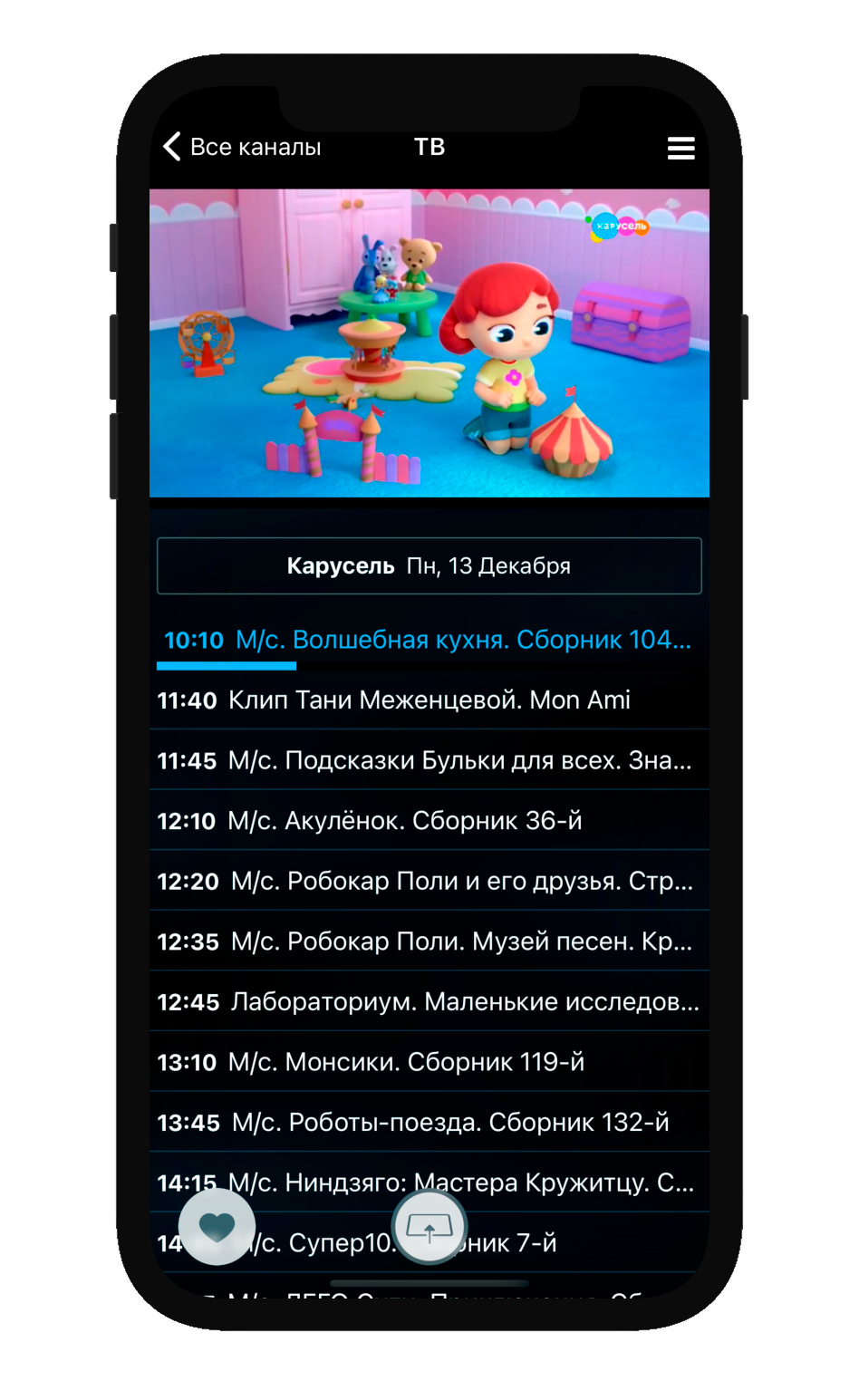
2. After clicking on it, the mobile application searches for all TVs and consoles that are now online and authorized by the same account, and gives the user the opportunity to connect to them.

3. After confirming the connection on the TV screen, it is possible to use the mobile application as a remote, or one swipe to transfer the current viewing of the channel from a mobile device to the TV screen.
Integration with the intercom system
Windycast in this integration is used as a server for instantaneous transmission of a call message from the intercom system to the device. The scenario of this integration:
1. Intercom system sends a call message to Smarty using the method http://smarty.example.com/ws_api/intercom_call/ (POST), query parameters:
accountidentifier of the account whose devices need to be informed about the call to the intercom (compulsory)image_urlthe address of the constantly updated image from the intercomopen_door_urlthe address for which the door is openedreject_intercom_call_urlthe address for which the call is cancelled
2. The message using Windycast will be delivered to the device and shown to the subscriber on the TV. The display of the video sequence is only available in the Sevstar X interface and is achieved by updating the current frame from the intercom camera by timerimage_url). In the Sevstar and Futuristic interfaces, the call is received without video.
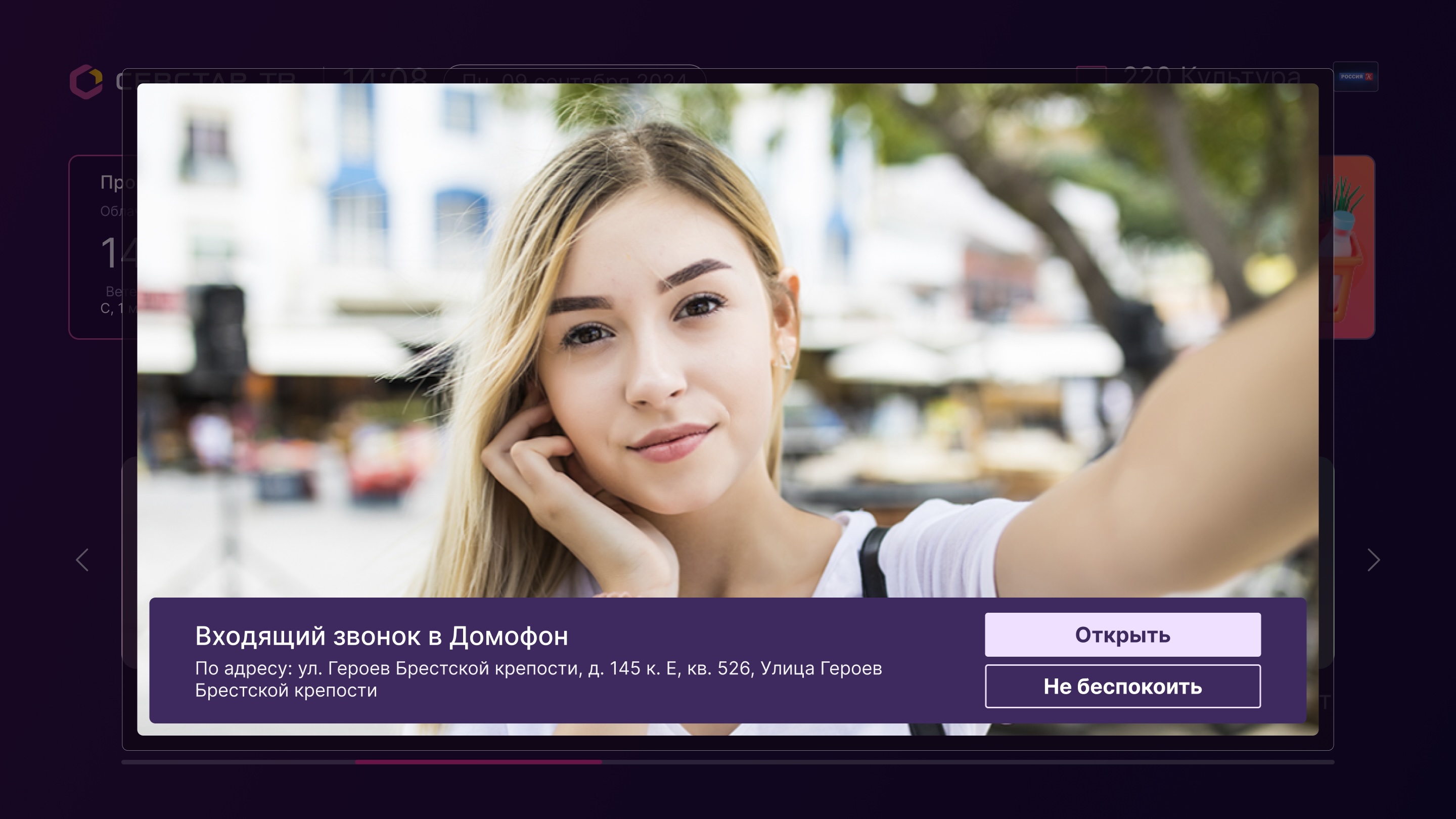
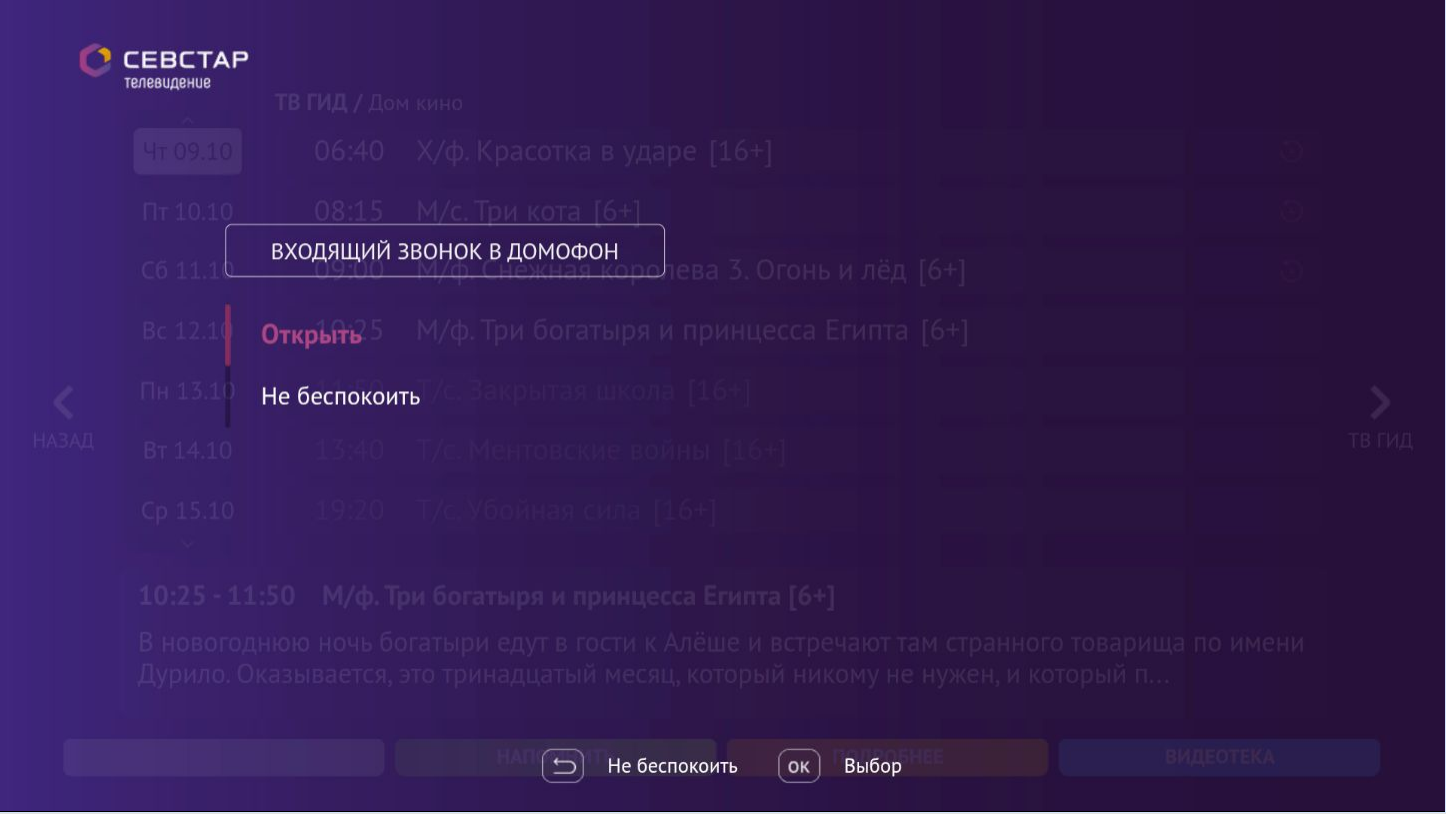
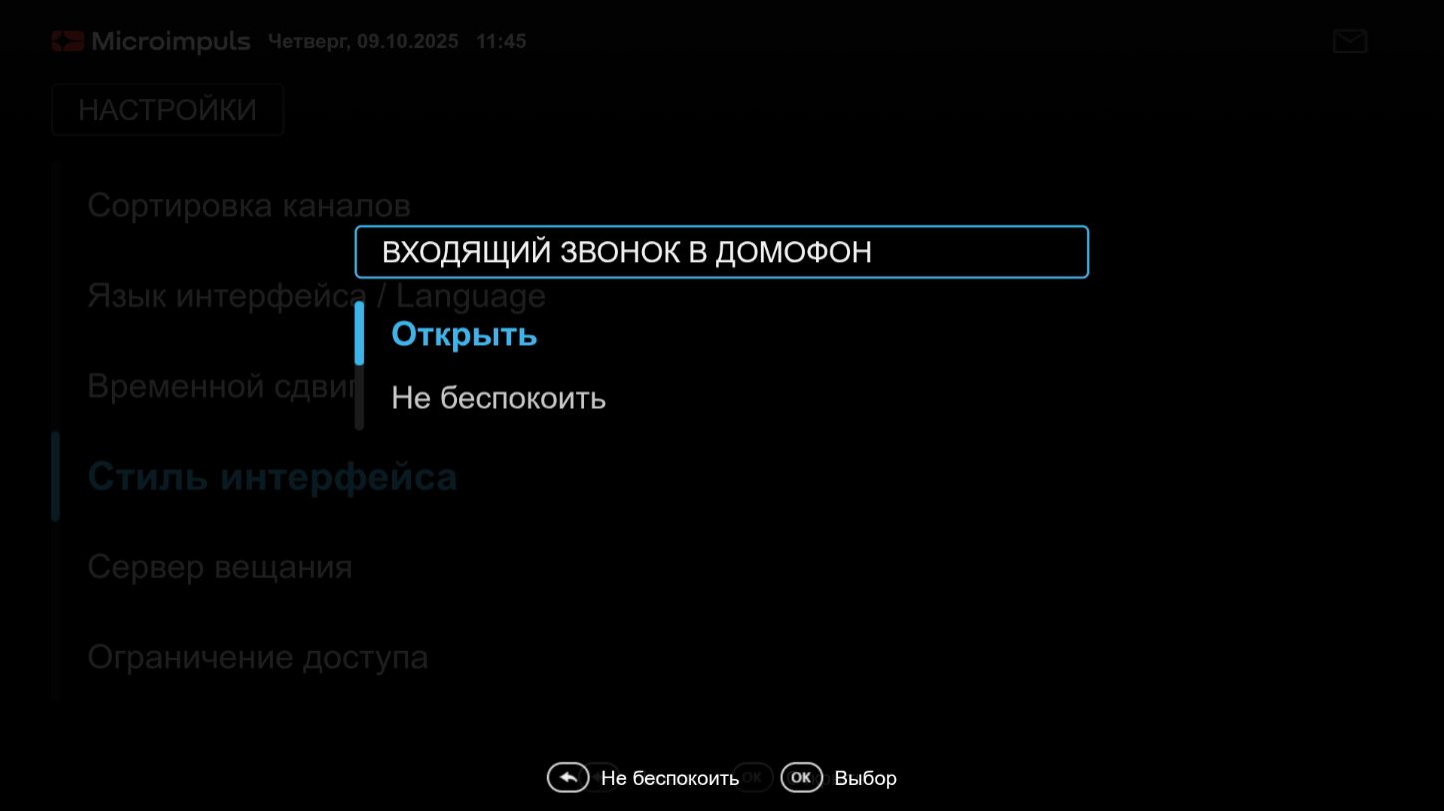
3. The subscriber, clicking on the "Open" or "Do not disturb" buttons, initiates a call to the IPA methods of the intercom system (open_door_url and reject_intercom_call_url).
Instructions for setting up Windycast
Server requirements
Minimum specifications for a server with 2,000 active connections:
- Processor: 2 cores with a frequency of more than 2.5 GHz
- RAM: 4GB
- ROM: 20 GB
Note 1: You can install Windycast both on a separate machine and on the same server where Smarty is installed.
Note 2: When installing Windycast on a server with Smarty, we recommend that you take into account the requirements for the server characteristics and, if necessary, improve them to the necessary.
Installation
1. You need to update all current components of the service to current versions:
Smarty (not lower than version 2.6);
- Portal (at least engine 1013 sevstar-x 41, sevstar 243, futuristic 1037);
- Mobile application (build date not earlier than 13.12.2021)
2. Install the python3 interpreter. 10
- We install system packages:
apt update
apt install build-essential zlib1g-dev libncurses5-dev libgdbm-dev libnss3-dev libssl-dev libreadline-dev libffi-dev libsqlite3-dev w libbz2-dev
- Download the source code of the interpreter from the official website and unpack it:
wget https://www.python.org/ftp/python/3.10.18/Python-3.10.18.tgz
tar -xf Python-3.10.*.tgz
- We configure the compilation parameters and assemble the interpreter:
cd Python-3.10
. /configure --enable-optimizations
make-j 2
make altinstall
3. Next, download the Windy installation package and install it:
dpkg -i windy*.deb4. Fill in the Windy configuration file located at /etc/microimpuls/windy/windy.ini, settings to configure:
smarty_urlLocal url Smartysmart_secret_key- parameterSECRET_KEYin Smarty settings (without quotes)
Example configuration:
# Need to be equal with SECRET in Smarty config
smarty_secret_key = 123

# Need to be available from Windy
smarty_url = http://127.0.0.1:8180
5. Set up a virtual environment and establish dependencies
- Create a virtual environment:
cd /usr/share/microimpuls/
python3.10 -m venv windy_venv
cd windy_venv
ln -s /usr/share/microimpuls/windy
- Installing Python packages:
/usr/share/microimpuls/windy/venv/bin/pip3 install -r /usr/share/microimpuls/windy_venv/windy/requirements.txt
- In the file
/lib/systemd/system/windy.servicechange the values of the working directory parameters and launch parameters:
WorkingDirectory=/usr/share/microimpuls/windy_venv/windy/
ExecStart=/usr/share/microimpuls/windy_venv/bin/python3.10 windy.py
- In order for the changes to come into force, the following command must be executed:
systemctl-daemon reload
- Turn on auto-start service and restart it:
systemctl enable windy
systemctl restart windy
6. Customize nginx
- Include configuration in nginx:
ln -s /etc/nginx/sites-available/windy /etc/nginx/sites-enabled
- Create a directory for logs:
mkdir /var/log/nginx/microimpuls/windy
chown www-data /var/log/nginx/microimpuls/windy
- Check the configuration for errors:
systemctl nginx configtest
- If there are no errors in the configuration, you can restart the configurations:
systemctl nginx reload
6. The final configuration step is to configure client applications to interact with Windy:
- in the client.js portal or on the portal configuration page in the Smarty administration panel, you must register the option
windy_url, the value of which is formed according to the following scheme:ws:// + windy_host + : + windy_port + /wsfor example:
'windy_url': 'ws://example.com:8888/ws',
- the same option must be entered in the configuration of mobile applications on the application configuration page in the Smarty administration panel, or specify this address as a build option.
6. After correctly configuring all points in the applications, the functionality described above will appear, and http:// + windy_host + : + windy_port + /status it will be possible to track devices connected to Windy.
Additional settings for Windycast
- Option
save_windy_devicesfor client.js of the Futuristic template – when true devices previously connected to the TV/set-top box via Windycast do not require reconfirmation when connected. Default value: falsely.
var CLIENT_SETTINGS = {
///...
'save_windy_devices': true
};- The inclusion of the functionality of receiving intercom messages is carried out using special setters in client.js - through the listing of tariff plan identifiers.
if (App.popupIntercomScreen) {
// SupportedTariffIds - id tariffs in which intercom is supported, if there is no tariff, then even windyCast will not be connected, since for other purposes in the template is not used.
App.popupIntercomScreen.setSupportedTariffIds([461, 22]);
}- Additional setters for configuring the behavior of the message from the intercom:
if (App.popupIntercomScreen) {
ScreenHideInactivityDelay - after what time will the poppe call disappear
App.popupIntercomScreen.setScreenHideInactivityDelay(180); // in seconds, minimum 5 seconds, default 3 minutes
NotDisturbingDelay - how long after pressing "do not disturb" or closing poppa calls in the template will be ignored
App.popupIntercomScreen.setNotDisturbingDelay(300); // in seconds, at least 0 seconds, that is, you can completely disable, default 5 minutes
ImageChangeInterval - refresh rate of the image from the camera
if (App.popupIntercomScreen.setImageChangeInterval instanceof Function) {
App.popupIntercomScreen.setImageChangeInterval(200); // in milliseconds, range [200ms, 10sec]
}
}
Instructions for setting up Windycast for residents of the Plus TV app
The instructions fully coincide with the previous one, except that the mobile app Plus TV and the portal have already been assembled and published in the markets with the desired version.
