
Additional options allow you to change the appearance and behavior of the application, and are specified in the configuration file /etc/microimpuls/portal/client.js.
The following options are available for the infinitly interface.
Logic of work
Authorization regime
Option name: auth_mode, data type: string.
Possible values:
- password - by login and password (by default).
- device_uid A unique device identifier (usually a MAC address) or IP address. In case of unsuccessful authorization, the subscriber will be offered authorization by login and password.
- device_uid_wo_fallback - the same as device_uid, but without processing some situations of unsuccessful authorization and transition to login and password authorization.
Example:
var CLIENT_SETTINGS = {
///...
'auth_mode': 'password'
};
The ability to enter characters in the password
Option name: is_letter_in_password, data type: bool.
Possible values:
- true numbers and letters can be entered in the password.
- falsely only numbers can be entered in the password (by default).
Example:
var CLIENT_SETTINGS = {
///...
'is_letters_in_password': false
};
The possibility of registration via SMS
Option name: registration_available, data type: bool.
Possible values:
- true The registration button is displayed via SMS.
- falsely it is not displayed (by default).
To be able to register via SMS, you need to properly configure integration with the SMS gateway on the Smarty server side.
Example:
var CLIENT_SETTINGS = {
///...
'registration_available': false
};
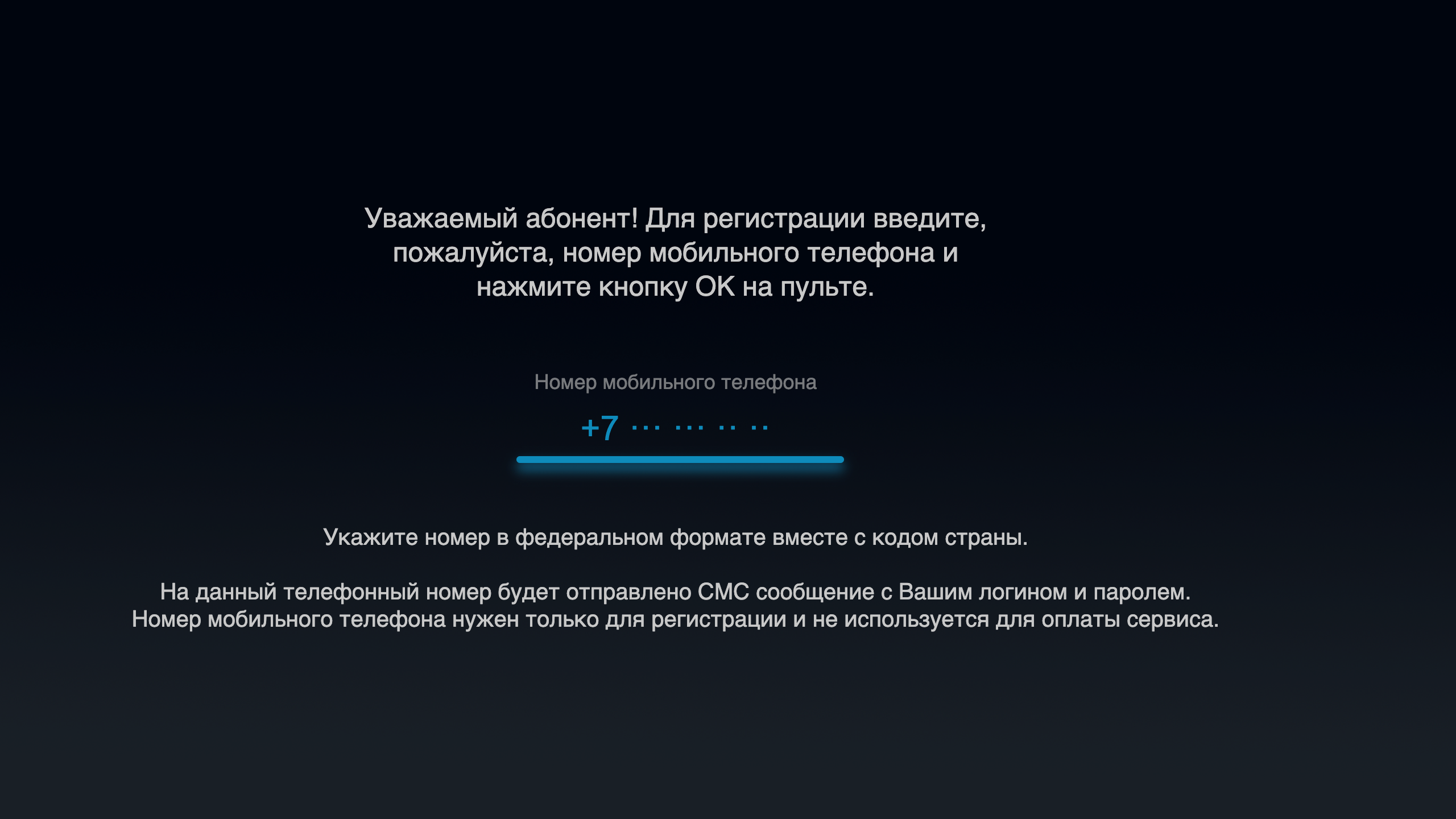
Registration regime
Option name: registration_modedata type: string.
Possible values:
- phone registration by phone number (by default).
- phone_and_password registration by phone number and password.
Example:
var CLIENT_SETTINGS = {
///...
'registration_mode': 'phone_and_password'
};
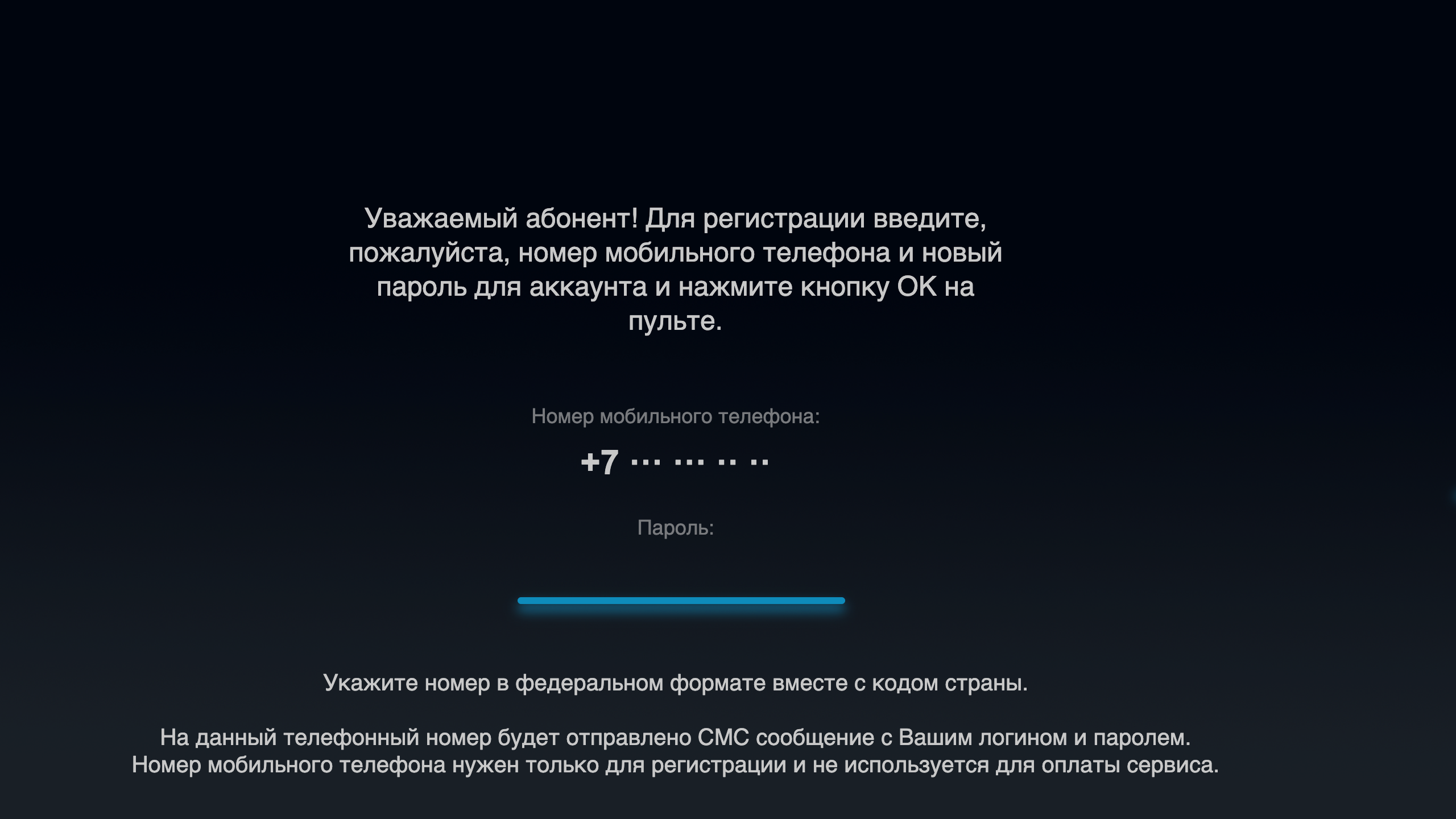
Mobile phone number mask in the registration screen
Option name: registration_phone_mask, data type: string.
By default +7 ??? ??? ?? ??.
The mask uses a special symbol ?, instead of which the input value will be substituted, the remaining characters will be displayed as is.
Example:
var CLIENT_SETTINGS = {
///...
'registration_phone_mask': '+7??????????
};
Display of the button and the ability to change the account
Option name: show_logout_option, data type: bool.
Possible values:
- true In the “My Profile” screen, when you press the yellow button, the user will be able to log out of his account and log in under another account.
- falsely the ability to log out will not be available (by default).
Example:
var CLIENT_SETTINGS = {
///...
'show_logout_option': false
};
Saving the login and password in the input fields on the authorization screen when restarting the application
Option name: restore_login_form_input_from_settings, data type: bool.
Possible values:
- true when restarting the application and in the case of a logout in the input fields, the login and password from the previous session will be filled on the authorization screen.
- falsely the data will not be completed (by default).
It is recommended to use this option in the authorization method password to avoid loss of password by subscribers after logout.
Example:
var CLIENT_SETTINGS = {
///...
'restore_login_form_input_from_settings': false
};
Reboot the device after the first activation
Option name: reboot_device_after_login_with_password, data type: bool.
Possible values:
- true - after the subscriber is authorized with a login and password through the authorization form, the device will be rebooted.
- falsely no reboot will be made, the application will be downloaded as usual (by default).
It can be used to perform system billing operations during the initial “activation” of the prefix by the subscriber.
Example:
var CLIENT_SETTINGS = {
///...
'reboot_device_after_login_with_password': false
};
Disabling the SET button on MAG consoles
Option name: disable_set_button_on_mag, data type: bool.
Possible values:
- true The SET (Setup) button on the MAG console will be blocked.
- falsely the button will work according to the settings in the firmware (by default).
Example:
var CLIENT_SETTINGS = {
///...
'disable_set_button_on_mag': false
};
Selection of the application interface used through account settings in Smarty
Option name: check_account_template, data type: bool.
Possible values:
- true - after authorization of the account, the template installed in the account settings in Smarty will be checked, and if it differs from the application used, it will be rebooted in the desired template (by default).
- falsely The set template in the account settings in Smarty will be ignored.
Example:
var CLIENT_SETTINGS = {
///...
'check_account_template': true
};
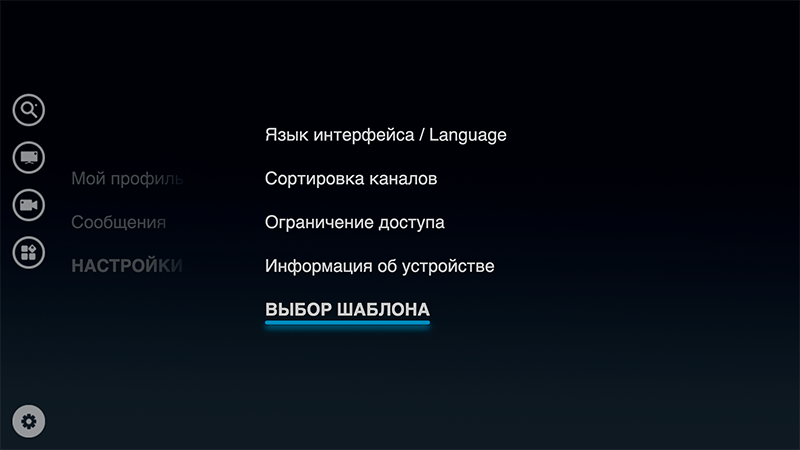
Selection of the interface used on the Settings page
Option name: show_change_template_settings, data type: bool.
Possible values:
- true – on the “Settings” page inside the application, the “Selection of a template” item will be displayed. The list of templates for selection will be formed from the array prescribed in the option
available_templates. - falsely - the item "Select the template" on the settings page will be hidden (by default).
Example:
var CLIENT_SETTINGS = {
///...
-show_change_template_settings': true
};
Suspension of server requests in Stand-By mode
Option name: block_request_in_standby, data type: bool.
Possible values:
- true This includes blocking requests to the server if the device is in Stand-By mode. After leaving Stand-By, sending requests to the server is restored, however, the data in the interface may be outdated for some time.
- falsely Requests do not stop even in Stand-By, the data displayed in the interface does not become outdated (by default).
The option allows you to save server resources in moments of downtime of user devices.
Example:
var CLIENT_SETTINGS = {
///...
'block_requests_in_standby': false
};
Using the system keyboard of the device for input
Option name: use_system_keyboard, data type: bool.
Possible values:
- true - involves using the system keyboard of the device to enter values instead of the built-in application keyboard.
- falsely - the built-in application keyboard is used to enter values (by default).
The option only works for devices that support calling the system keyboard.
Example:
var CLIENT_SETTINGS = {
///...
'use_system_keyboard': true
};
Management logic
Compatibility Mode with Smart TV Platform Guidelines
Option name: samsung_guidelines_compatibility_mode, data type: bool.
Possible values:
- true Enable compatibility mode with the recommendations of Smart TV platforms.
- falsely - disable (by default).
Compatibility mode affects the logic of the portal behavior, including the assignment of remote buttons, and is necessary to include some special restrictions for easier publication in the Samsung and LG app stores.
Example:
var CLIENT_SETTINGS = {
///...
'samsung_guidelines_compatibility_mode': false
};
Switching channels within the selected category
Option name: switching_channels_inside_category, data type: bool.
Possible values:
- true Switching channels with Ch+/- buttons will occur within the selected channel category.
- falsely Switching will occur within the All category, even if another category is selected (by default).
Example:
var CLIENT_SETTINGS = {
///...
'switching_channels_inside_category': false
};
Reproduction of content
Player rewind step
Option name: player_wind_step, data type: int.
Allows you to set the step of rewinding the player in the archive and video library mode in one click of the rewind button. The step is set in seconds, by default 30.
Example:
var CLIENT_SETTINGS = {
///...
'player_rewind_step': 30
};
Volume up/down step
Option name: volume_control_step, data type: int.
By default 5 (percentage points out of 100, where 100 is the maximum volume, 0 is the minimum).
Example:
var CLIENT_SETTINGS = {
///...
'volume_control_step': 5
};
Keeping the selected aspect ratio for each channel separately
Option name: save_aspect_ratio_per_channel, data type: bool.
Possible values:
- true in the application settings on the device, the aspect ratio selected by the user will be stored separately for each channel.
- falsely the last selected aspect ratio common to all channels will be retained (by default).
Example:
var CLIENT_SETTINGS = {
///...
'save_aspect_ratio_per_channel': false
};
Save the selected audio track language for each channel separately
Option name: save_audio_track_lang_per_channel, data type: bool.
Possible values:
- true in the application settings on the device, the user selected audio track language will be stored separately for each channel.
- falsely the last selected language common to all channels will be saved (by default).
Example:
var CLIENT_SETTINGS = {
///...
'save_audio_track_lang_per_channel': false
};
Automatically Hiding Menus When Playing Content
Option name: autohide_timer, data type: int.
Allows you to set a timeout (in minutes), after which the current screen should be hidden and open full-screen player, if at the moment there is a playback of some content.
By default 0 (hidden off).
Example:
var CLIENT_SETTINGS = {
///...
'autohide_timer': 2
};
Configure UDP Proxy on Android devices
Option name: show_udp_proxy_settings, data type: bool.
Possible values:
- true – the settings menu will display the option “UDP Proxy”, with which you can configure the Multicast-links through UDP Proxy.
- falsely - the item will be hidden (by default).
Example:
var CLIENT_SETTINGS = {
///...
'show_udp_proxy_settings': false
};
Setting a special ratio of screen sides when playing movies
Option name: set_default_aspect_ratio_for_vod, data type: bool.
Possible values:
- true after the inclusion of the playback of the film from the video library, the aspect ratio of 16×9 will be forcibly established.
- falsely - the aspect ratio selected earlier by the subscriber will be retained (by default).
Example:
var CLIENT_SETTINGS = {
///...
'set_default_aspect_ratio_for_vod': false
};
Appearances are common
Additional CSS class for body interface
Option name: custom, data type: string.
Allows you to connect an additional class to the body portal tag. It can be used to customize the interface through an additional CSS file.
No default.
Example:
var CLIENT_SETTINGS = {
///...
'custom_body_class': 'custom'
};
Appearance - TV
Depth of TV program display
Option name: max_epg_depth, data type: int.
Determines the EPG depth in days for the TV screen. If the value of the option is greater than 0, the depth will be equal to this value. If the option is not set (or equal to 0), then the archive depth will be used for the channel with the archive max_archive_duration if the channel does not have an archive, the program will be displayed only for the current day.
By default 0.
Example:
var CLIENT_SETTINGS = {
///...
'max_epg_depth': 0
};
Display category "Favorites" for TV channels
Option name: tv_how_favorites, data type: bool.
Possible values:
- true The list of channels will display the category “Favorites” and the user has the opportunity to add channels to their favorites.
- falsely the function will be disabled (by default).
Example:
var CLIENT_SETTINGS = {
///...
'tv_show_favorites': false
};
Appearance - video library
Display of category "News" in the video library
Option name: vod_show_news, data type: bool.
Possible values:
- true - display the category "New" (by default).
- falsely - not display.
Example:
var CLIENT_SETTINGS = {
///...
'vod_show_news': false
};
Display category "Film Packages" in the video library
Option name: vod_show_packages, data type: bool.
Possible values:
- true The list of categories in the video library will show the category “Movie Packages” with movie packages configured in Smarty as packages (by default).
- falsely - the category will be hidden.
Example:
var CLIENT_SETTINGS = {
///...
'vod_show_packages': true
};
Display category "Buyed" in the video library
Option name: vod_show_purchased, data type: bool.
Possible values:
- true In the list of categories in the video library, the category “Buyed” will be shown, containing purchased films (within rent or subscription).
- falsely the category will be hidden (by default).
Example:
var CLIENT_SETTINGS = {
///...
'vod_show_purchased': false
};
Display category "Viewed" in the video library
Option name: vod_show_viewed, data type: bool.
Possible values:
- true In the list of categories in the video library will be shown the category "Viewed", containing watched and under-viewed films.
- falsely the category will be hidden (by default).
Example:
var CLIENT_SETTINGS = {
///...
'vod_show_viewed': false
};
Display category "Favorites" in the video library
Option name: vod_show_favorited, data type: bool.
Possible values:
- true In the list of categories in the video library will be shown the category "Favorites" and the user has the opportunity to add movies to their favorites.
- falsely the function will be disabled (by default).
Example:
var CLIENT_SETTINGS = {
///...
'vod_show_favorited': false
};
Grouping of films by category or genre
Option name: filter_videos_by_genres, data type: bool.
Possible values:
- true movies will be grouped by genre (by default).
- falsely Films will be grouped into categories (genres in Smarty with the option “Is a Category” enabled).
Example:
var CLIENT_SETTINGS = {
///...
'filter_videos_by_genres': true
};
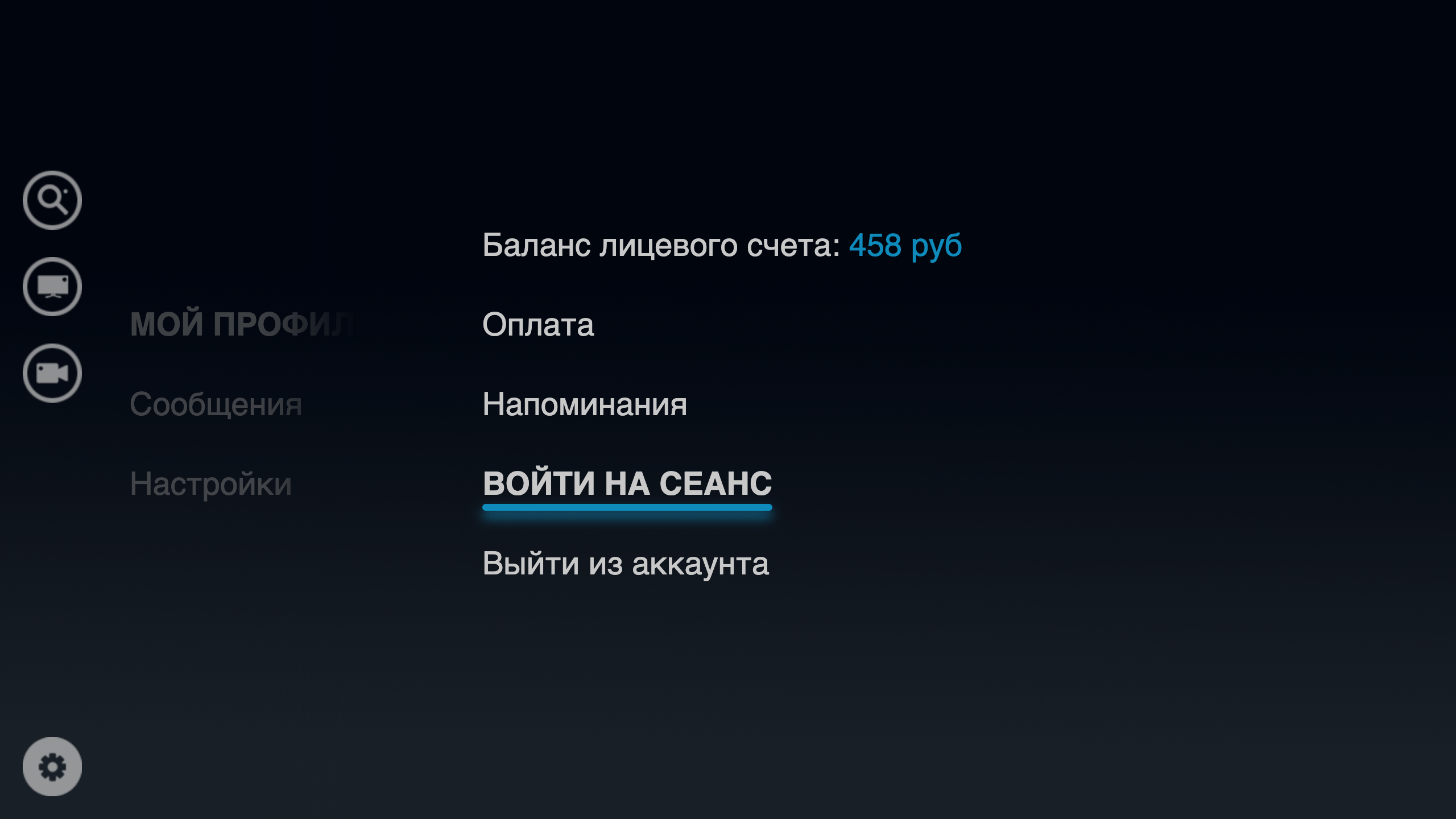
Display of the item "Enter the session"
Option name: show_seances, data type: bool.
Possible values:
- true - the item "Login to the session" will be shown inside the "My profile" section.
- falsely the entry point for the session will not be shown (by default).
The session is a truncated version of the movie, available to the subscriber at a certain time after entering the ticket. The player in the session mode is deprived of the possibility of rewinding or pause (imitation of a real session in the cinema).
Example:
var CLIENT_SETTINGS = {
///...
-show_seances': true
};
How to sort movies by default
Option name: default_vod_sort_order, data type: string.
Possible values:
- - created_at - by the date of addition (first the newest) (by default).
- -kinopoisk_rating - according to the rating of Kinopoisk (first the most popular).
- -imdb_rating According to IMDB rating (first most popular).
- -year the year the film was released (the newest first).
- -premiere_date the release date of the film (the newest first).
- name by name (in alphabetical order).
Example:
var CLIENT_SETTINGS = {
///...
'default_vod_sort_order': "-created_at"
};
