
Below are instructions for installing a portal for STB and Smart TV on a server with Debian OS, as well as configuring its interaction with the Smarty Lite server. Information about setting up certain features and changing the behavior of the portal can be found here: reference.
To work, you will need SSH access to the root server. Installation will be made in console mode through terminal commands. If you need to execute a sudo command to obtain root privileges, you must execute a command before installing:
sudo sudoIt is assumed that the portal is installed on the same server on which the Smarty Lite server is already installed, otherwise errors will occur at the nginx configuration step due to the lack of Smarty Lite settings.
Installation of Nginx Web Server
The portal is a static one-page site consisting of html/css/javascript files. For hosting the portal, you can use the nginx Web server with a basic configuration to distribute statics.
We establish dependencies with the help of apt:
apt update
apt install nginx-common nginx-extras
Installation of portal packages
The portal consists of two types of installation packages:
mw-engine-*.deb— the main code of the portal and mechanisms of interaction with the device.mw-template--*.deb— interface template.
It is necessary to install the portal and mw-engine and any mw-template-*in this case, several different templates of the interface can be installed mw-template-*.
About the features and capabilities of the various interfaces of the portal can be found on this page: reference.
Portal installation packages can be downloaded in your operator’s personal account as well as Smarty Lite packages.
Attention! Always use the latest version
mw-enginetogether with the latest versionsmw-template-*backward compatibility between these packages is not guaranteed when releasing new versions of the portal.Also, when updating Smarty Lite, it is recommended to update the portal to the latest version, since there may be changes in the API that are not supported in the old version of the portal.
Next, install portal packages, for example, we will customize the template futuristic and impulsive:
dpkg -i mw-engine_*.deb
dpkg -i mw-template-*.deb
When an error occurs
dpkg: warning: 'ldconfig' not found in PATH or not executable
dpkg: warning: 'start-stop-daemon' not found in PATH or not executable
execute the following command:
export PATH=/usr/local/sbin:/usr/local/bin:/usr/sbin:/usr/bin:/sbin:/bin
Then try installing the packages again.
Preparation of the configuration of the nginx Web server
Activate the configuration of the portal for nginx and disable the default configuration:
ln -s /etc/nginx/sites-available/portal /etc/nginx/sites-enabled/portal
rm /etc/nginx/sites-enabled/default
By default, the portal connects to the full version of Smarty, so the name smarty is used in the standard configuration. For Smarty Lite, you need to replace the smarty-lite with the following command:
sed -i -e 's/smarty/'smarty-lite'/g' /etc/nginx/sites-available/portal
Create a directory for cache and logs nginx:
mkdir -p /var/cache/nginx
mkdir -p /var/log/nginx/microimpuls/portal
Set the right directory rights for logs and file downloads in Smarty:
chown -R www-data:www-data /usr/share/nginx/html/microimpuls
Restart nginx with current settings:
/etc/init.d/nginx restart
Connecting the portal to Smarty Lite
The portal interacts with the Smarty Lite server via the API. Connection data is set in the portal configuration file /etc/microimpuls/portal/client.js.
After the Smarty Lite installation is completed and the setup_initial_data command is run in Smarty, the first operator with Client ID = 1 is created and a random API key value is generated. This value can be viewed in the control panel Smarty Lite in the section « General settings » → « General settings Client» in the field «TVMW API key»
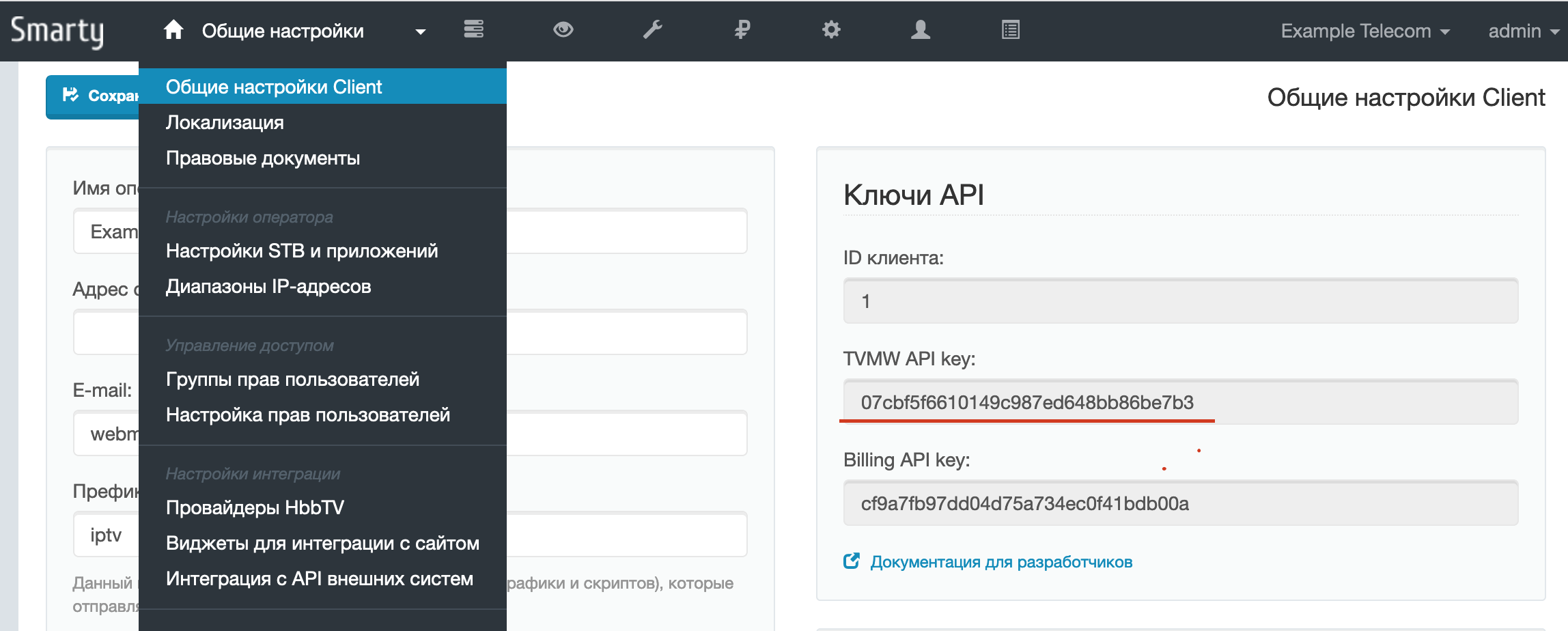
Copy this value (in this example: 07cbf5f6610149c987ed648bb86be7b3) and insert it in the field api_key portal configuration file /etc/microimpuls/portal/client.js:
sed -i -e 's/PUT API KEY HERE/'07cbf5f6610149c987ed648bb86be7b3'/g' /etc/microimpuls/portal/client.js
In the Nginx configuration, a special location is set by default /api, which directs requests to the API in the uwsgi-socket Smarty Lite, so the standard parameter value api_url you don't have to change.
You can find out more about the options for connecting the portal to Smarty and other settings on this page: reference.
After that, open the portal in the browser to check the correct setting by entering the server IP address (default port 80). If done correctly, you should see the authorization screen:
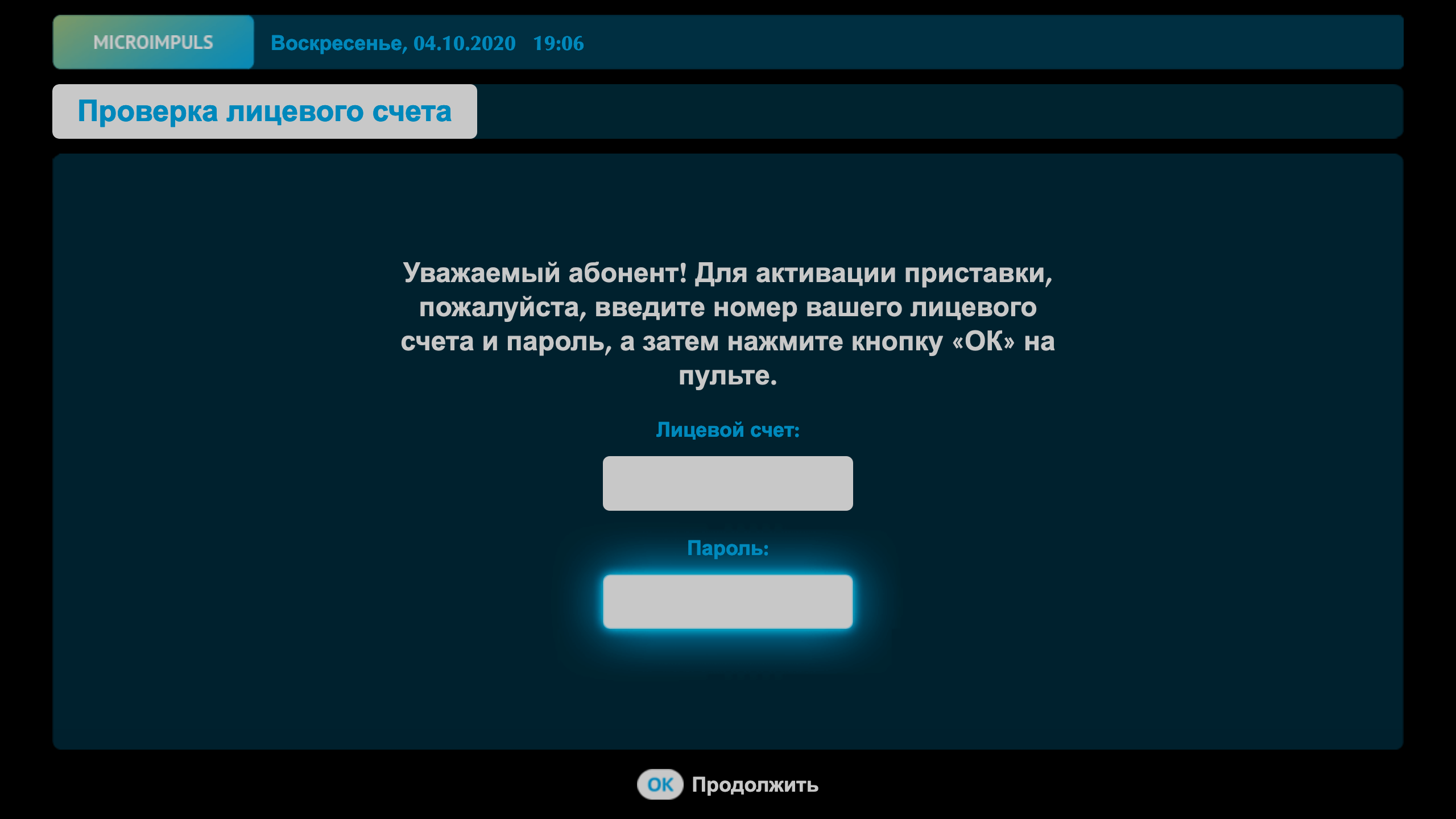
To log in, use the login and password of the demo account 123: 123.
To open the portal on the set-top box, specify in the device settings the same portal address as in the browser.
