
Creation of a backup copy
Before updating, you need to make a copy of the old version of Smarty Lite!
There are two ways to back up Smarty Lite: team or on your own. Below is an instruction on how to do it yourself.
To create a copy of the old version of Smarty Lite, you need to go to /usr/share/microimpuls/smarty-lite and transfer all files to the backup directory, except for the media folderbecause it takes up a lot of space.
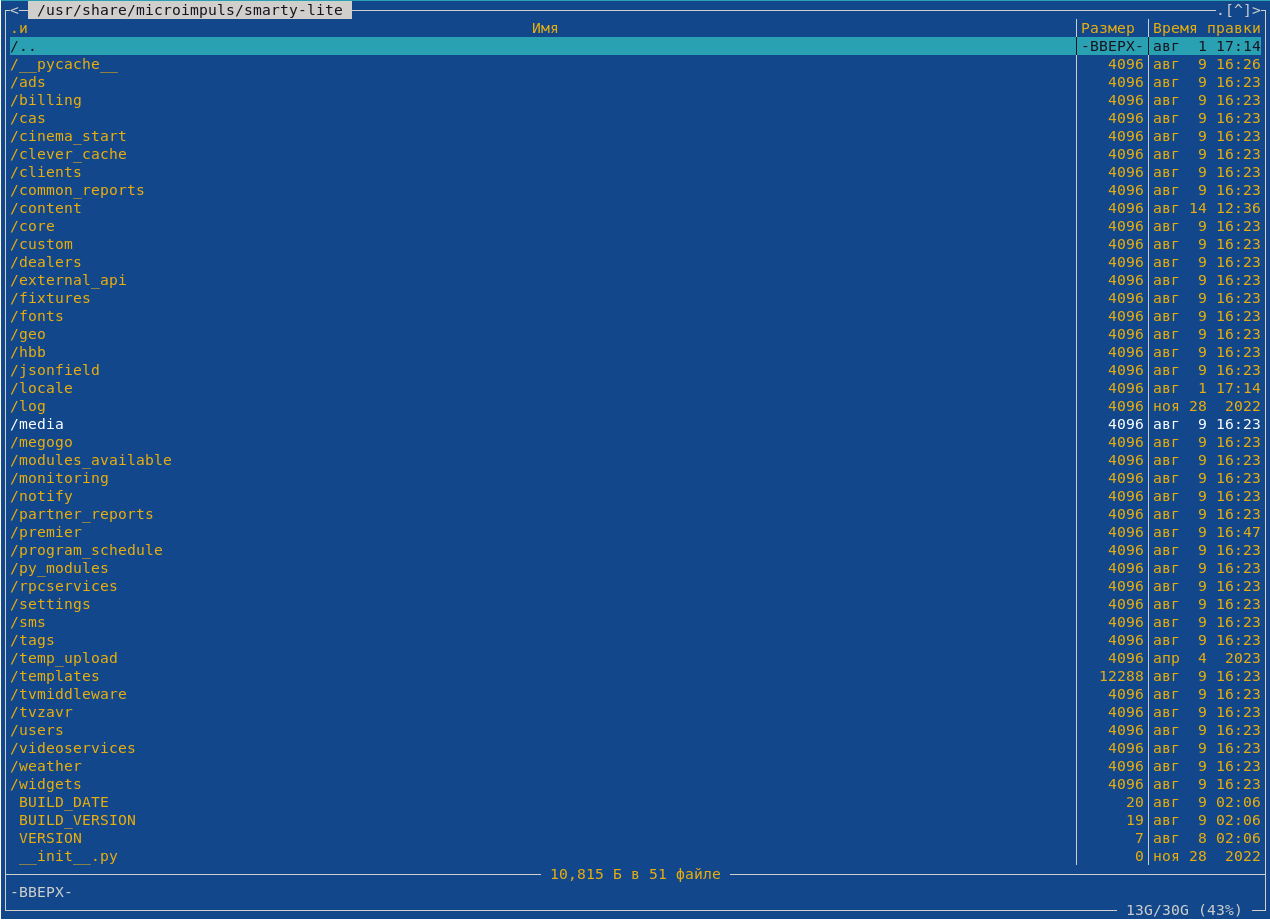

Smarty Lite Update
After creating a copy, you need to download the packages for updating, access to which is opened in private-room. To deploy the package, use the command:
dpkg -i smarty-lite*.debFor Debian 11 and below
After installing the deb package, you need to update the python libraries:
pip install -r /usr/share/microimpuls/smarty-lite/requirements.txtMigration should be applied further:
smart_manage migrateAnd restart the service:
service uwsgi restartFor Debian 12 and above
After installing the deb package, you need to update the python libraries:
smart_manage requirementsMigration should be applied further:
smart_manage migrateAnd restart the service:
smart_manage reloadProhibition of renewal during high load hours
We strongly recommend not to carry out updates on weekends and holidays, as well as during the hours of the highest load of the service from subscribers. In case of any critical problems, we will not be able to assist you outside of working hours.
Actions in a simple server
If after updating the admin Smarty ceased to open or the application stopped working, then first you should check the uwsgi logs/var/log/uwsgi) and the file contents /var/log/microimpuls/smarty-lite/smarty_traceback.log. The error text will reveal the essence of the problem, as a rule, it lies in the fact that the Smarty Lite instance fails to connect to any of the components.
Possible problems with updating
Choosing the wrong version of Smarty Lite
If there are problems during the migration, then there is a possibility that a deb package was selected that is not suitable for the current version of the OS on the server.
Recommendations for correction
First, you need to know the version of Debian you want to update. For that, you need to prescribe a team
lsb_release -a
and reinstall the deb package for the current version of the migration operating system.
Stopping migration to the new version
Mistakes in migration can cause them to stop.
Recommendations for correction
- You shouldn't run the team
smarty_manage makemigrations - All files with migrations must be deleted
- You need to reinstall the deb package with the update
- Launch the team
smarty_manage migrate
If the above actions did not help to resume migration, it is necessary to write Technical support or email support@microimpuls.com if you have an extended service Technical support.
Form of submission of a letter with a problem
- Operating system
- Operating system version
- Used version of Python
- What version of Smarty Lite was before the update
- What version of Smarty Lite is installed
- An error message.
Incorrect configuration of cron
For the correct operation of the service, the correct and timely launch of management teams on schedule is necessary. Incorrectly configured cron can lead, for example, to an empty list of channels and other problems within the application.
Recommendations for correction
You need to check the writing of commands in the file /etc/crontab. The teams should look as follows:
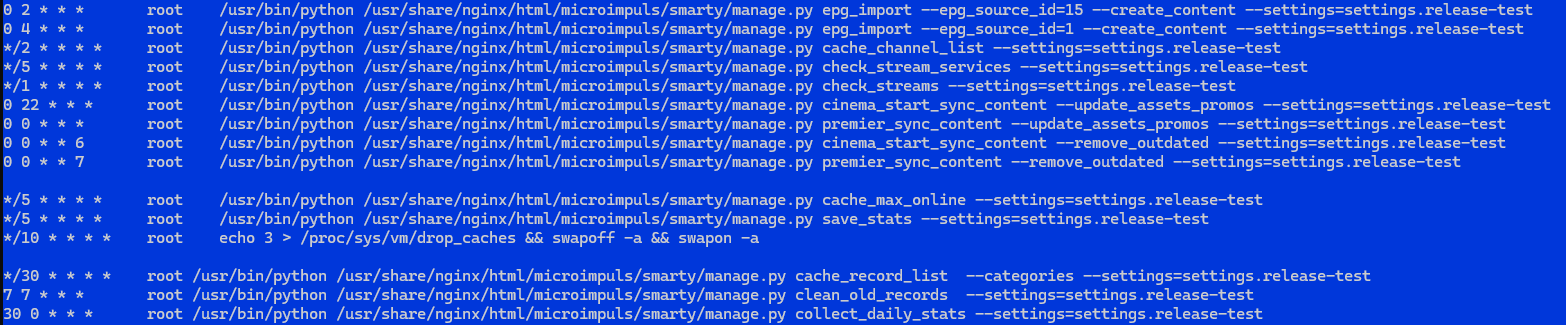
Smarty_manage makemigrations
When migrating, there may be an offer to start a team
smarty_manage makemigrations
This cannot be done under any circumstancesAs a result, Smarty Lite may not start.
Recommendations for correction
If the team makemigrations the only solution to the problem is to restore the Smarty Lite from a pre-made backup.
Rejection of base.py file update
When you update Smarty Lite, the question may appear “Update the base.py file?”. This question should always be accepted, otherwise there may be errors associated with uninitiated variables.
Recommendations for correction
Option 1: restore Smarty Lite from a pre-made backup and reintroduce the update by agreeing to the base.py file update.
Option 2: unpack the deb package in a separate folder, find the file base.py and manually transfer it to a folder with Smarty Lite.
